
A plan that creates its tune-up visits at enrollment can also put them on the calendar by itself. Turn on Schedule visits automatically and each member's unscheduled visit is booked into an open morning or afternoon that fits the months the visit belongs to and the days the member prefers. The member gets a text or email with the date and a link to move it, and your office sees the visit on the dispatch board with no tech assigned, ready to route.
The switch starts off on every plan. Nothing is booked until you turn it on.
Before you start
- You need to be an owner or admin to change a plan.
- The plan must have Create the visits when a customer enrolls turned on. Automatic scheduling only books visits that already exist.
- Your business hours are set under Settings → Business. Visits are booked inside them.
Turn it on for a plan
Go to Memberships → Plans, open the plan and find Schedule visits automatically under the visits section.
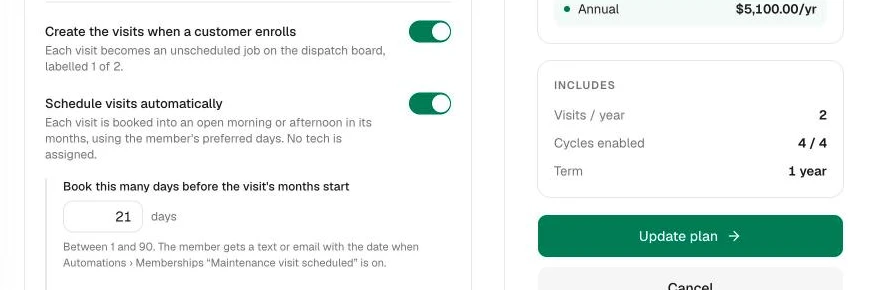
- Turn on Schedule visits automatically.
- Set Book this many days before the visit's months start. This is how far ahead the booking is made, so the member has time to move it. 14 days is a sensible start.
- Save the plan. The plan card now shows Booked automatically.
Let members tell you when visits work best
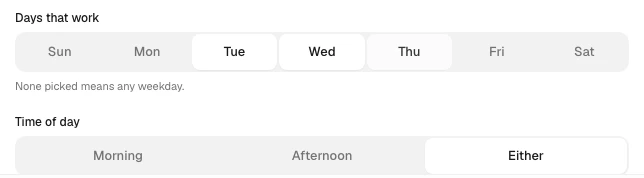
Every member can say which weekdays suit them, whether mornings or afternoons are better, and which months each visit should land in. The automatic booking follows those answers.
| Where | Who fills it in |
|---|---|
| Membership page → Visits | Your office, under When do visits work best?: Days that work, Time of day (Morning, Afternoon or Either), and a row of Months per visit. |
| The customer's enrollment link | The customer, on the same questions, when they enroll themselves. |
Nothing picked means any weekday, either half of the day, and the plan's default months.
How the booking is made
Once a day, in the morning, Run a Call looks at every plan with the switch on and books each visit whose window is about to open:
- It picks the first open morning or afternoon inside the visit's months, on one of the member's weekdays, at least 3 days out.
- It never books more automatic visits into one morning or afternoon than your cap allows (see below), so one day never fills up with tune-ups.
- No tech is assigned. The visit lands on the dispatch board in the unscheduled rail for that day, and your dispatcher routes it like any other job.
- The visit card on the membership page reads Picked automatically with the day and the arrival window.
A visit a person already booked is never moved. If the office or the member books it first, the automatic pass leaves it alone.
Tell the member
The member only hears about the booking if the touchpoint is on. Go to Automations and turn on Email members the date their visit was booked automatically in the Memberships folder and, once business texting is active, Text members the date their visit was booked automatically in the Texting folder. Both start off. The message carries the day, the arrival window and a Pick a new time link, the same link the maintenance visit reminders use, so the member can move the visit themselves.
The daily cap
Under the switch in the plan form, At most N automatic visits per morning or afternoon sets how many automatic bookings can share one half-day. It is one setting for the whole company, so changing it on one plan changes it for every plan. The default is 2. Raise it if you have several maintenance techs; lower it in busy seasons.
When a visit can't be booked
Two cases are left for a person, each with one internal note on the visit so the office sees it in the tune-ups due list:
| Note | What happened |
|---|---|
| Its … window has passed — book it by hand | The switch was turned on, or the visit was created, after the months it belongs to had already started. |
| Couldn't find an open morning or afternoon in … — book it by hand | Every half-day in those months was full or outside your hours. |
The note is written once; the visit stays unscheduled until someone books it.
Good to know
- Turning the switch off stops future bookings. Visits already booked stay where they are.
- Members who prefer weekends can't be booked automatically when you don't work weekends; the office books those by hand.
- Moving an automatic visit works the same as any job: drag it on the dispatch board, change it on the job, or let the member use the link in their message.