
Call scripts are the questions your team asks on every inbound call: "Are you the homeowner?", "How old is the system?". Build them once, and your CSRs open them from the call panel with one click, so no caller gets half the questions.
Before you start
- Voice must be on, because scripts are used during calls in the browser.
- Owners and admins build scripts from Settings → Phone → Scripts & outcomes. Anyone who answers calls in the office (owner, admin, staff) can use them on a call.
Open Scripts & outcomes
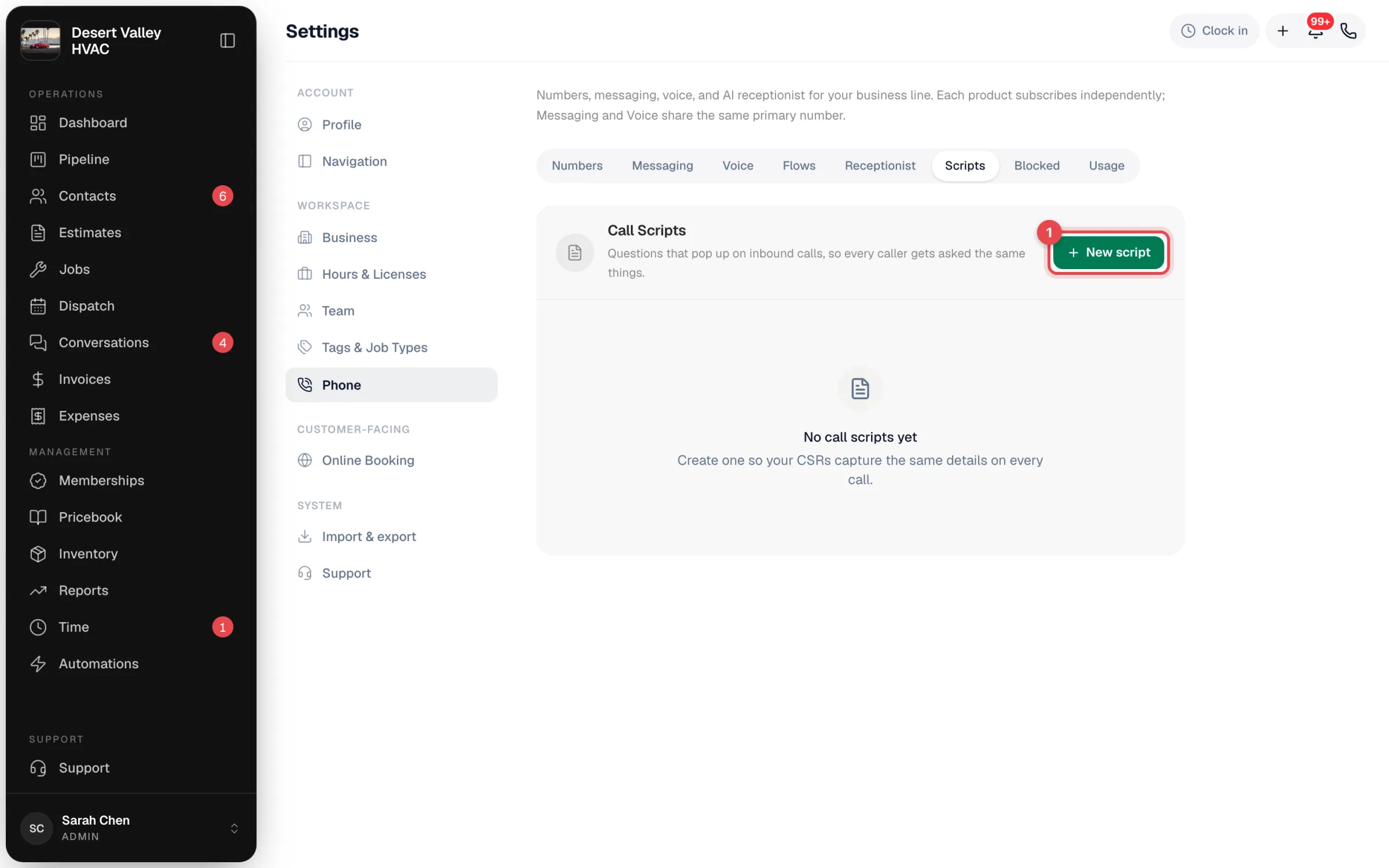
Go to Settings → Phone → Scripts & outcomes and click New script.
Name it and add questions
| Field | What to enter |
|---|---|
| Script name | A name your team recognises, for example "New customer intake" or "Service call triage". |
| Description (optional) | When to use this script. |
| Default script | Switch on for the script that opens first during calls. Only one script can be the default; the others stay available in the in-call picker. |
| Questions | Each question has the wording, an answer type and a Required switch. Click Add question for more. |
Answer types:
| Type | The CSR gets |
|---|---|
| Text | A free-text box. |
| Yes / No | A switch. |
| Number | A number box, for example system age. |
| Multiple choice | A dropdown. Type the choices separated by commas, for example "Owner, Renter, Property manager". |
Tip
Ask your CSRs to repeat phone numbers and emails back to the caller. Put that in the question itself: "Best phone (repeat it back to confirm)".
Save
Click Save script.
Using a script on a call
- Answer the call. In the call panel, click Intake. (The button appears once your account has at least one script with a question.)
- The default script opens. If you have more than one, switch scripts at the top.
- Type the answers as you talk.
- For a known customer, click Save intake. For a new caller there's a second step: enter their first and last name, phone and email, and click Create customer & save. The call panel then switches to Schedule job for the new customer.
The answers are saved with the call. Open the call in Conversations → Calls to see them later.