
With Voice on, your office makes and takes calls right in the browser. Incoming calls pop up with who's calling and their history, and outgoing calls show your business number, never a personal cell.
Before you start
- Voice must be on for your account. See Run a Call Phone overview.
- Calls ring and dial on a desktop or laptop computer in a web browser. Use a headset for the best sound.
- Office roles (owner, admin, staff) can take calls. Field techs call customers from their jobs in the mobile app instead.
- The first time you call, your browser asks for the microphone. Choose Allow on every visit so calls connect without asking again.
Making a call
Click the green phone button at the top right of any page to open the dial pad.
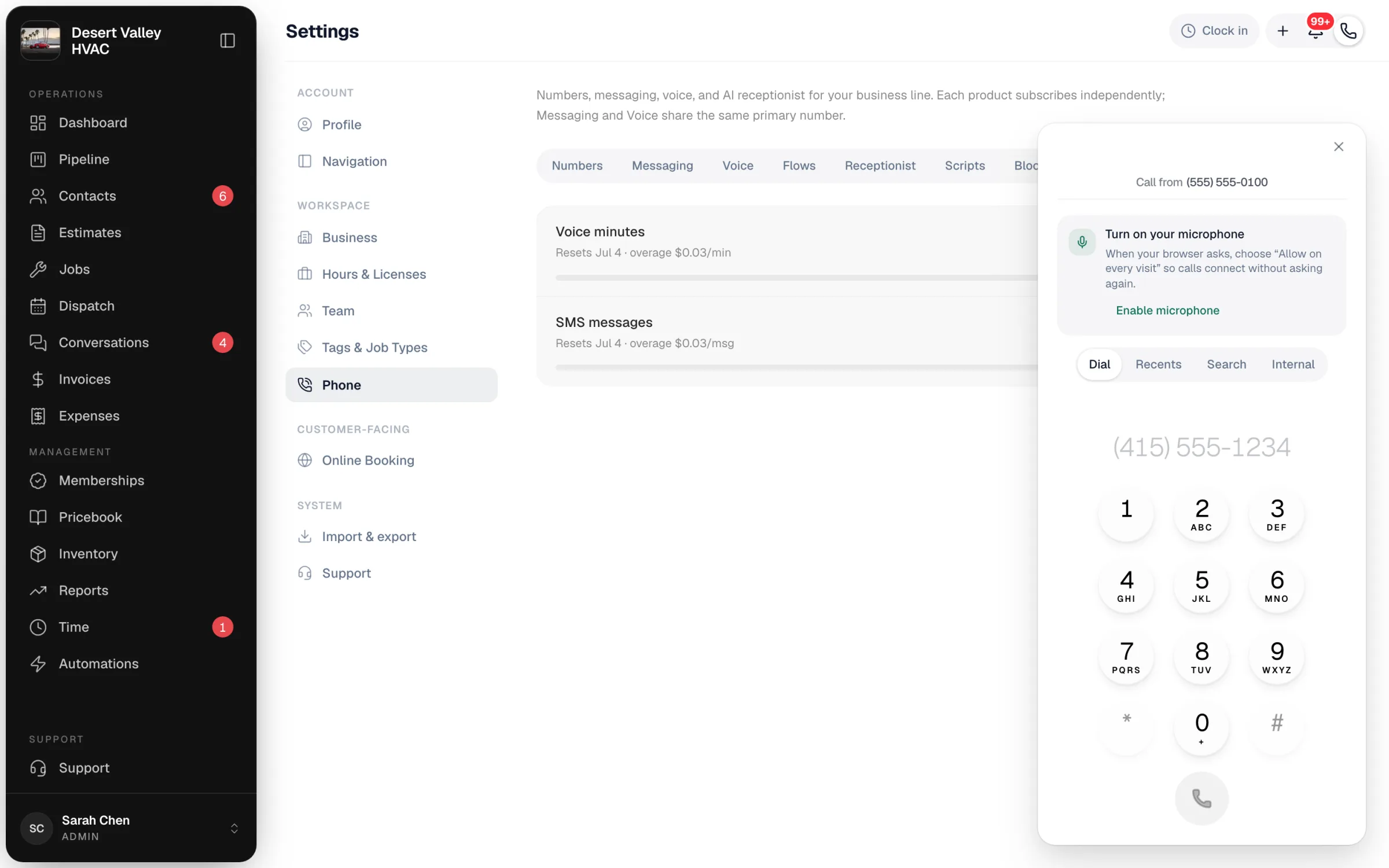
| Tab | Use it to |
|---|---|
| Dial | Type or paste a number and press the call button. |
| Recents | Call back someone from your recent calls. |
| Search | Find a customer by name and call them. |
| Internal | Call a teammate inside Run a Call. |
Call from at the top shows which of your numbers the customer sees. If you have more than one number, click it to pick another line.
You can also click any phone number or Call button on a customer, job or call page to start the same call.
Answering a call
When a call comes in, a card appears at the top right of the screen for everyone who is available, with your chosen ringtone. It shows the caller's name if they're in Contacts, their address, past jobs, last visit and anything they owe.
| Button | What it does |
|---|---|
| Answer | Takes the call. The card disappears for everyone else. |
| Open profile | Opens the customer's page (known callers only). |
| Decline (red button) | Stops the ringing for you. The call keeps ringing for teammates. |
Who gets rung, and what happens if nobody answers, is set by your call routing or call flow. Out of the box: everyone available rings, and after 30 seconds with no answer the call goes to voicemail or the AI receptionist.
During a call
The call panel stays on screen while you work in the rest of the app. Hide it to keep working; the call carries on and a pill in the top bar brings it back.
| Control | What it does |
|---|---|
| Intake | Opens your intake questions for this call. Appears when you've set up call scripts. |
| Schedule job / Create customer | Book a job for this caller, or add them as a customer first if they're new. |
| Transfer | Warm-transfer to a teammate. They ring on their screen; once they pick up, click Leave call to drop off. |
| Hold | Puts the customer on hold (the button reads On hold). Click again to resume. |
| Mute | Mutes your microphone. |
| Pause recording | Stops recording for a moment, for example while a customer reads out card details. Click again to resume. |
| Keypad | Sends key presses, for example to get through another company's phone menu. |
| Hang up | Ends the call. |
After the call
When you hang up, the Call wrap-up panel opens. With AI wrap-up on, it's already filled in from the transcript: who called, the address, equipment, urgency and a suggested outcome such as Booked a visit or Needs a call back. Check it, change anything that's off, and click Save wrap-up. The panel's Quick actions let you Schedule job, Send estimate, Send SMS or Mark spam without leaving the call record. See Booking new jobs directly from a call.
The call, its recording and transcript appear in Conversations → Calls.
Stop calls ringing for you
Go to Settings → Profile and switch off Available for calls. You stop getting the popup and ringtone, and any call you're already on keeps going. Switch it back on when you're ready.

Personal call settings
| Setting | Where |
|---|---|
| Incoming call ringtone (Classic, Chime, Trill, Bell, Marimba or No ringtone) | Owners and admins: Settings → Phone → Voice. Staff: Settings → Profile. |
| Dial pad appearance (Light or Dark) | Settings → Phone → Voice |
| Phone alerts for missed calls and new voicemails | Same place as the ringtone. See Missed calls and voicemails. |
On the mobile app
Field techs can call a customer from a job in the mobile app. With Voice on, tapping the number offers Call from business line (the customer sees your business number) or Call using my phone (shows the tech's personal number). Incoming office calls don't ring on phones or tablets.