
A customer has one billing address — where bills go — and one or more service addresses (properties) where the work happens. Most homeowners have the same address for both; landlords and businesses often don't. You can change either one without touching the other.
| Address | What it's for | Where you change it |
|---|---|---|
| Billing address | The Bill to block on invoice PDFs and the customer's address in QuickBooks. One per customer. | ⋯ → Edit customer |
| Service address | Where techs drive to. Each job belongs to one. | The Properties tab |
Who can do this
Anyone whose role can edit customers — by default owners, admins and dispatchers.
Open the customer and click Edit customer
Open the customer from Contacts. In the header, click ⋯ and choose Edit customer.
Change the billing address
In the Edit customer window, find Billing address. Start typing and pick the address from the suggestions — the city, state and ZIP fill in for you. Add a suite or unit number in the field below it if needed.
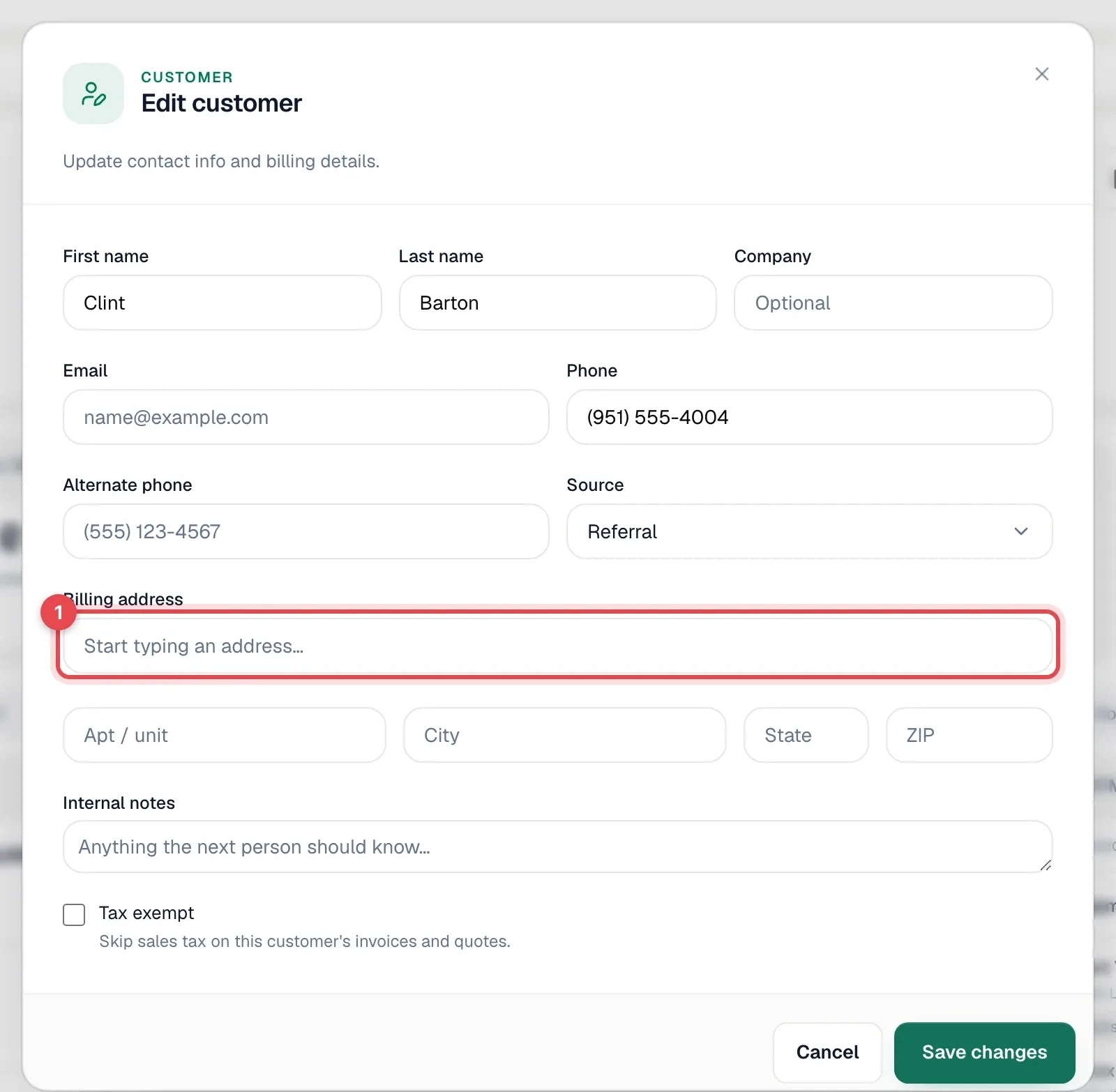
Save
Click Save changes.
What changes after you save
- Invoice PDFs use the customer's current billing address. Any invoice PDF you download or send from now on — including older invoices — shows the new address.
- When there's no billing address, invoice PDFs and QuickBooks fall back to the service address, so the Bill to block is never blank.
- QuickBooks Online: if you're connected, the customer's billing address is updated in QuickBooks too.
A billing address is set automatically when you create a customer with Billing address same as service address checked, or when you add the first address to a customer who has no billing address and leave that same box checked.
Changing a service address
If the address where you do the work changed:
- Open the Properties tab.
- On the property card, click ⋯ → Edit address.
- Update it and click Save changes.
If the customer moved to a new home, add the new home with Add an address instead of editing the old one — the old property keeps its visits and equipment. See Adding multiple properties for one customer.
Common situations
| Situation | What to do |
|---|---|
| Customer moved | Add the new home as a property and update the billing address. |
| A property manager now pays the bills | Change the billing address to the manager's office; leave the service address alone. Consider adding the manager on the Contacts tab too. |
| A business opened another location | Add a property (or a site, if each location needs its own contacts and balance). Keep the billing address. |