
A customer's profile is the one page that answers "who is this, what do they owe, and what have we done for them?" Open it by clicking a name under Contacts, from search, or from the customer's name on any job, estimate, invoice or call.
Finding a customer
The Contacts list shows everyone — leads and customers — with their tags, phone, email, Status, Source, last contact and created date. Above the list:
| Control | What it does |
|---|---|
| Search by name, phone, or email… | Finds a contact as you type. |
| Created | Contacts added in a date range. |
| Lead status | Lead, Prospect, Quoted, Customer or Inactive. |
| Membership | Members only or Non-members. |
| Source | Contacts from the sources you pick. |
| Tags | Contacts with any of the tags you pick. |
| Board | Opens the same contacts as cards on Pipeline → Contacts. |
Click a column header such as Name or Created to sort. Members show a Member badge next to their name.
The header: who they are and what to do next
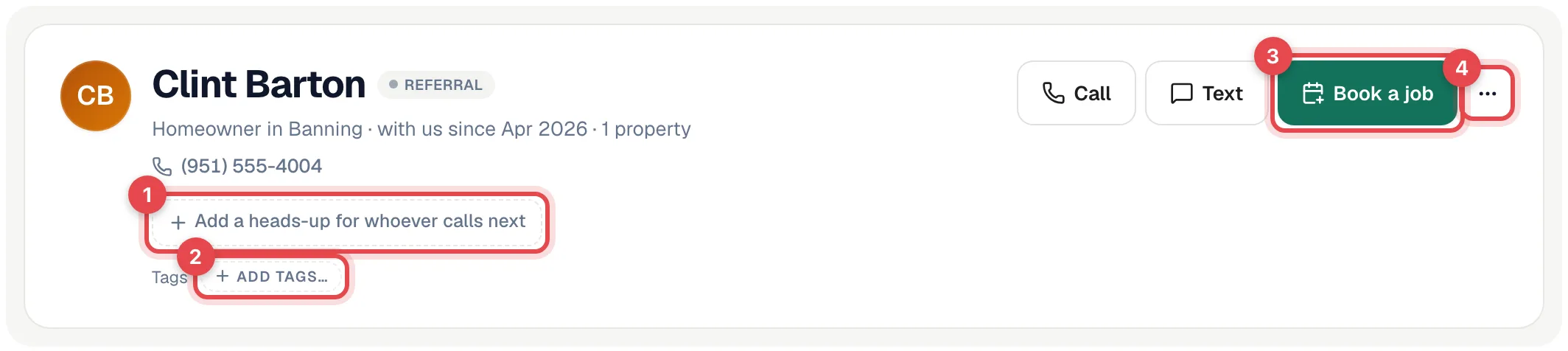
The header shows the name, a small chip with how they found you (for example REFERRAL), a Member badge if they're on a service plan, and a one-line summary such as Homeowner in Banning · with us since Apr 2026 · 1 property. Below that:
| Item | What it does |
|---|---|
| Phone and email | Click the phone number to call from Run a Call. Click the email to write them an email from the app (if your role can send messages). |
| Opted out of texts | Appears if the customer replied STOP. Texting is turned off until they reply START. |
| Might be a duplicate of… | Appears when another contact shares their phone, email or name. Compare opens the merge window — see Finding and merging duplicate customers. |
| (1) Add a heads-up for whoever calls next | Short flags such as VIP, Sensitive or Do not service that everyone sees before talking to the customer. See Heads-up flags, notes and files. |
| (2) Tags | Click Add tags… to label the customer. See Tagging customers. |
| Call, Text | Text is greyed out when there's no phone number or they opted out. |
| (3) Book a job | Starts a new job with this customer already filled in. |
| (4) More (⋯) | New estimate, Set regular tech, Edit customer, Merge with another customer and Delete customer. |
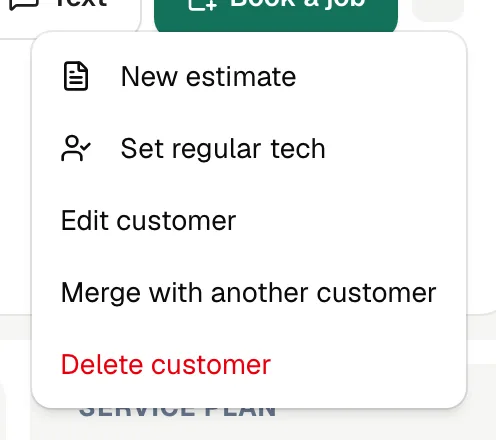
Your shop may call estimates something else, such as Quote or Proposal. Wherever this article says "estimate", the app uses your word.
The four tiles: the money and the relationship at a glance
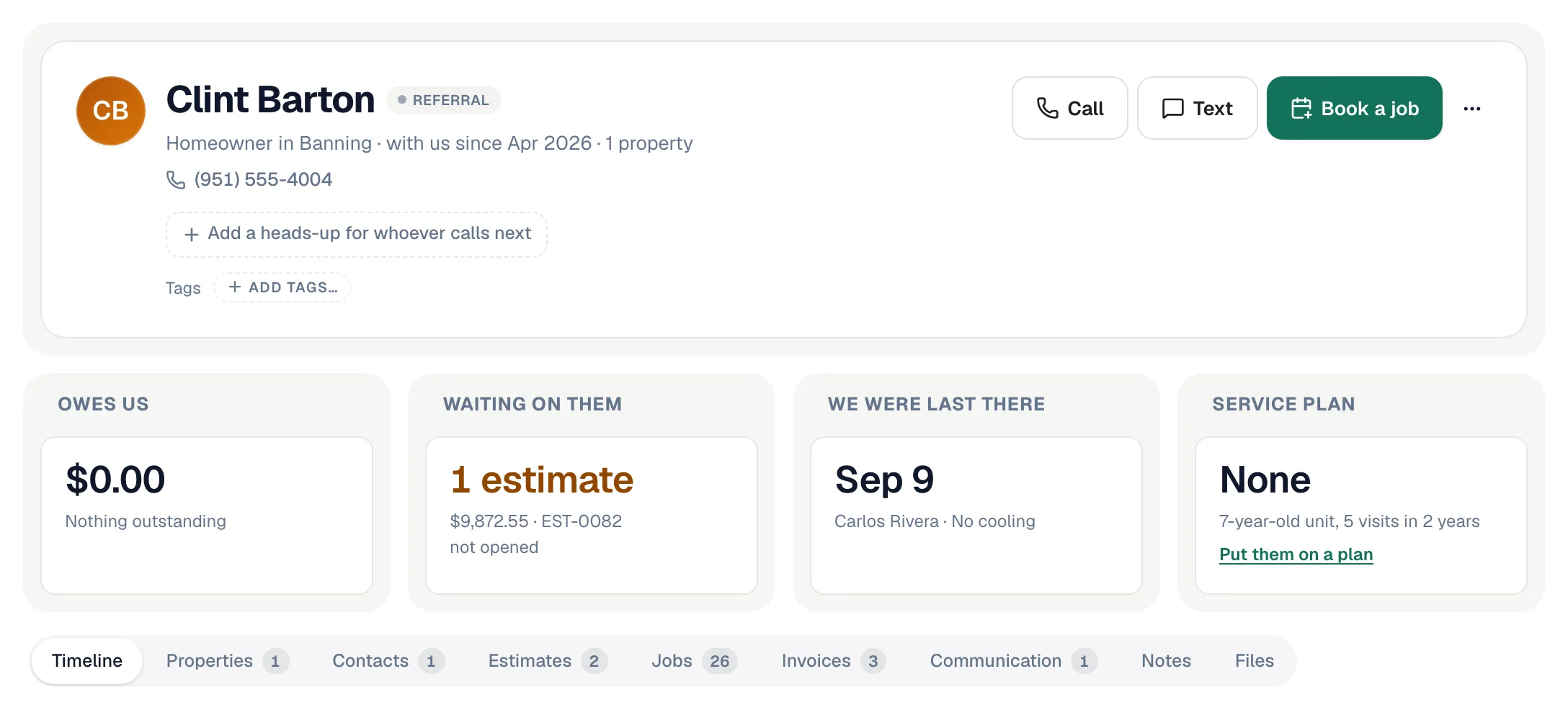
| Tile | What it tells you |
|---|---|
| Owes us | Their unpaid invoice balance, how many invoices make it up, and how many days late the oldest one is. |
| Waiting on them | Estimates they haven't answered yet, with the amount and whether they've opened it. |
| We were last there | The date and tech of the last visit. |
| Service plan | Their membership, or — if they don't have one — a nudge to Put them on a plan based on the age of their equipment and how often you visit. |
A few customers also show a Service plan or Financing section under the tiles when they have a membership or a financing application.
The tabs
| Tab | What's in it |
|---|---|
| Timeline | Open right now (booked jobs and unanswered estimates), then What we've done — every job, estimate, invoice, call, text and note in one story, newest first. Turn on Hide automated texts to fold away reminders. See Viewing a customer's service history. |
| Properties | Every service address, with the equipment at each. Navigate, Book here, Add equipment and Add an address live here. See Adding multiple properties for one customer. |
| Sites | Only on a parent account that has sites under it. See Commercial accounts with several sites. |
| Contacts | The main contact plus anyone else at the account — a spouse, a property manager, accounts payable. See Adding extra contacts to a customer. |
| Estimates, Jobs, Invoices | Their records, newest first, with status. Click any row to open it. On Invoices, Record one payment for all appears when several invoices are open. |
| Cards on file | Saved payment cards. This tab only appears when card on file is turned on for your account. See Keeping a customer's card on file. |
| Communication | Their calls and texts in one thread. You can text them right here, or click Open in Messages. |
| Notes | Internal notes about the customer. |
| Files | Contracts, old invoices, warranty paperwork — anything that belongs to the customer rather than one job. |
The right-hand column
Next to the tabs you'll see the customer's Equipment (grouped by system and property, with age and warranty), Their property (click Manage to jump to Properties), and Regular tech.
Regular tech is the tech this customer prefers. Click Set a regular tech (or Change) to pick one. You can also use ⋯ → Set regular tech in the header.
Who can change what
Anyone who can see customers can open a profile. Editing the customer, adding addresses, notes, flags and files, merging and deleting need permission to edit customers — by default owners, admins and dispatchers. Field techs see customer details in the mobile app for the jobs they're on.