
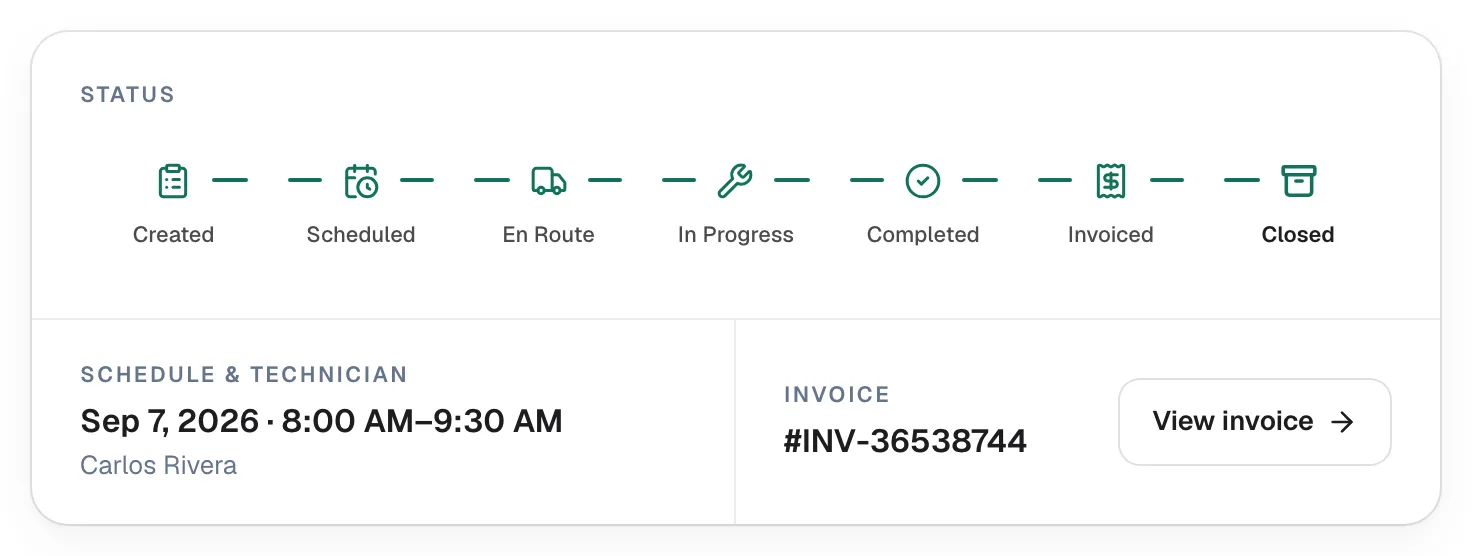
Finishing a job happens in three steps: the work is marked Completed, you create the invoice, and the job closes on its own once the invoice is paid. This article walks through each one, from the field and from the office.
Complete the job
From the field (most common)
When the work is done, the tech taps Complete Job at the bottom of the job in the mobile app. Before that, they usually:
- add parts and labor under Parts and labor,
- take photos,
- fill in any forms attached to the job (a form with required items shows a required count until it's done),
- collect a signature or payment if needed.
None of these are enforced — Complete Job works either way — so agree with your team on what "done" means.
From the office
If the tech forgot, or you're logging a visit after the fact:
- Open the job and click Change status.
- Choose Completed.
- If the tech never marked the job in progress, a Mark job as completed dialog opens. Add an optional Reason for completion (saved as an internal note) and click Mark completed.
What completing does
- The customer can get a job-done text, if Text the customer when the job's done is on in Automations.
- The customer can get an emailed visit report, if Email the customer a visit report when the job's done is on.
- Labor hours and job costs are calculated for job costing.
- If the visit is covered by a membership, it's counted as used.
- The office gets a Job completed notification.
- For install jobs with no equipment recorded, you're asked Add installed equipment?
Completing a job does not create the invoice or lock the job — you can still add parts and labor until an invoice has been sent.
Create the invoice
On a completed job, the status card shows Create invoice (or Add line items if the job has none yet).
- Click Create invoice.
- Check the preview and Payment terms.
- Click Generate invoice.
A draft invoice with every line item from the job opens, ready to send. The job moves to Invoiced. See How to create and send an invoice.
You can't create the invoice while the tech is still on the way or on site — the button reads Mark completed until the job is completed. A scheduled job can be invoiced up front (for a deposit, for example).
The job closes when it's paid
When the invoice is paid in full, the job moves to Closed automatically. With a payment schedule (deposit and progress payments), it closes once every payment is in. You don't need to close jobs by hand.
Where finished jobs show up
| Status | Where to find it |
|---|---|
| Completed | Jobs list (filter Status: Completed), the Completed tile at the top of Jobs, the Pipeline Jobs board |
| Invoiced | Jobs list, and the invoice on the Invoices page |
| Closed | Jobs list and the customer's Jobs tab |
Good to know
- Line items lock once the invoice goes out. After the invoice is sent (or viewed, paid, partly paid or overdue), the job's parts and labor can't be edited — change the invoice instead.
- Need to undo a completion? Owners and admins can use Change status → Move back. See How to update a job's status.
- Want to send the customer a summary? Use ⋯ → Send report to customer on any completed job. See Printing and emailing a service report.