
Not every customer pays online. When you're paid by cash, check, bank transfer, a financing company or a card machine outside Run a Call, record the payment on the invoice. The balance, the invoice status and your books then match what actually happened.
Who can record payments
Anyone whose role can edit invoices. By default that's owners, admins, dispatchers and field techs (techs only on their own jobs). Only owners and admins see the option to remove a recorded payment.
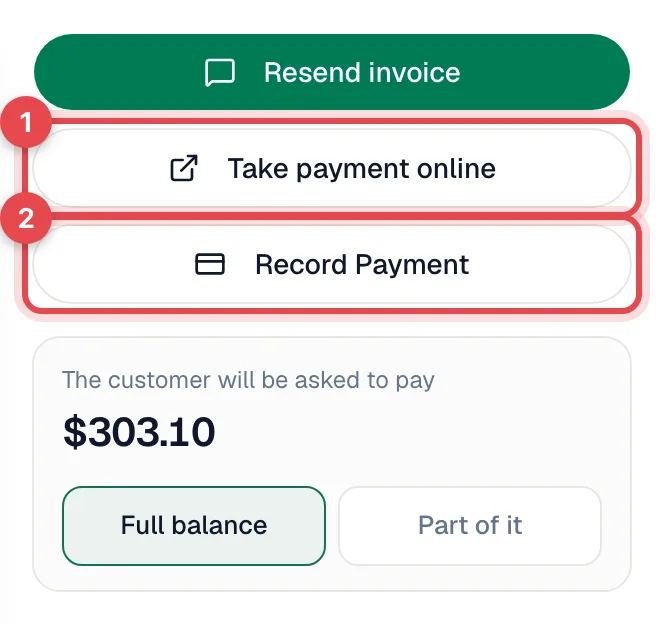
Open the invoice and click Record Payment
The Record Payment button is in the right-hand panel of any invoice that still has a balance.
Pick how they paid
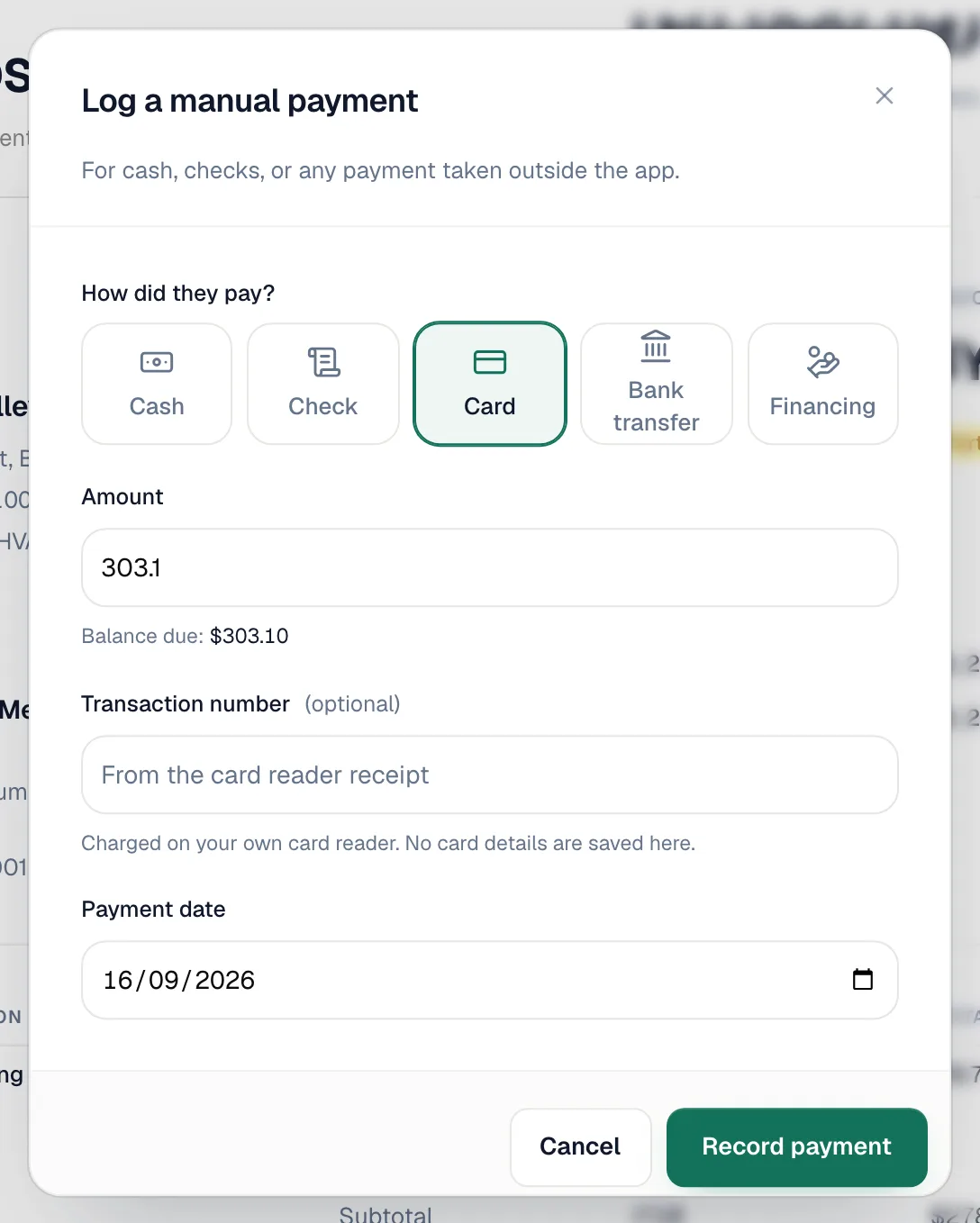
The Log a manual payment window asks How did they pay? Pick one:
| Method | Use it for | Extra fields |
|---|---|---|
| Cash | Cash in hand | — |
| Check | A paper check | A check you fill in, with Check number and Received from (both optional) |
| Card | A card run on a machine that isn't connected to Run a Call | Transaction number (optional). No card details are saved. |
| Bank transfer | Then choose ACH, Zelle or Wire | Transaction number and Received from (both optional) |
| Financing | A payout from a financing company | — |
If you've added your own payment methods, such as GreenSky or Money Order, they show as extra choices under the matching method. See Custom payment methods.
Check the amount and date
- Amount starts at the full balance. Lower it for a partial payment, or click Use full amount to put it back. You can't record more than the balance.
- Payment date defaults to today. Change it when you're logging a check that arrived earlier. Future dates aren't allowed.
Click Record payment
You see Payment recorded. The invoice changes to Paid, or Partial if a balance remains, and the payment appears under Payment History. When the invoice is paid in full and the work is done, the job closes by itself.
Record one check for several invoices
Commercial customers often send one check for several invoices:
- Open the customer and go to the Invoices tab.
- Click Record one payment for all. The link appears when the customer has more than one open invoice.
- Enter the payment once, then set how much goes to each invoice.
- Confirm. Any amount you don't apply stays on the customer as unapplied credit.
Record a payment in the field
In the mobile app, the tech opens the job's invoice. Under Collect payment on site they tap:
- Cash · $X
- Check · $X — asks for the Check number and who it's from, or they can tap Continue without a check number
- Zelle · $X
- Card · $X
- any custom methods you've made visible to techs
To take part of the balance, or to mix methods (half cash, half check), they tap Split payment and enter each amount.
Before the payment is saved, the customer signs on the phone. Signing confirms both the work and the payment. See Taking payments on mobile.
Where recorded payments show up
| Place | What you see |
|---|---|
| Invoice | Under Payment History, with date, method and amount. |
| Customer pay page | The customer's Payment history and the updated amount due. |
| Import & export | Settings → Import & export → Payments gives you a spreadsheet of every payment with its method (owners and admins). |
| QuickBooks | If you've connected QuickBooks, the payment syncs to the matching invoice. A payment spread across several invoices syncs as one payment per customer. See How payments sync to QuickBooks Online. |
Fixing a mistake
Recorded the wrong amount or the wrong invoice? An owner or admin can remove the payment with the trash icon next to it in Payment History, then record it again correctly. Bank payments made online through Stripe that are still pending can't be removed. They update on their own.
Good to know
- Card fees never apply to payments you record by hand. They only apply to online, card-on-file and card-reader payments.
- Imported invoices that came from another system don't sync to QuickBooks. When you record a payment on one, the window reminds you to mark it paid in QuickBooks too.
- A shared cash routine helps. Have techs record cash and checks in the app on the spot, so the office only has to match the deposit.