
Every estimate and invoice gets a number automatically. You can change the letters in front of invoice numbers and pick up invoice numbering where your old system left off, so your paperwork doesn't restart at 1.
Who can do this: owners and admins (anyone who can change company settings sees the Invoice settings gear).
Default numbers
| Record | Looks like | Can you change it? |
|---|---|---|
| Job | JOB-0001 | Yes — the prefix (see below) |
| Invoice | INV-0001 | Yes — the prefix and the next number |
| Estimate | EST-0001 | No |
Numbers go up by one for each new record and are padded to four digits (0001). Estimate numbers always use EST- and can't be changed.
Job numbers
Job numbers (JOB-0001) have their own prefix setting under Settings → Business, alongside the customer reference number you can add to any job. See Job numbers and reference numbers.
Change invoice numbering
Open the invoice settings
Go to Invoices in the left sidebar and click the gear (Invoice settings) at the top of the page.

Set the prefix and starting number
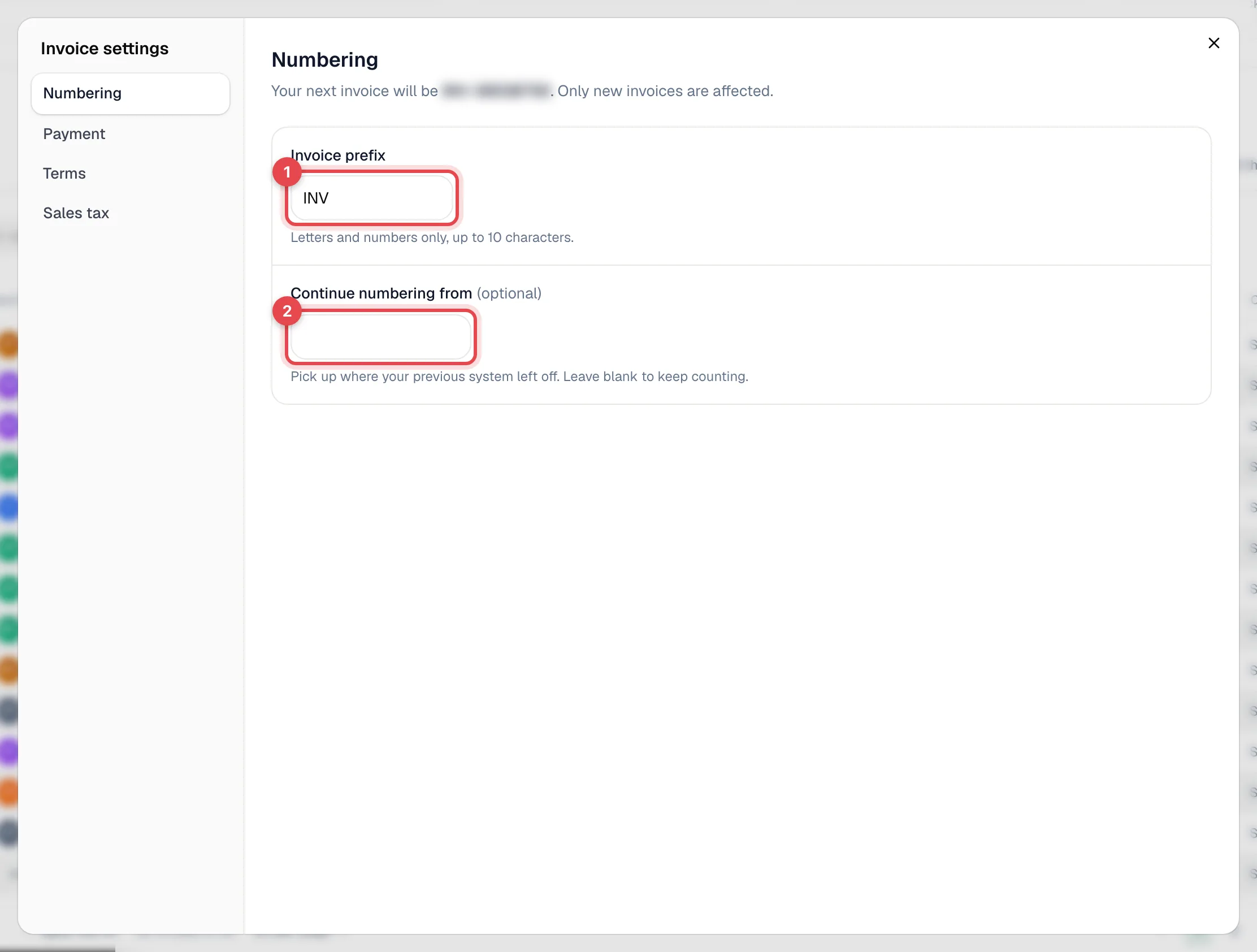
In Numbering:
- Invoice prefix — letters and numbers only, up to 10 characters (for example
DVgivesDV-0001). - Continue numbering from — optional. Enter the next number you want, such as one more than the last invoice number from your old software. Leave it blank to keep counting from where Run a Call is.
The line at the top — Your next invoice will be … — shows the result before you close the window. Changes save automatically.
Good to know
- Only new invoices change. Invoices you've already created keep their numbers.
- You can't go backwards. If your invoices are already past the number you enter, you'll see Numbering is already past this, so it has no effect.
- QuickBooks Online: if you're connected, invoices sync to QuickBooks with the Run a Call invoice number. Pick a prefix or starting number that won't collide with invoice numbers already in QuickBooks.
- Pick a format once. Customers and your bookkeeper will look up invoices by number, so avoid changing the prefix after you've started sending invoices.