
Every job gets two kinds of numbers: your job number, which Run a Call assigns automatically, and an optional reference number, which is the customer's own PO, work order or ticket number.
Job numbers
Each new job is numbered automatically in order — JOB-0001, JOB-0002, and so on. Numbers are never reused, even if a job is deleted.
You'll see the job number:
- next to the job title on the job page,
- next to the customer's name on the Jobs list,
- on the dispatch board's job cards and job popup,
- in the service report's file name (Service-Report-JOB-0042.pdf).
Type a job number into the Jobs list search to jump straight to it.
Jobs created before job numbers were introduced show a short code instead, like #1A2B3C4D. You can search for those codes too.
Change the job number prefix
If you'd rather your numbers start with your initials or something else — DV-0001 instead of JOB-0001 — change the prefix. Owners and admins can do this.
Open Business settings
Go to Settings → Business and find Job numbering.
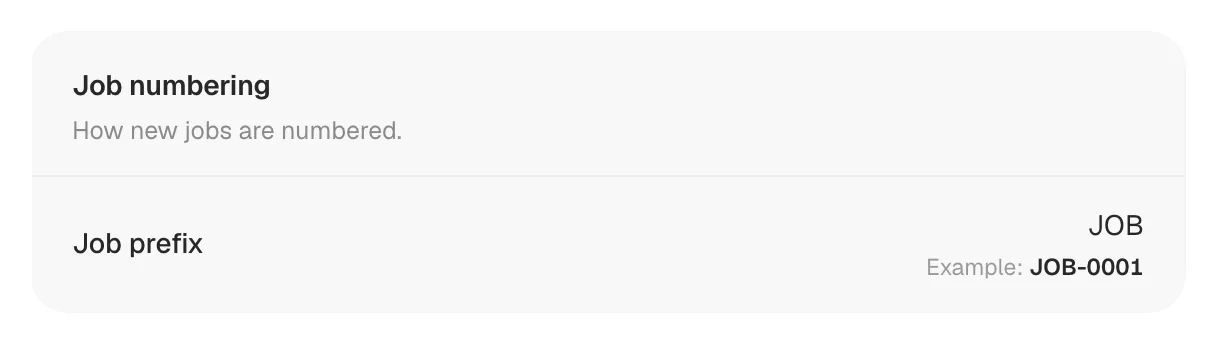
Enter the prefix
Type your prefix in Job prefix — letters and numbers only, up to 10 characters. The example underneath shows how numbers will look.
Let it save
The page saves automatically and shows Saved. The new prefix applies to new jobs.
The same prefix is also under Job numbers in Job settings: the gear at the top of the Jobs list, next to Board.
Reference numbers (customer PO, work order or ticket)
Commercial customers, property managers and home warranty companies often give you their own number for the job. Save it as the job's Reference so anyone can find the job by it.
When creating a job: fill in Reference # (optional) under Job details on the New job form.
On an existing job: find Reference (PO / work order / ticket #) on the right side of the job page and click Add (or Edit if it already has one). Type the number and press Enter or click the check mark to save.
Reference numbers are searchable: type one into the Jobs list search to find the job.