
Bring your services and parts into Run a Call from a spreadsheet instead of typing them one by one. You match your columns to pricebook fields, review every row, and then import.
Who can do this: owners and admins.
Before you start
- Save your price list as a CSV file, with up to 1,000 items per file. Split bigger lists into several files.
- Each item needs a Name and a Price. Everything else is optional.
| Field | What it holds |
|---|---|
| Name (required) | The service or part name customers see |
| Price (required) | What the customer pays |
| Cost | What it costs you — needed for margin and profitability numbers |
| Category | A group label, like AC Repair, Heating, or Maintenance. Items without one go into Uncategorized. |
| Description | A longer description for the line item |
| Type | service, part, equipment, or labor. Anything else is imported as a service. |
| Taxable | true / false or yes / no |
Click Template in the import window to download an example CSV with every column filled in.
Open Settings → Import & export
Click your name in the bottom-left corner of the sidebar, choose Business, then click Import & export. (If your pricebook is empty, you can also start from Pricebook → Have a spreadsheet? Import it.)
Choose your file
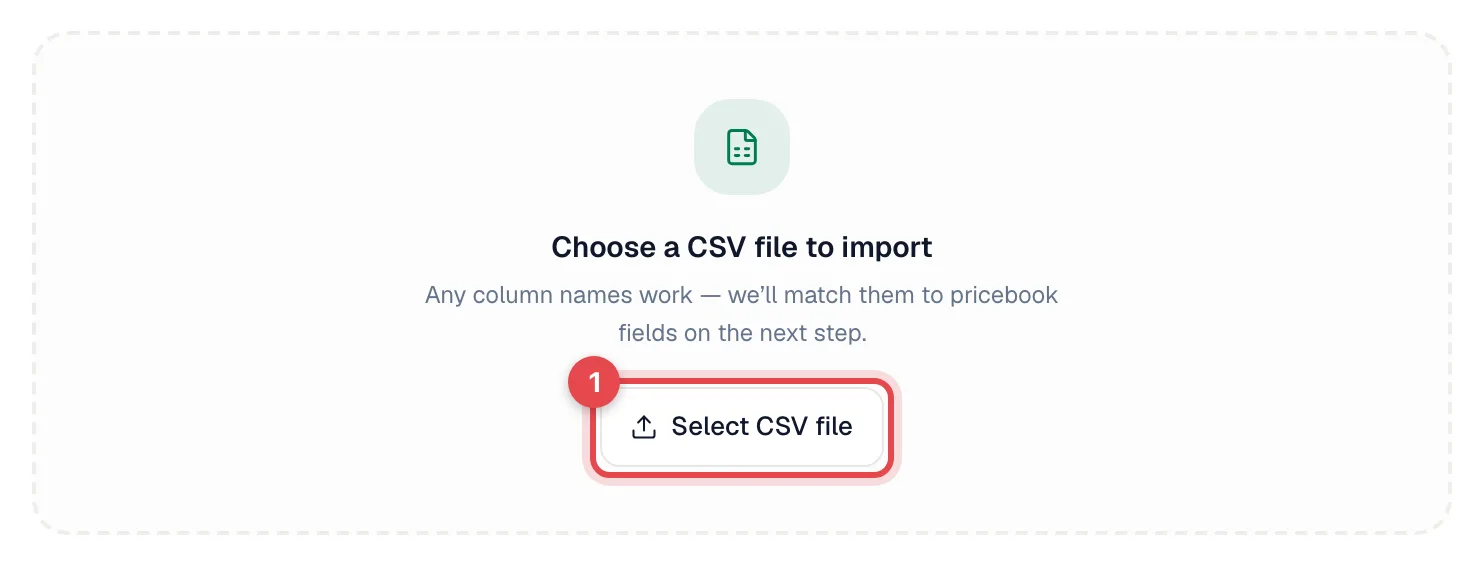
Under Import your pricebook, click Import CSV, then Select CSV file.
Map your columns
On Map your columns, check which of your columns goes to each pricebook field. Run a Call guesses where it can; fix anything it got wrong, and set unused columns to — Skip this column. Name and Price must be matched before you can continue.
Also choose what happens If an item with the same name already exists in the same category:
| Option | Result |
|---|---|
| Skip the duplicate | Your existing item stays as it is |
| Overwrite the existing item | The existing item is updated with the values from your file |
Review and import
Review and import shows every row. Rows with a problem — a price that isn't a number, or an extra comma that shifts the columns — are flagged so you can fix the file. Click Import N items to finish.
You'll see Import complete with how many items were added and updated.
After the import
- Open Pricebook and look through the categories.
- Add a Cost to anything that doesn't have one, so job profitability is accurate.
- Items you no longer sell can be removed from the pricebook.
Other ways to fill your pricebook
- Add items by hand — see Creating items and services.
- QuickBooks Online — if you use QuickBooks, your products and services can sync. See Syncing the pricebook with QuickBooks Online.
- Ask us — if your price list is in another format, send it through Support and we'll help load it.