
Connecting QuickBooks Online means you stop re-typing work into your books. Once it's set up, customers, pricebook items, invoices, payments, purchase orders and (optionally) expenses flow from Run a Call into QuickBooks on their own. Plan on about 10–15 minutes.
Before you start
| You need | Why |
|---|---|
| The Run a Call owner login | Only the account owner can open Settings → Integrations and connect QuickBooks. |
| A QuickBooks Online admin login | QuickBooks asks you to sign in and approve the connection. |
| Your chart of accounts in place | You'll pick an existing income account (and a tax code if you charge sales tax). Run a Call doesn't create accounts for you. |
Keep your books in QuickBooks Desktop or Enterprise instead? That's supported too, through Intuit's Web Connector — see Connecting QuickBooks Desktop.
Open the QuickBooks card
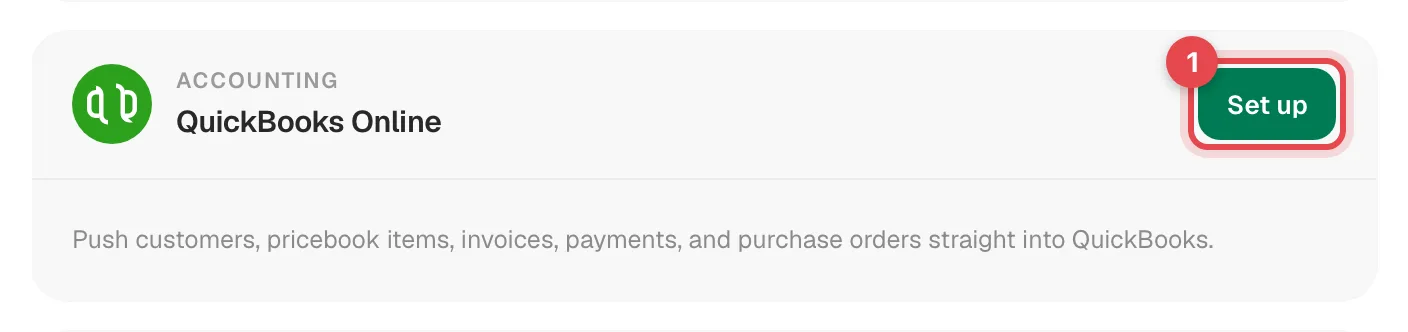
Go to Settings → Integrations and click Set up on the QuickBooks Online card.
Click Connect QuickBooks
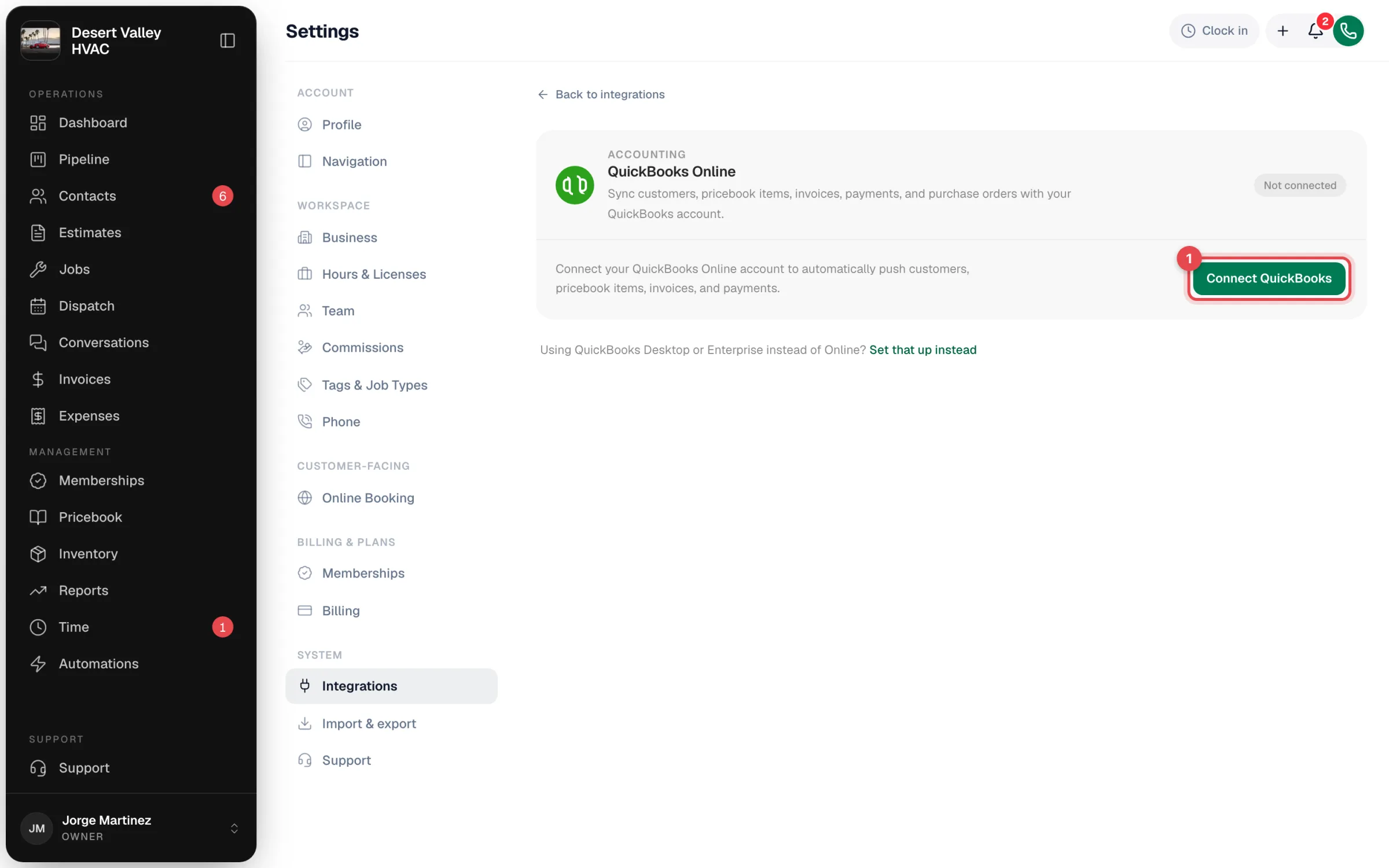
On the QuickBooks page, click Connect QuickBooks. You're sent to Intuit to sign in.
Sign in and approve
Sign in with your QuickBooks admin account. If your login has access to more than one company, pick the right company, then approve the connection. You land back in Run a Call with a "Connected to QuickBooks" message and a Connected badge.
If you cancel on the Intuit screen you'll see "QuickBooks authorization was denied" — nothing was changed, just click Connect QuickBooks again.
Walk through the setup steps
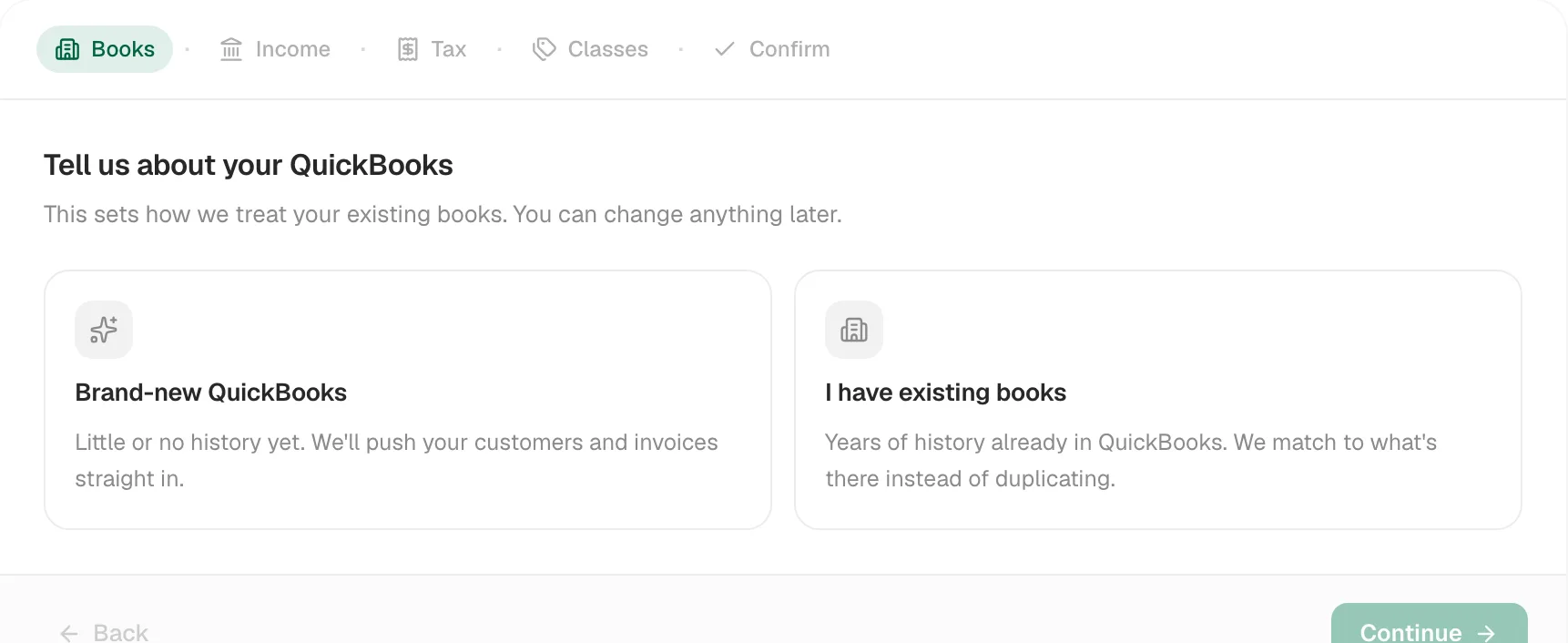
A short guided setup appears under the connection card: Books → Income → Tax → Classes → Confirm. (The Classes step only shows if your QuickBooks company tracks classes.)
| Step | What you choose |
|---|---|
| Books | Brand-new QuickBooks (little or no history yet) or I have existing books (years of history already there). Picking I have existing books also offers the optional history import below. Either way, Run a Call looks for a matching QuickBooks customer before it creates a new one. |
| Income | The QuickBooks income account your invoices and pricebook items post to. A Services account is picked for you if one exists; change it if you prefer. |
| Tax | The QuickBooks sales-tax code for taxed invoices. Required if you charge sales tax — taxed invoices are held back until one is picked. Optional otherwise. |
| Classes | Optional: a QuickBooks class per job type, plus a default class. See Tracking revenue by QuickBooks class. |
| Confirm | A summary of your picks. |
Click Start syncing. Run a Call saves your choices, turns on hourly sync, and sends the first batch to QuickBooks right away.
Bringing in your existing QuickBooks history (optional)
If you choose I have existing books, you can click Start import to pull in 24 months of history before sending anything the other way:
- Your customers, plus active vendors and pricebook items.
- Invoices and applied payments from the last 24 months.
- QuickBooks sub-customers come in as extra properties (service addresses) under their parent customer.
The import runs in the background — keep going with setup while it works. Everything it brings in stays linked to its QuickBooks original, so those records are never pushed back as duplicates. When it finishes, hourly sync is paused and a banner asks you to look things over; click Looks good — turn on hourly sync when you're happy.
If your data was moved over from another field-service system, the import option doesn't appear. Run a Call matches your migrated customers to the ones already in QuickBooks instead, so nothing is duplicated.
You can also start (or safely re-run) the import later from Sync settings & account mapping → Import from QuickBooks.
After you connect
- Sync is one way: Run a Call → QuickBooks. The one exception is the optional history import above. Edits you make in QuickBooks don't flow back.
- New records go over as they happen (sending an invoice, recording a payment, adding a customer) and an hourly sync catches everything else.
- The QuickBooks page becomes your health screen: what reached QuickBooks this month and anything that needs attention. See Configuring the QuickBooks Online integration.
- Customers and invoices show an In QuickBooks badge once they've synced.
Before billing in bulk, send one real invoice and open it in QuickBooks. Check the income account, the tax line and the total. If something is off, fix the mapping first.
Common questions
Can an admin or office manager connect QuickBooks? No. Connecting, disconnecting and changing QuickBooks settings is limited to the account owner.
Will Run a Call overwrite my bookkeeper's work? Run a Call only creates and updates the records it sends. When you edit an invoice that's already in QuickBooks, the QuickBooks copy is updated to match — Run a Call owns the customer, number, lines, due date, memo and tax on that invoice, and leaves QuickBooks-only details alone.
What if the connection expires? QuickBooks connections can lapse (for example after a password change on the Intuit side). The owner and admins get a "QuickBooks stopped syncing" notification, the owner also gets an email, and the QuickBooks page shows Token expired with a Reconnect button. Nothing is lost — everything waiting syncs once you reconnect.