
Tags are short labels you put on jobs to mark what your job types and statuses don't — Warranty, Insurance claim, Commercial, Second opinion. Once jobs are tagged, you can filter your lists by them and start automations when a tag is added.
Add tags to a job
Open the job
Tags sit right under the job title and job number.
Click Add tags…
If the job already has tags, click Add next to them instead.
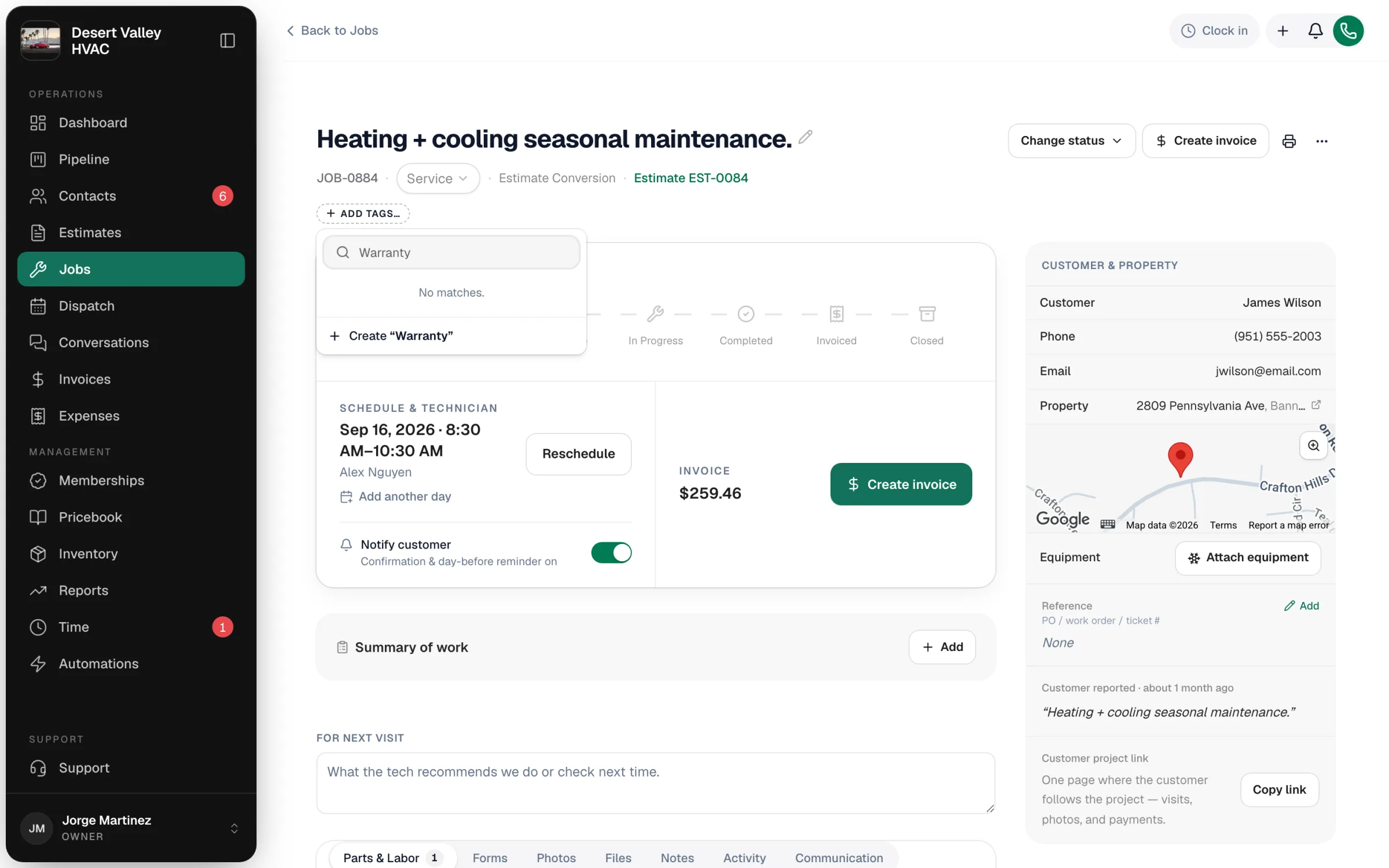
Pick or create a tag
Start typing in Search tags… and click a tag to add it. If the tag doesn't exist yet, click Create "…" to make it on the spot.
Click outside the picker when you're done. To take a tag off, open the picker again and click the tag to unselect it.
Tags from the field
Techs can add and remove tags on their jobs in the mobile app, choosing from the tags your office has already created. They can't create new tags from the app. See Tagging a job from the field.
Who can tag
| Action | Who |
|---|---|
| Add or remove tags on a job | Anyone who can edit jobs — owners, admins, dispatchers, and techs on their own jobs |
| Create a new tag | Office users who can edit jobs, estimates or customers |
| Rename, recolor or delete tags | Office users who can edit jobs, in Settings → Tags & Job Types |
Manage your tag list
Go to Settings → Tags & Job Types. The Tags card lists every tag with its color, how many records use it, and when it was created.
- Create a tag — type a name (up to 50 characters) in Tag name… and click Create tag.
- Rename — click the pencil next to the name, type, and press Enter. The new name updates everywhere the tag is used.
- Change color — click the color swatch and pick another, or enter your own color code.
- Delete — click the trash icon and confirm with Delete tag. The tag is removed from every record that has it.
Tags are one shared list across customers, jobs, estimates and calls, so a Commercial tag means the same thing everywhere. Tagging a customer doesn't tag their jobs — each record is tagged on its own.
See Creating and managing tags.
Filter jobs by tag
| Where | How |
|---|---|
| Jobs list | Click Tags: All and pick one or more tags. Jobs with any of them show. The list only offers tags that are already on at least one job. |
| Pipeline → Jobs board | Use the Tags filter above the columns. |
Tags also show in their own column on the Jobs list.
Start an automation from a tag
In Automations, the trigger When a tag is assigned to a job runs a workflow the moment someone adds a specific tag — for example, notify your warranty coordinator when a job is tagged Warranty. See Automation triggers catalog.
Tips
- Keep the list short. If nearly every job carries a tag, it stops telling you anything.
- Use tags for things you'll filter or automate on. For the kind of work (Service, Maintenance, Install), use job types instead.