
Run a Call works out the sales tax on every invoice from your tax rates. When an invoice goes to QuickBooks Online, QuickBooks also needs to know which of its sales-tax codes that tax belongs to. Set this once and your QuickBooks totals match your invoices to the cent.
If you charge sales tax and no QuickBooks tax code is chosen, Run a Call holds taxed invoices back rather than sending them without tax. Untaxed invoices are never affected.
Where your tax rates live
Your rates are set in Settings → Hours & Licenses, under sales tax: a Base rate plus, if you work in several places, Rates by state or ZIP. Each job picks its rate from its service address. This article is only about how those rates land in QuickBooks.
Pick the default tax code
You pick it during setup (the Tax step). To change it later:
- Go to Settings → Integrations → QuickBooks Online → Manage.
- Expand Sync settings & account mapping.
- Under QuickBooks Settings, choose the Tax Code — the list comes straight from your QuickBooks company (for example California). Use the refresh icon if you just added one in QuickBooks.
- Click Save Settings.
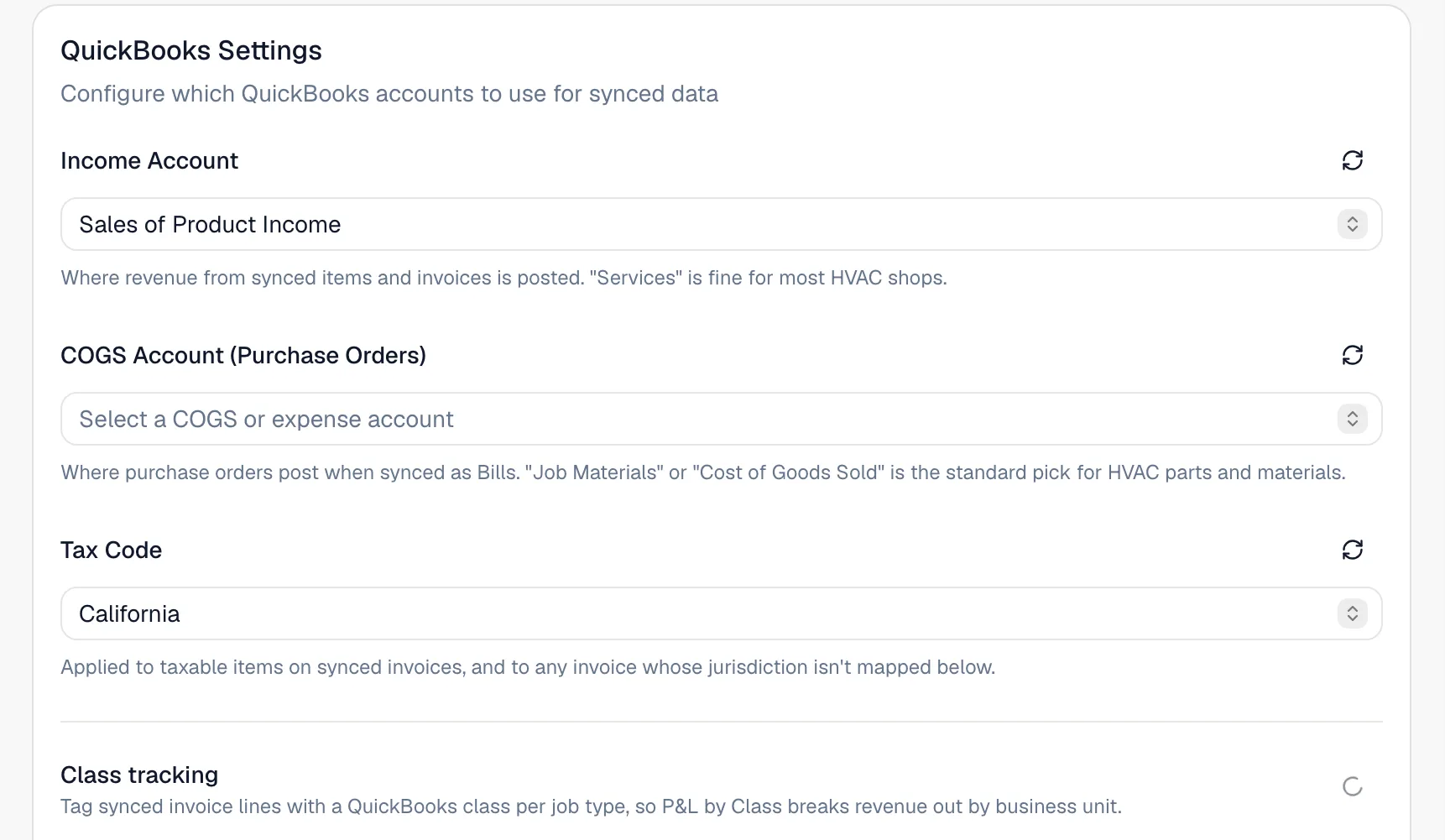
The invoice goes to QuickBooks with Run a Call's tax amount under that code, so the QuickBooks total matches yours — including milestone invoices where tax is split across payments.
Map each jurisdiction (if you use more than one rate)
If you have rates by state or ZIP, a Tax codes by jurisdiction table appears under the Tax Code picker. Pick a QuickBooks tax code for each rate so your sales-tax return breaks down by jurisdiction. Rates left on Use default tax code use the code from step 1.
When you run more than one rate, an unmapped rate can't safely fall back to the default — that would file the tax under the wrong jurisdiction. The page warns you ("… has no tax code yet. Invoices in that jurisdiction are held back from QuickBooks until one is picked"), and those invoices wait until you map it.
What happens to held-back invoices
- They appear under records that need attention as "no sales-tax code is mapped".
- The moment you pick the missing code and Save Settings, they're queued again automatically.
- The first sync won't start from setup until a tax code is chosen if your account charges tax.
If your QuickBooks uses Automated Sales Tax
With Automated Sales Tax, QuickBooks ignores the tax amount it's sent and calculates its own.
- One tax rate: invoices sync normally.
- More than one rate: the settings page shows "Your QuickBooks company uses Automated Sales Tax." QuickBooks works tax out from an address, while Run a Call charges from the job's service address, so the totals could disagree. To keep your books right, Run a Call sends each taxed invoice with the job's service address and checks the total QuickBooks calculates. If it matches, the invoice stays in QuickBooks. If it doesn't, the QuickBooks copy is removed and the invoice is held back with "QuickBooks computed a different total" — compare the tax rate for that address in Run a Call with QuickBooks, then retry. If taxed invoices are held back with a message about Automated Sales Tax instead, contact support.
Tax-exempt customers
A customer marked tax exempt in Run a Call is sent to QuickBooks as non-taxable. Any invoice with no tax on it syncs without needing a tax code.
Check it with a real invoice
- Create a small taxable invoice and send it.
- Open it in QuickBooks.
- Confirm the tax line shows and the total matches Run a Call exactly.