
Invite your office staff, dispatchers, and technicians by email. Each person gets their own login, and their role decides what they can see and do. There's no limit on how many people you add.
Who can do this: owners and admins.
Open Settings → Team
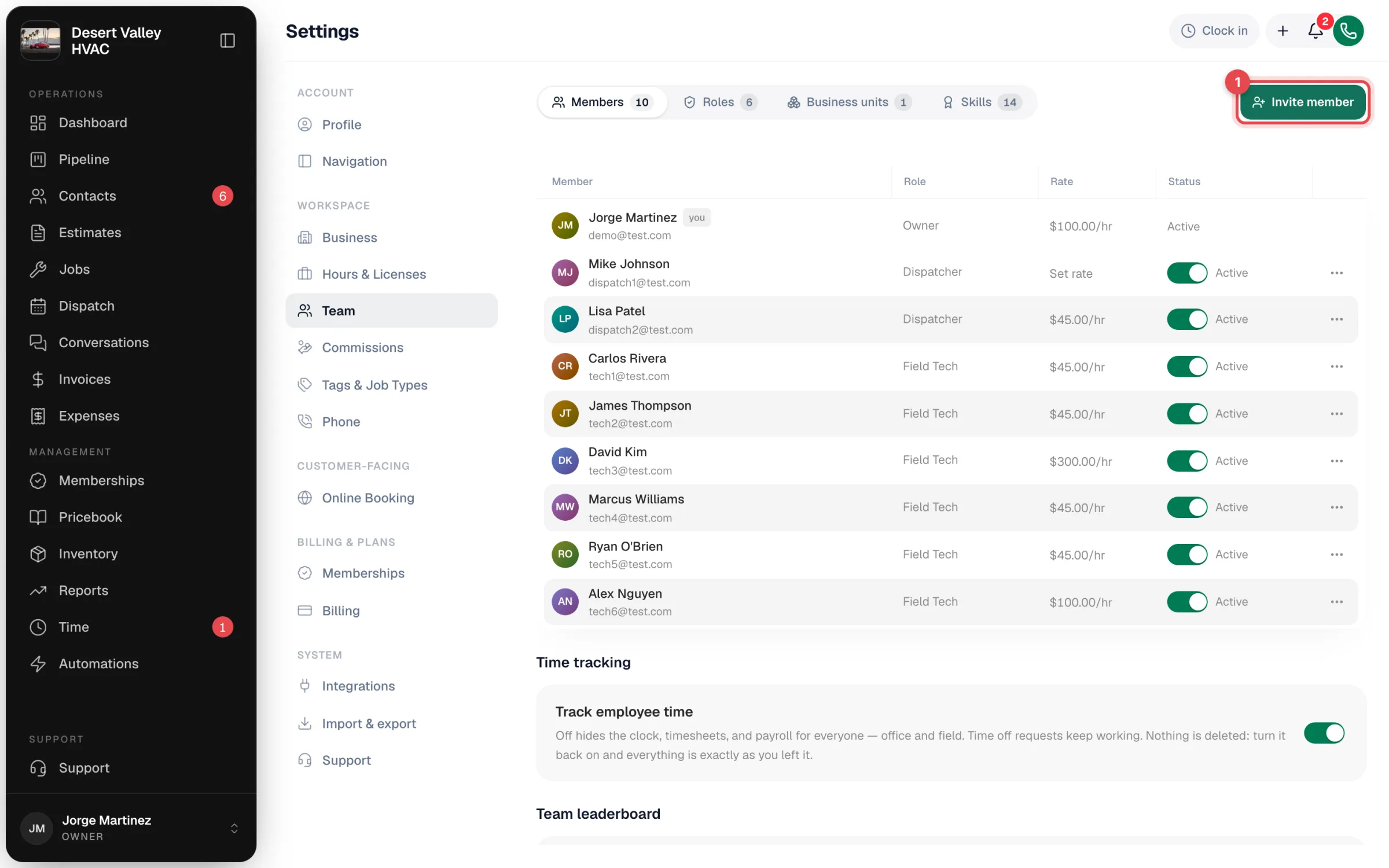
Click your name in the bottom-left corner of the sidebar and choose Business (or Profile) to open Settings, then click Team in the settings menu. The Members tab lists everyone on your account.
Click Invite member
The Invite member button is at the top right of the Members tab.
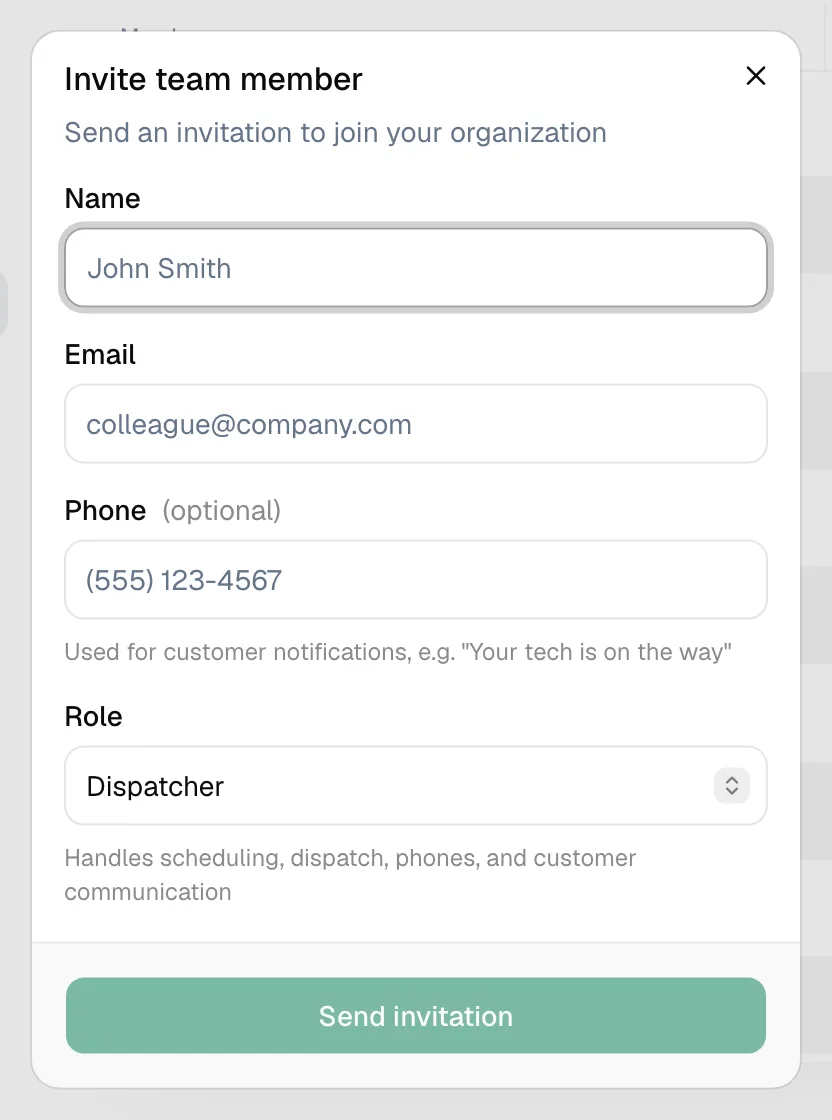
Fill in their details
| Field | What to enter |
|---|---|
| Name | Their full name, as customers and teammates should see it |
| The email they'll sign in with. Each email can belong to only one Run a Call login. | |
| Phone | Optional. Used for customer notifications, like "Your tech is on the way". |
| Role | What they can use. The line under the menu describes the role you picked. |
Which role to pick:
| Role | For |
|---|---|
| Admin | Office managers who run the business day to day (everything except integrations, commissions, and membership plan settings) |
| Dispatcher | Office staff who book, schedule, answer phones, and invoice — no reports, team, or settings |
| Field Tech | Technicians who work from the mobile app and see only their own jobs |
| Comfort Advisor | Salespeople who run in-home estimates |
| Your custom roles | Any role your company created |
See Customizing team roles and permissions for exactly what each role can do. You can change someone's role later.
Send the invitation
Click Send invitation. They appear in the list with the status Invited until they accept.
What your teammate does
- They get an email: You've been invited to join your company name.
- They click the link, confirm their name, create a password, and click Accept & join your company.
- Office staff land in the web app. Technicians should then install the mobile app and sign in with the same email and password — see Installing the Run a Call app on iPhone & iPad or on Android.
If the invite doesn't arrive or has expired
- Resend it: on the Members tab, click Resend next to Invited on their row. The old link stops working and a fresh one is sent.
- Wrong email address: click ⋯ → Edit profile on their row, fix the email, and save. The old invitation is cancelled and a new one goes to the corrected address.
- Expired link: if the invite page says Link expired, they can click Email me a fresh link there. If they don't see that option, resend the invite from the Members tab.
Ask them to check spam, and to open the email on the device they want to sign in with.
Statuses on the team list
| Status | Meaning |
|---|---|
| Invited | Invite sent; they haven't set up their account yet |
| Active | They've joined and can sign in |
| Inactive | Deactivated — they can't sign in. See Deactivating a team member. |
Good to know
- "This email is already registered" means that email already has a Run a Call login. Use a different email for this person.
- After they join, set their hourly rate and working schedule — see Managing user profiles.