
When someone leaves your company, deactivate them. They lose access right away, but every job, photo, note, time entry, and message they were part of stays in your records — and you can turn them back on later.
Who can do this: owners and admins. The owner can't be deactivated.
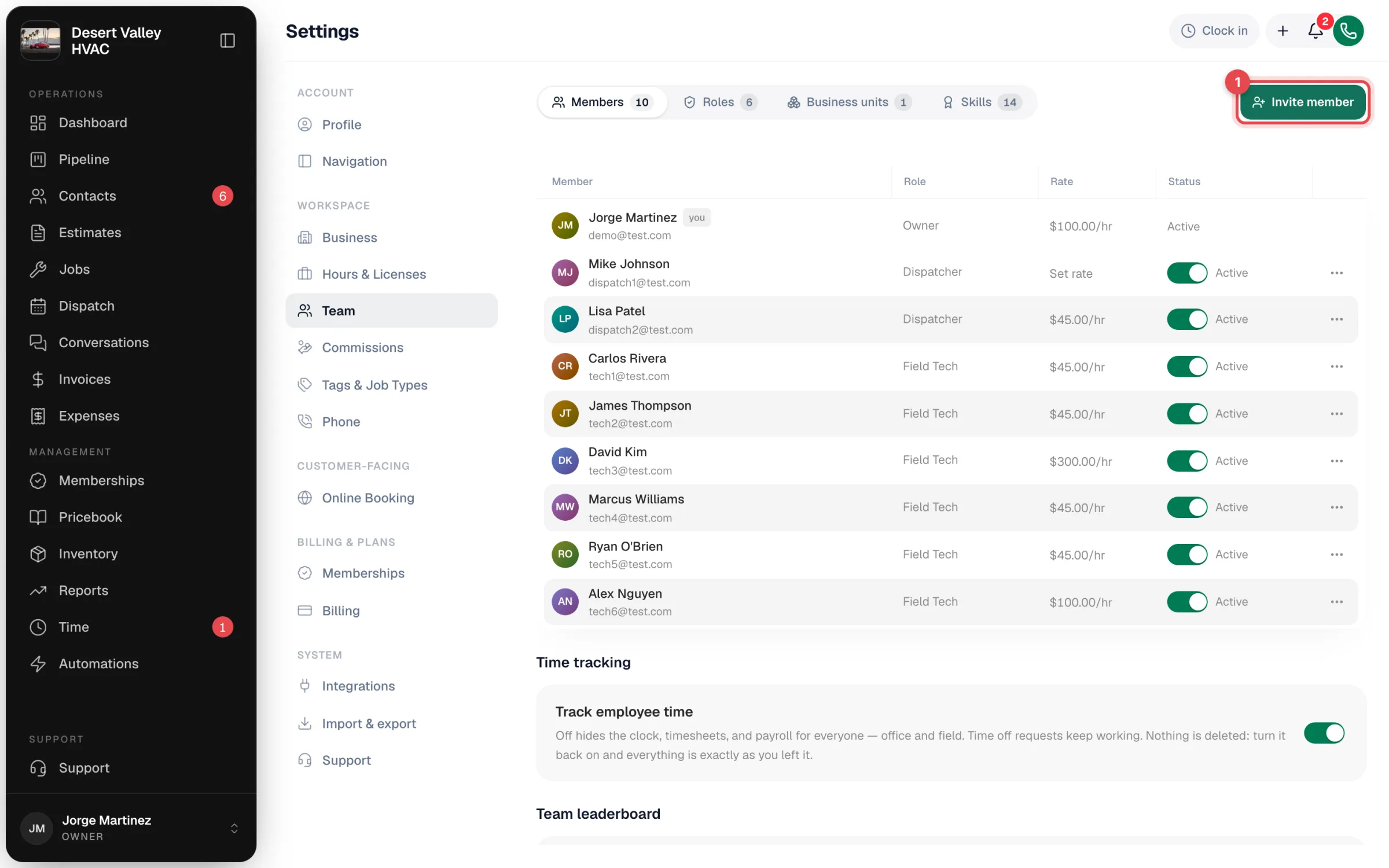
Open Settings → Team
Find the person on the Members tab.
Switch their status off
In the Status column, turn off the switch next to Active.
Confirm
A Deactivate team member? box explains what happens. Click Deactivate. The row now reads Inactive.
What deactivating does
| Effect | Detail |
|---|---|
| Signs them out | They're signed out and can't sign back in on any device. |
| Frees up their upcoming work | Jobs assigned to them that are scheduled after today and aren't finished or cancelled become unassigned, so they show up for someone else to take. Today's jobs stay as they are — reassign those yourself on the dispatch board. |
| Removes them from pickers | They no longer appear when you assign jobs or add people to business units. |
What stays
- Every past job, estimate, invoice, photo, signature, and note they touched.
- Their time entries and timesheets. On Time → Timesheets, turn on Show deactivated in the options to include people who have no hours in the current pay period.
- Calls and texts they handled.
Bring someone back
- On the Members tab, click Inactive (or All) in the filter above the list.
- Turn their switch back on. They're reactivated immediately — no confirmation needed.
They sign in with their old email and password (or use Forgot your password? if they don't remember it). Jobs that were unassigned when you deactivated them are not given back automatically.
Good to know
| Situation | What to do |
|---|---|
| Someone is leaving on bad terms | Deactivate them before the conversation so access ends first |
| Seasonal staff | Deactivate for the off-season and turn them back on when they return |
| An invite went to the wrong email | Pending invites show Invited with a Resend button instead of a switch. Click ⋯ → Edit profile, correct the email, and save — the old invite is cancelled and a new one is sent. |
| A tech lost their phone | Deactivate them to sign that phone out, then turn them back on once they have a new device. Their jobs scheduled after today will need reassigning. |
There's no way to delete a team member. Deactivating keeps your history accurate — their name stays on the work they did.