
With auto-arrive, the Run a Call app marks a tech arrived on its own. Once the tech has tapped On My Way and their phone has stayed inside the job's address radius for the wait time, the app taps Arrived on Site for them: the job moves to In progress, the on-site clock starts, and the arrival text goes out to the customer exactly as if they had tapped it. It's on for every company unless the office turns it off.
What the tech sees
- Tap On My Way as usual. Nothing else changes about the drive.
- Pull up at the address. After the wait time (two minutes unless the office changed it), a black card appears at the top of the screen: You're at 4521 Palm Ave — Marking you arrived in 20s, with an Undo button. On a phone with the app in the background, the same message shows as a notification with Undo.
- Do nothing and, 20 seconds later, the job is In progress. The button at the bottom now reads Complete Job, and the office sees Arrived by GPS next to the on-site time.
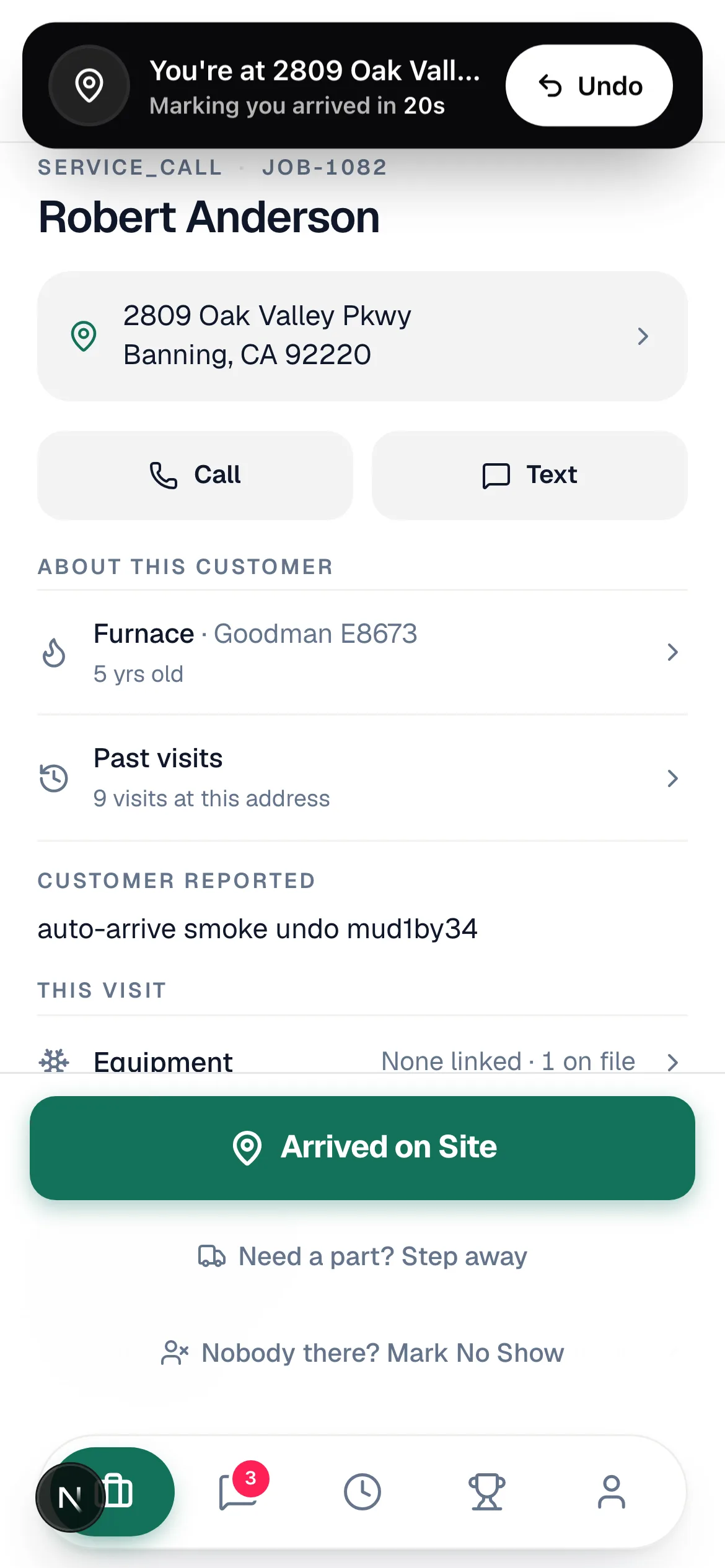
With the app in the background you get a notification instead: first the countdown with its Undo button, then, once it's done, Arrived at 2809 Oak Valley Pkwy — the job was moved to In progress automatically, with the phone's usual sound and vibration for the app.
Tap Undo if you're not there yet (you stopped at the neighbor's, say). The app stays quiet until you leave and come back, and you mark yourself arrived by hand with Arrived on Site.
Tapping Arrived on Site yourself during the 20 seconds just works: the tap wins, the countdown disappears, and nothing is recorded twice.
Auto-arrive stamps the moment you actually pulled in, not the moment the countdown ended. Your on-site time starts when you got there.
Crews and multi-day jobs
- Lead: auto-arrive taps Arrived for the crew and texts the customer, the same as the Lead's own tap. Start work is still a tap.
- Helper: auto-arrive taps I've arrived on the helper's own clock card. Nobody is texted and the job doesn't move; only that helper's hours start.
See Managing jobs on mobile for the crew buttons.
Location permission
Auto-arrive works best with the app in a pocket, which means the phone needs to share location while the app is in the background:
- The first time tracking starts inside the app, a short screen explains what location is used for. Tap Continue, then choose Allow while using and, when the phone asks, Always (iPhone) or Allow all the time (Android).
- Location is only used while you're on a job — from On My Way until the job is done. It's never tracked outside a job.
- Said Not now, or picked While using only? Everything still works whenever the app is open on the screen, and a job you set On My Way with the app open keeps working after you pocket the phone. To upgrade to Always later, use the phone's own settings: Settings → Run a Call → Location (iPhone) or Settings → Apps → Run a Call → Permissions → Location (Android).
- On Android you'll see a small Run a Call notification while a job is in progress. That's the phone's way of showing location is in use; it goes away when the job is done.
Using Run a Call in a browser instead of the app? Auto-arrive works while the page is open and the browser has location permission.
What the office controls
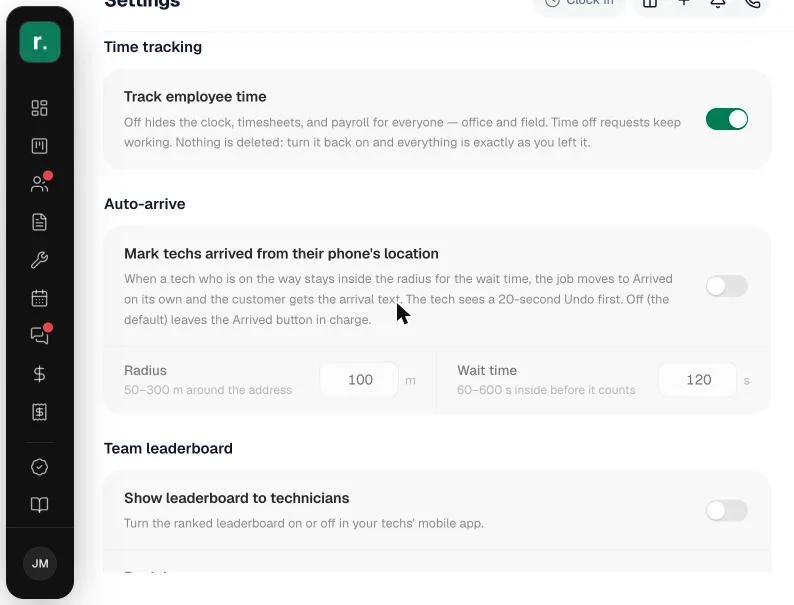
Settings → Team → Auto-arrive (owners and admins):
| Setting | What it does |
|---|---|
| Mark techs arrived from their phone's location | The switch for the whole company. Off puts the Arrived on Site button back in charge and the app only shows a "you appear to be at the job site" hint. |
| Radius | How close counts as "there": 50–300 m around the address (100 m to start). Big lots and apartment complexes want more; townhouses want less. |
| Wait time | How long the phone must stay inside the radius before it counts: 60–600 seconds (120 to start). This is what stops a red light or a drive-by from marking anyone arrived. |
When it won't fire
- The address isn't on the map. A property the app couldn't place has no radius to measure. The job says Address not on the map yet in the office and on the phone; fix the address and it gets placed on the next weekly sweep. Tap Arrived on Site in the meantime.
- The tech never tapped On My Way. Auto-arrive only watches a tech who is on the way to that job. It never skips a step.
- Poor GPS. Fixes worse than about 50 m are ignored, so a bad signal can't mark anyone arrived from down the street.
- No signal at the address. The arrival is saved on the phone and sent when the phone reconnects, with the original arrival time.
- A Wi-Fi-only tablet. No GPS chip, so the position is only roughly known and auto-arrive stays quiet. Phones and cellular tablets are fine.