
Jobs (the briefcase icon, first in the bottom bar) is the tech's home screen in the Run a Call app. It shows today's stops in order, your time clock, and one tap into each job, where you drive the visit from On My Way to Complete Job.
Your day on the Jobs tab
Open the app and you land on Jobs. From top to bottom:
| What you see | What it's for |
|---|---|
| Greeting and weekday | "Morning, Carlos". If nothing is booked today it says Nothing scheduled. Enjoy your day. |
| + (green button) | Book a job for yourself. Only shows if your role can edit jobs — see Booking a job for yourself. |
| Calendar button | Opens your full schedule for any day, week, or month. |
| Day summary | How many jobs and hours are booked today, how many are done, and a Route button that opens the whole day's drive. |
| Clock in card | Starts your workday clock. See Using the time clock. |
| Today's stops | One card per visit, in time order. The next stop is marked Up next and shows a map. |
| Done today | Finished stops collapse here. Tap to expand. |
| Tomorrow / Yesterday | Collapsed rows ("Tomorrow · 3 stops · first at 8:00 AM"). Tap to look ahead or back. |
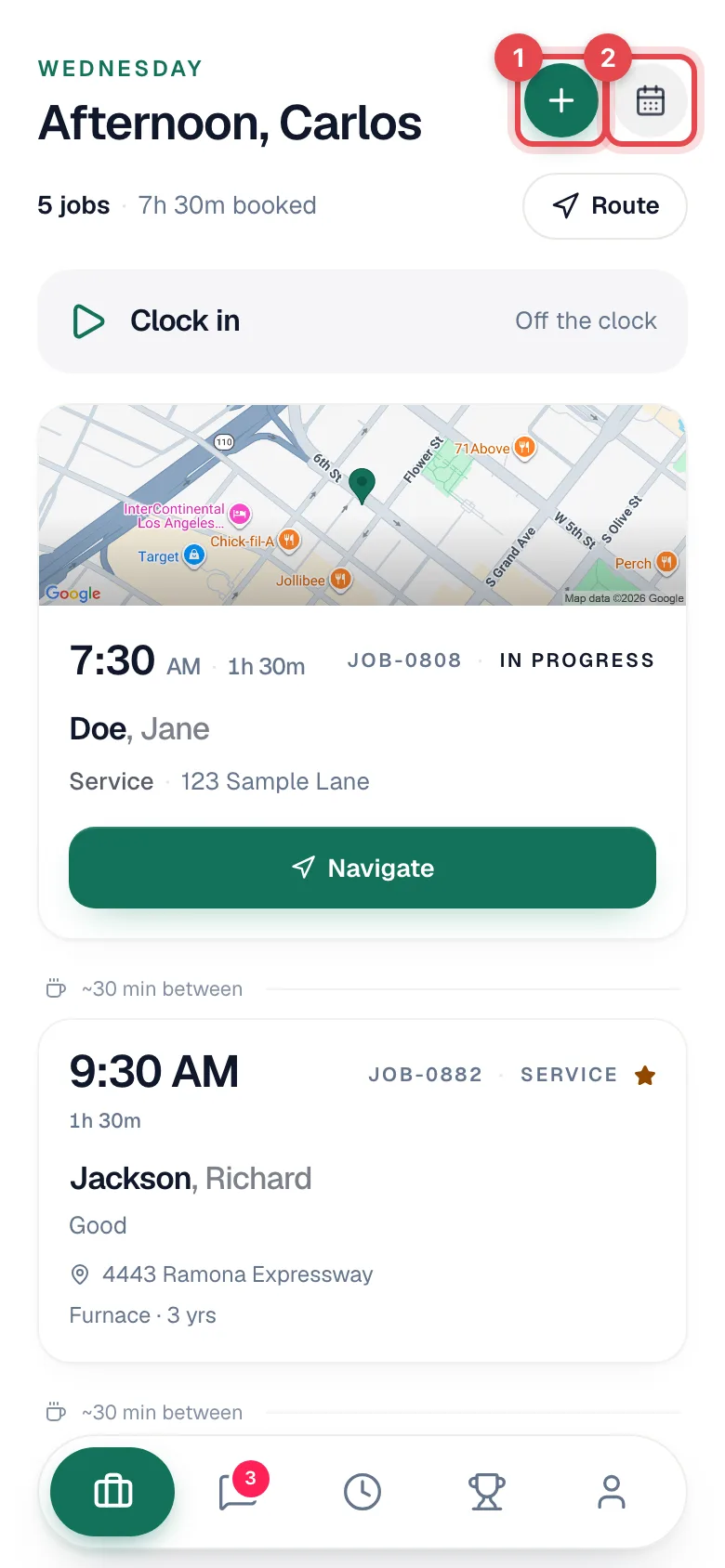
Each card shows the start time and length, the job number, the job status, the customer, what they reported, the street, and the main unit at the property (type, age, filter size) so you can grab the right filter before you drive. A small note between cards shows the gap until the next stop ("~30 min between"). A star means the customer is a member. On a multi-day install the card also says Day 2 of 3 and whether you're the Lead or a Helper.
The Up next card and any job you're working on have Navigate and Call buttons right on the card. Press and hold any card for a quick menu: call the customer, Message them, or Navigate.
Pull down on the list to refresh it. Tap the briefcase icon again to jump back to the top.
Looking further ahead: the full schedule
Tap the calendar button at the top of Jobs.
- The week strip shows every day with the number of jobs you have under the date. Tap a day to see its list.
- Use the arrows to move a week at a time, or tap the month name to open the whole month.
- Today jumps back to the current day.
- The map button in the top right shows the selected day's stops on a map.
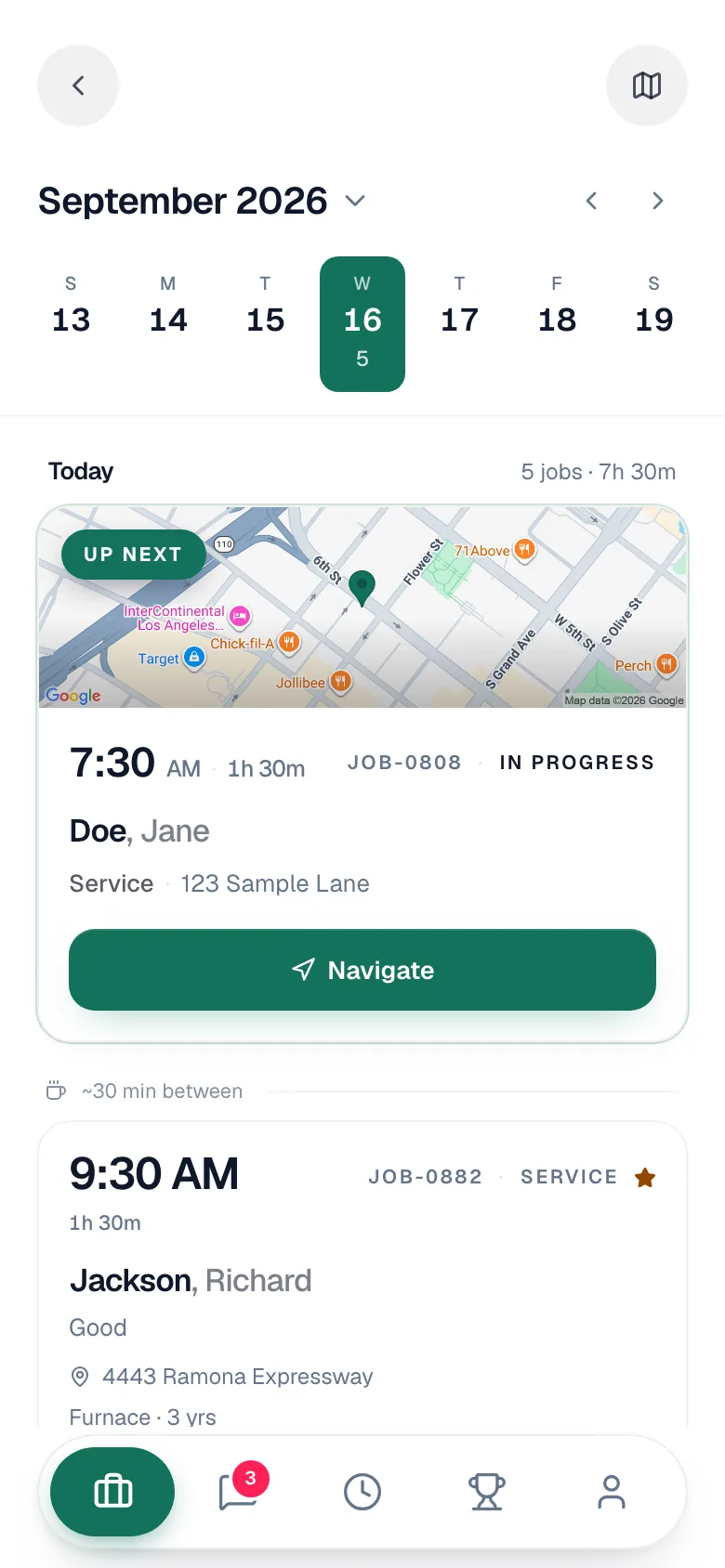
The schedule includes finished jobs, so you can open last week's visit to check what was done.
Open the job
Tap a card. The job screen puts everything for the visit on one scrolling page.
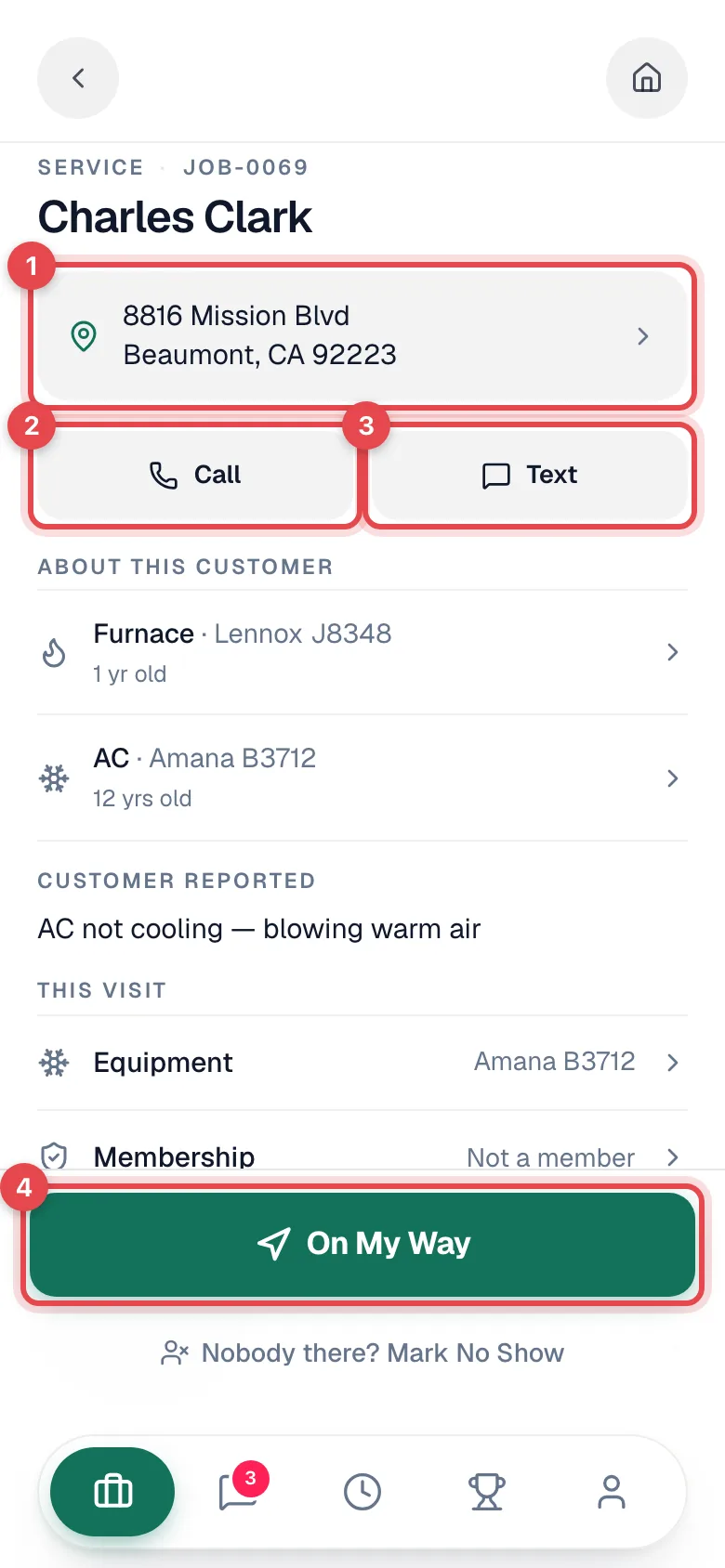
| Section | What it shows |
|---|---|
| Job type and number | For example SERVICE · JOB-0069. Use the number on paper forms; the office searches by it. |
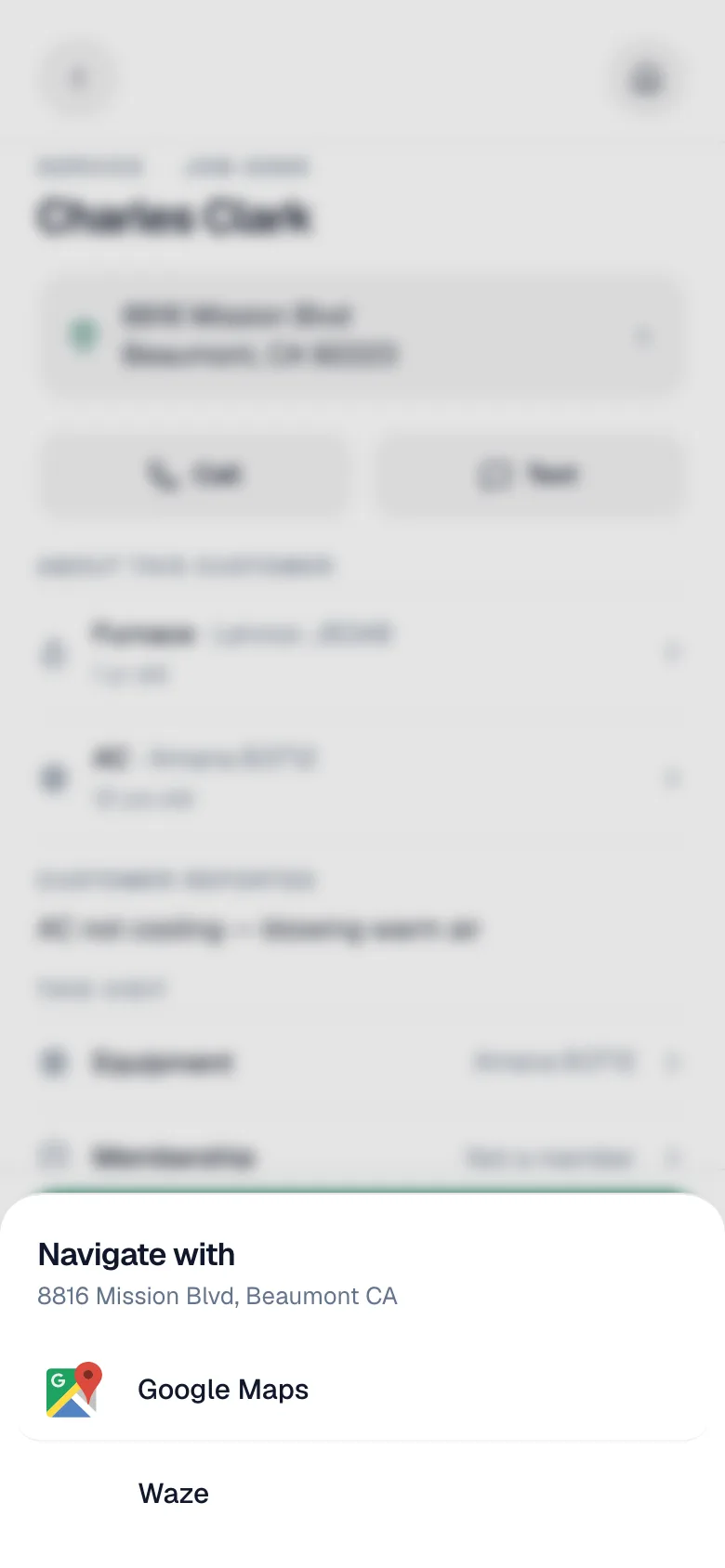
| Address | Tap it to get directions in Google Maps or Waze. |
| Call / Text | Call the customer or open their text thread. See Calling customers and Texting customers. |
| House button (top right) | The property and every unit on file: photos, condition, refrigerant log. |
| Membership card | Shows up on members' jobs: plan, which visit this is, and the repair discount. |
| Access notes | Gate codes, dogs, "use side door". Highlighted in amber so you don't miss them. |
| About this customer | Each unit at the property with its age and filter size. |
| Summary of work | What the office told the customer you'll do. Read-only. |
| Customer reported | The problem as the customer described it. |
| For next visit | Once the job is underway, leave a note for whoever comes back ("Blower motor is loud, quote a replacement"). It saves by itself. |
Work through "This visit"
Under This visit each row shows a count and opens its own full-screen panel. Tap the back arrow to return to the job.
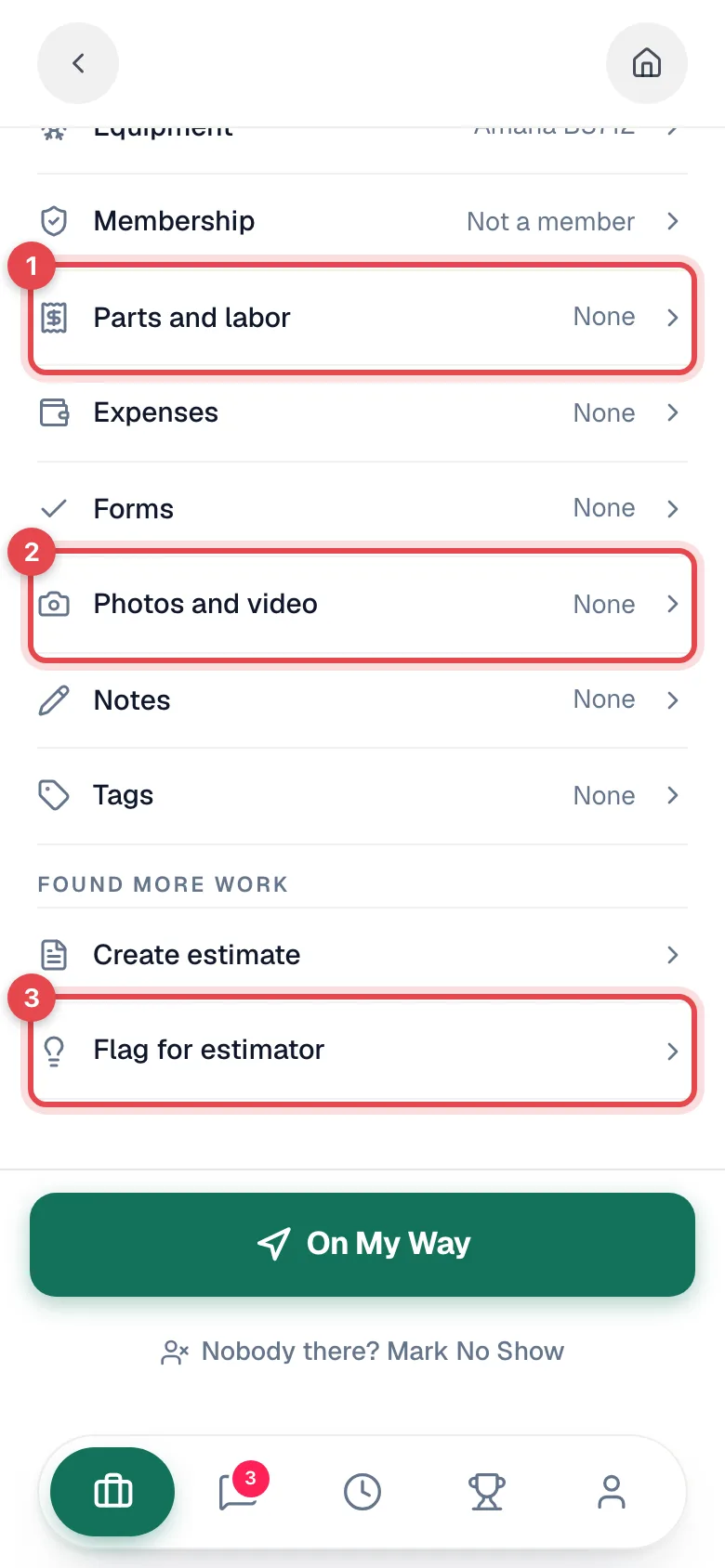
| Row | What you do there |
|---|---|
| Equipment | See or attach the units you're working on. |
| Membership | Check coverage or sign the customer up. See Memberships on mobile. |
| Parts and labor | Add what you used from the pricebook, adjust quantities and prices, apply a bundle, or ask the office for a part. See Searching the pricebook. |
| Expenses | Log a receipt for this job. See Logging expenses from the app. |
| Forms | Checklists the office attached. A red 2 required badge means required items are still open. |
| Photos and video | Take or upload photos and video. See Photos and video. |
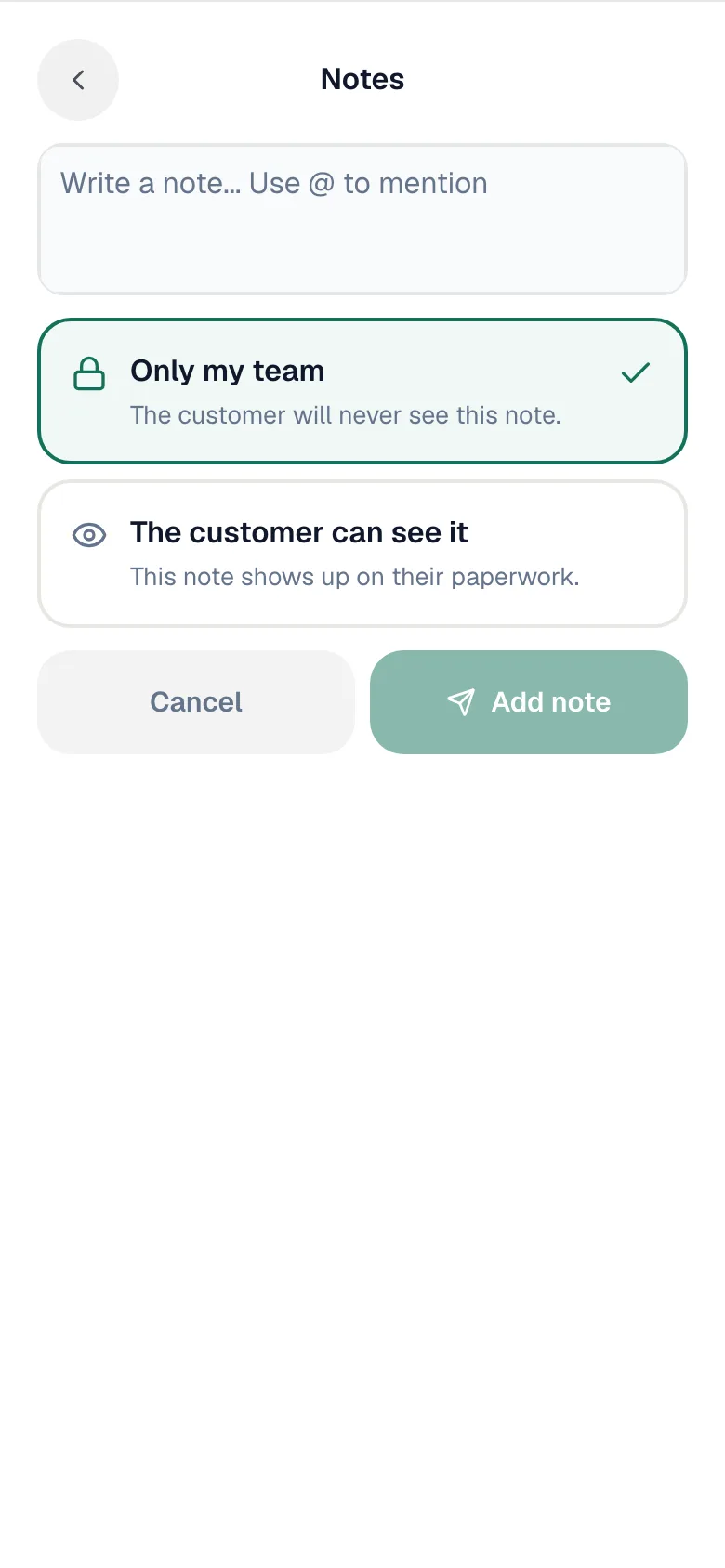
| Notes | Add notes for your team or for the customer. |
| Tags | Put the office's tags on the job. See Tagging a job. |
Notes you add from Notes ask who can see them: Only my team (The customer will never see this note.) or The customer can see it (This note shows up on their paperwork.). Type @ to mention a teammate.
Below that, Found more work has Create estimate (build an estimate on the spot, see Estimates on mobile) and Flag for estimator (hand a sales lead to the office, see Flagging an opportunity).
Some rows only appear when your role allows it. For example, Expenses is hidden if your role can't see expenses.
Move the job along with the big green button
The button pinned to the bottom of the job always shows your next step:
| Button | What happens when you tap it |
|---|---|
| On My Way | The job becomes En route. If your company has the "on my way" text turned on, the customer gets it. Your travel time starts. |
| Arrived on Site | The job becomes In progress and your on-site time starts. The arrival text goes out if it's turned on. |
| Complete Job | The job becomes Completed and the timer stops. If your company sends a completion text or the service report email, it goes out now. |
| Generate Invoice | Appears once the job is complete. Builds the invoice from Parts and labor. See Closing a job. |
The travel and on-site time these taps record is what the office sees as labor time on the job. Starting a new job stops the timer on any other job you left open.
A few extra controls sit under the green button:
- Nobody there? Mark No Show shows until you tap Arrived on Site. It asks you to Confirm No Show, because a no-show closes the job without billing it.
- Need a part? Step away shows while you're en route or in progress. See Parts run and On hold.
The button only moves forward. If you tapped a step by mistake, ask the office to move the job back. Techs can't move a job backward.
Crew and multi-day jobs
When a job has more than one tech, or runs over several days, the job screen changes shape.
If you're the Lead, a daily brief card shows the day ("Day 2 of 3 · 1 day left"), the time window, who's on the crew today, the crew notes, and whether the customer has been notified. The bottom button walks the crew through the day: Crew is on the way → Arrived → Start work → Wrap day (or Mark install complete on the last day). When a step texts the customer, the button says Customer will be texted underneath: that's Crew is on the way, Arrived, and Mark install complete. As Lead you can also pin a note for the crew (Pin a note, or Edit once there is one) and, once you're on site, use Take a break at the top right of the customer header.
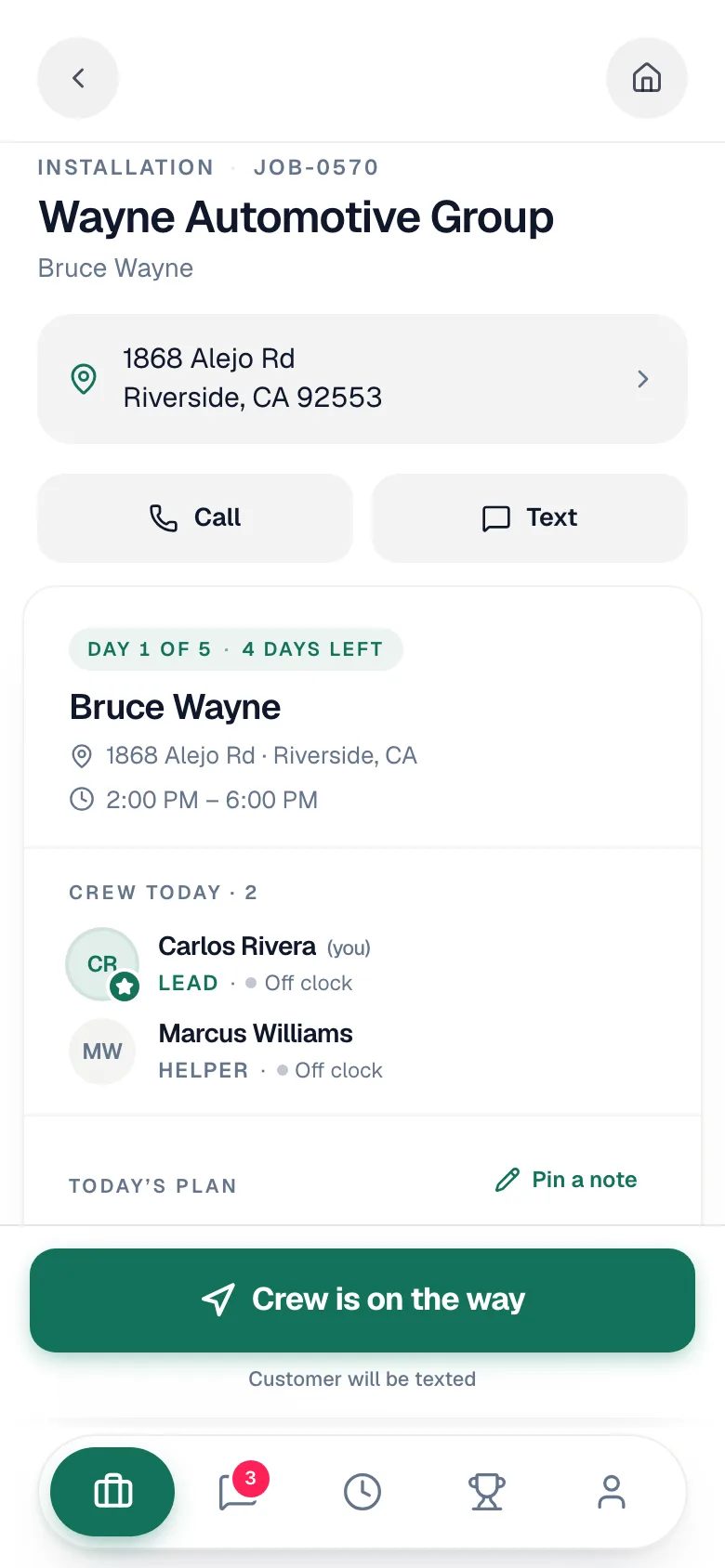
If you're a Helper, you don't see customer-facing buttons. You get your own clock card instead: I'm on my way → I've arrived → Take a break / Back to it → End my day. Your hours are tracked separately from the Lead's. A banner at the bottom tells you what the Lead is doing ("Maria is driving the day").
Good to know
- Which jobs you see. Techs see the jobs they're assigned to, as Lead or Helper. If a job is missing, ask the office to check the assignment.
- When things lock. Once a job is complete, a green Completed (or Paid) pill sits at the top of the screen. Parts and labor locks as soon as the invoice has been sent or paid. Notes and tags lock once the job is closed, cancelled, or marked no-show. You can still add photos.
- Changes from the office show up live. If dispatch reschedules or reassigns a job while you're looking at it, the screen updates on its own.
- No signal? Today's and tomorrow's jobs are saved on the phone. See Working offline.