
The time clock is how techs record their workday in the app: clock in when you start, take breaks and lunch, and clock out when you're done. Your job time (driving and on site) is tracked on its own from the job buttons, and everything lands on your timesheet for the office to review and run payroll.
Before you start
-
Time tracking is on for every company unless the owner turned it off under Settings → Team → Track employee time. When it's off, there is no clock and no Timesheet tab in the app. Time off requests still work.
-
Clocking in needs a signal. If you're offline, the clock tells you to Reconnect to clock in.
Clock in
On the Jobs tab, tap Clock in at the top of your day. The card switches to On the clock since 7:02 AM with a running timer.
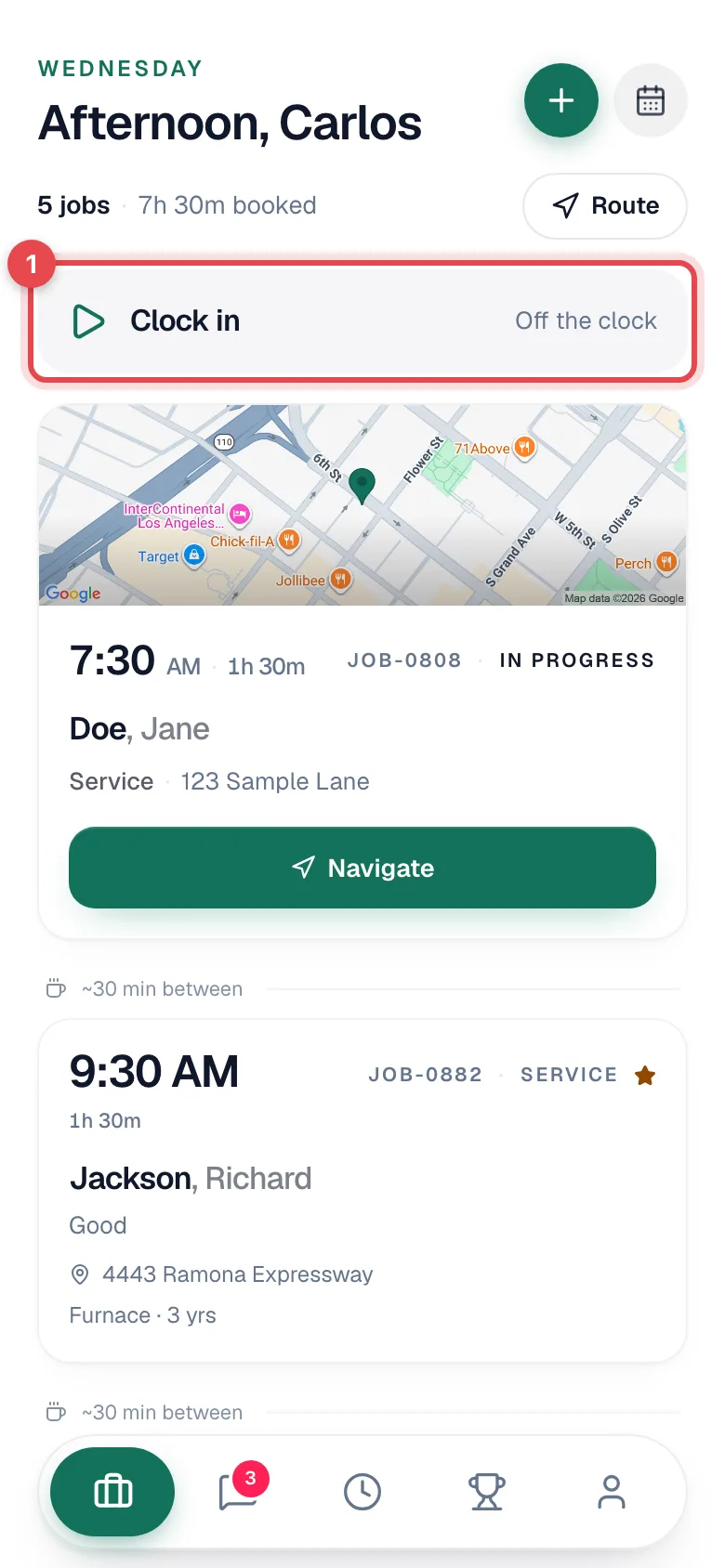
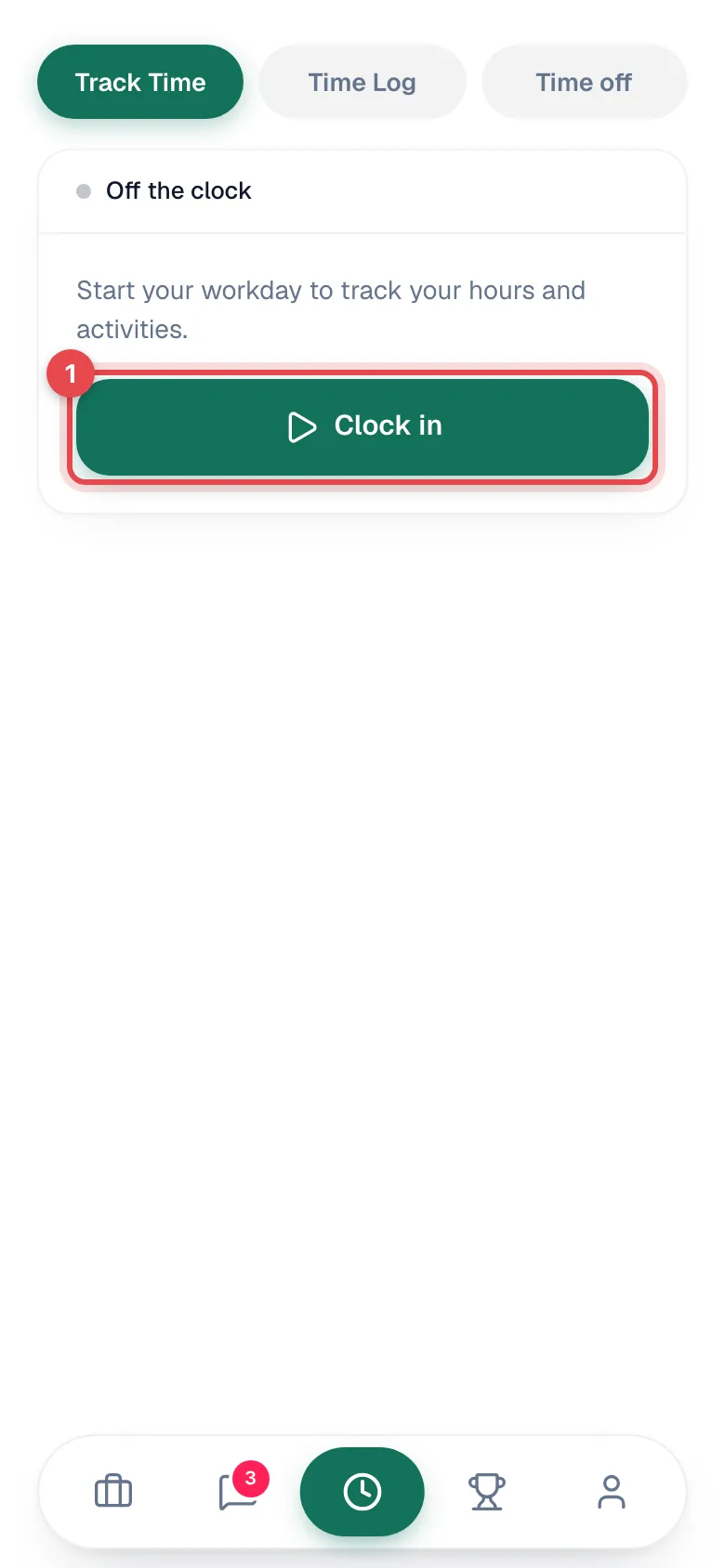
You can also clock in from the Timesheet tab (the clock icon in the middle of the bottom bar).
Forgot to clock in on a crew job? Tapping Crew is on the way or Arrived as the Lead, or I'm on my way or I've arrived as a Helper, clocks you in automatically.
Take a break or lunch
While you're on the clock, the card shows Break and Lunch. Tap one to pause. The card turns amber and counts your break. Tap I'm back when you return.
Track what you're doing between jobs (optional)
Open the Timesheet tab. Once you're clocked in, Track Time shows how long you've worked today and asks What are you on? (Before you clock in, it only shows Clock in.)
| Tile | How it works |
|---|---|
| Visit | Auto. Lights up while you're on site at a job (after Arrived on Site). |
| Driving | Auto. Lights up while you're driving to a job (after On My Way). |
| Office | Tap when you're at the shop doing paperwork or meetings. |
| Supplies | Tap when you're picking up parts or stocking the truck. |
| Break | Same as the break button on the Jobs tab. |
| General | Anything you don't tap into counts as General time. |
Tap a running tile again to stop it, or tap another to switch. While a job timer is running, the manual tiles are greyed out: Your job timer is running — Visit and Driving are tracked automatically.
Clock out
Tap Clock out on the Jobs tab, or End my day on the Timesheet tab. You'll see Clocked out — have a good one.
Completing a job does not clock you out. Your workday keeps running until you end it.
Checking your hours
On the Timesheet tab:
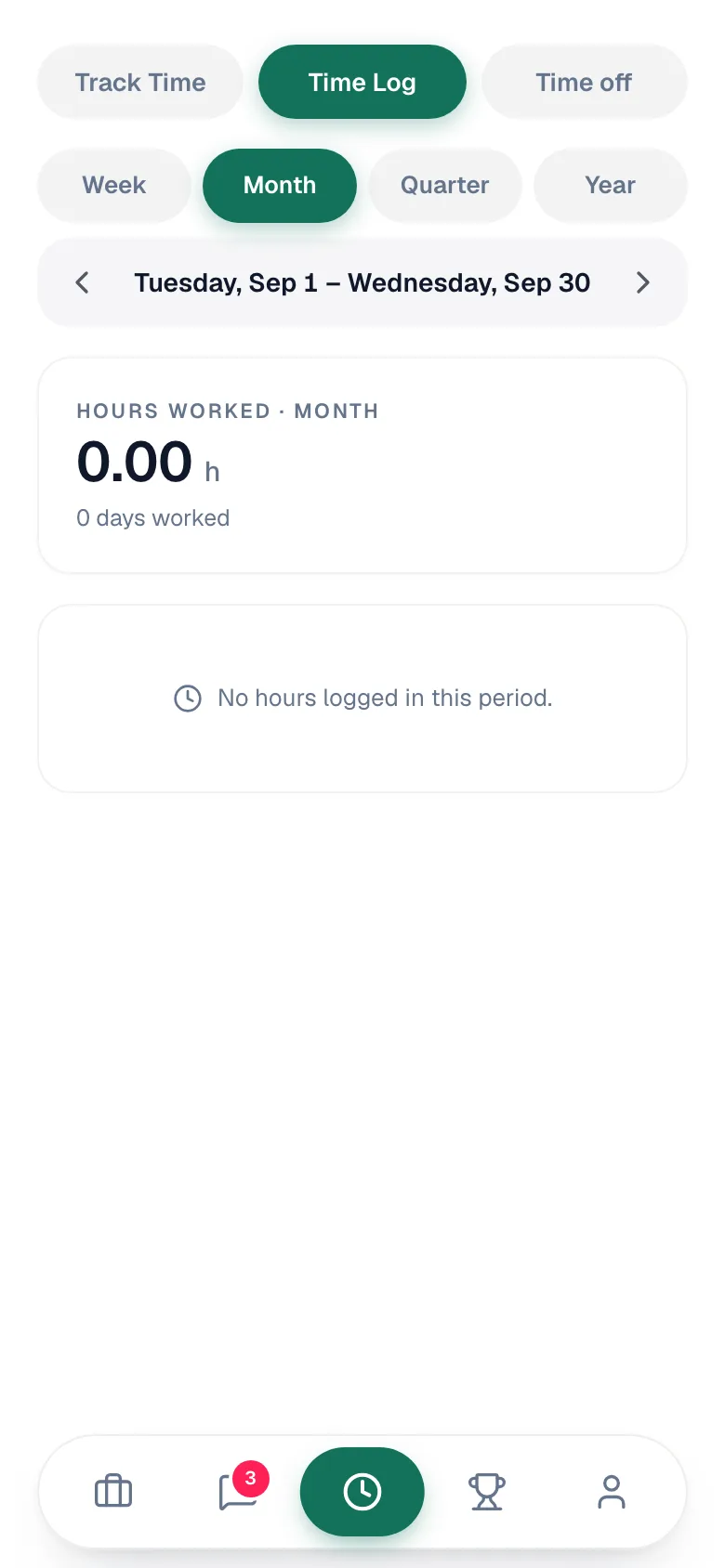
- Time Log shows your hours worked and days worked. Pick Week, Month, Quarter, or Year, and use the arrows to move back and forward.
- Time off lists your requests and has a Request time off button. See Requesting time off.
How job time and the workday clock fit together
| Workday clock | Job time | |
|---|---|---|
| Started by | Clock in | On My Way and Arrived on Site on a job |
| Stopped by | Clock out / End my day | Complete Job, No Show, or starting another job |
| Used for | Your hours and payroll | Labor time and cost on each job |
Crew Helpers have their own job clock on crew jobs (I'm on my way, I've arrived, Take a break, End my day), so their hours count separately from the Lead's. See Managing jobs on mobile.
If you forget to clock out
Run a Call watches for shifts that stay open too long. After 16 hours the shift is flagged as a missed clock-out and your owners and admins are notified. After 24 hours the shift is closed automatically at the best guess of when you stopped (your last job timer, your last break, or 8 hours after you clocked in) and flagged for the office to confirm before the pay period can be approved.
You can't edit clock times in the mobile app. If a time is wrong, ask the office. They can adjust it from Time in the office app.