
Folders keep the Automations page tidy. Everything on the page, built-in messages and automations your team built, sits in a folder that you open and close with a click. You can make your own folders and move anything into them.
The built-in folders
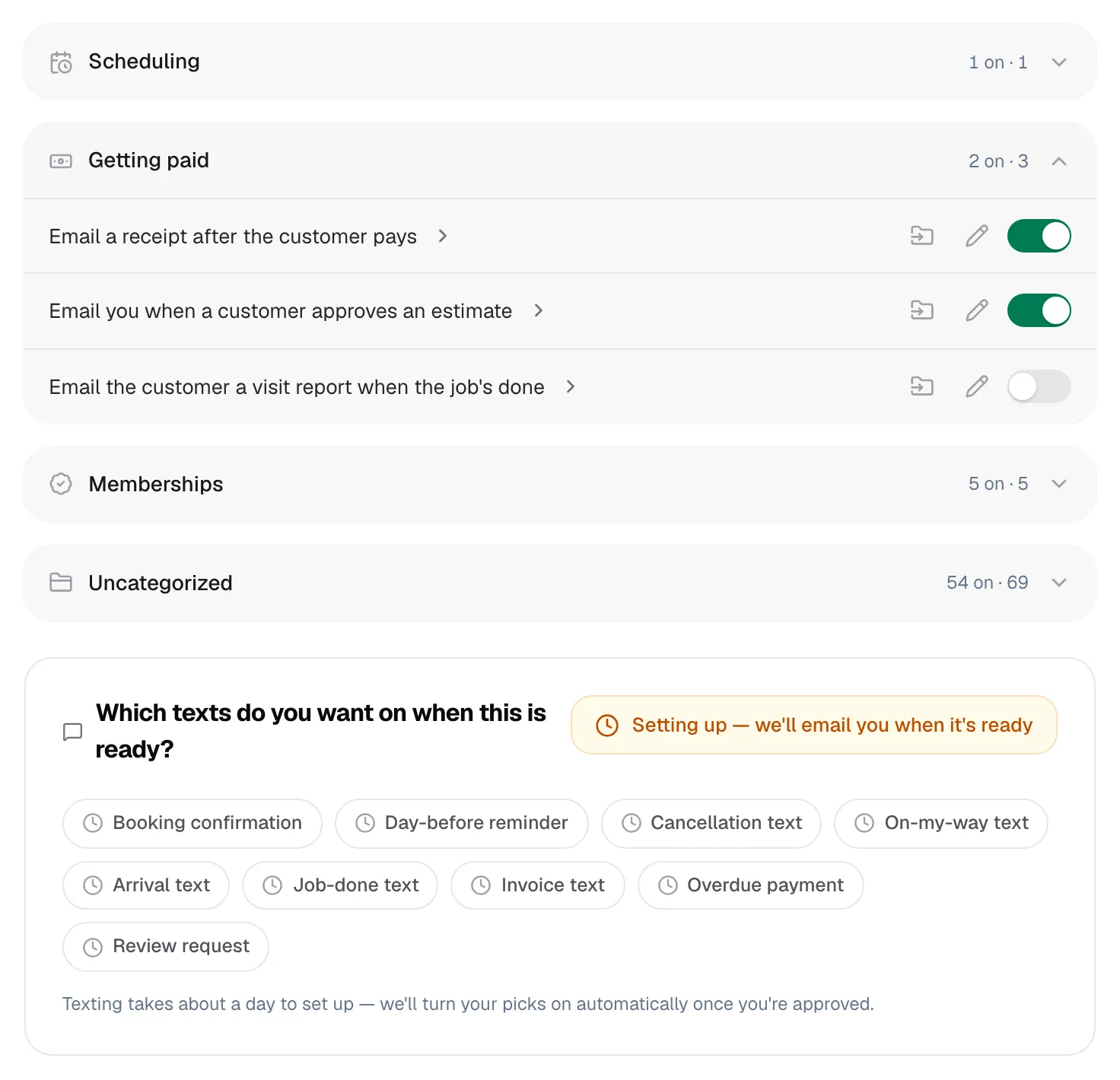
Run a Call sets these up for you. They're listed first, in this order:
| Folder | What starts out in it |
|---|---|
| Scheduling | The appointment reminder email |
| Getting paid | Payment receipt, estimate-approved alert, visit report email |
| Memberships | The five membership emails |
| Texting | The nine customer texts (only shown once business texting is live) |
After those come the folders you create, in alphabetical order, and last Uncategorized, which holds anything not filed yet. New automations you build land in Uncategorized.
Each folder header shows how many items are switched on and how many there are in total, for example 2 on · 3. Folders always start closed when you open the page.
Create a folder
- Open Automations from the sidebar.
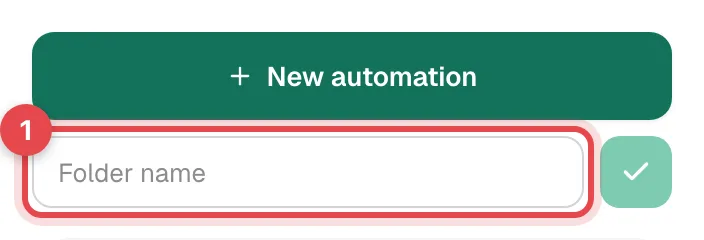
- Click New folder in the right-hand panel.
- Type a name (up to 40 characters) in the Folder name box.
- Press Enter, or click the green check mark.
You'll see Folder created and the new, empty folder appears in the list. To cancel, press Esc or click anywhere else.
Move something into a folder
You can move built-in messages and your own automations alike.
- Open the folder the item is in.
- On the item's row, click the folder icon with the arrow (next to the pencil).
- In the Move to folder menu, pick where it should go, or pick Uncategorized to take it out of a folder.
The row jumps to its new folder straight away, and the folder opens so you can see it there. On a phone, the same button opens a list that slides up from the bottom of the screen.
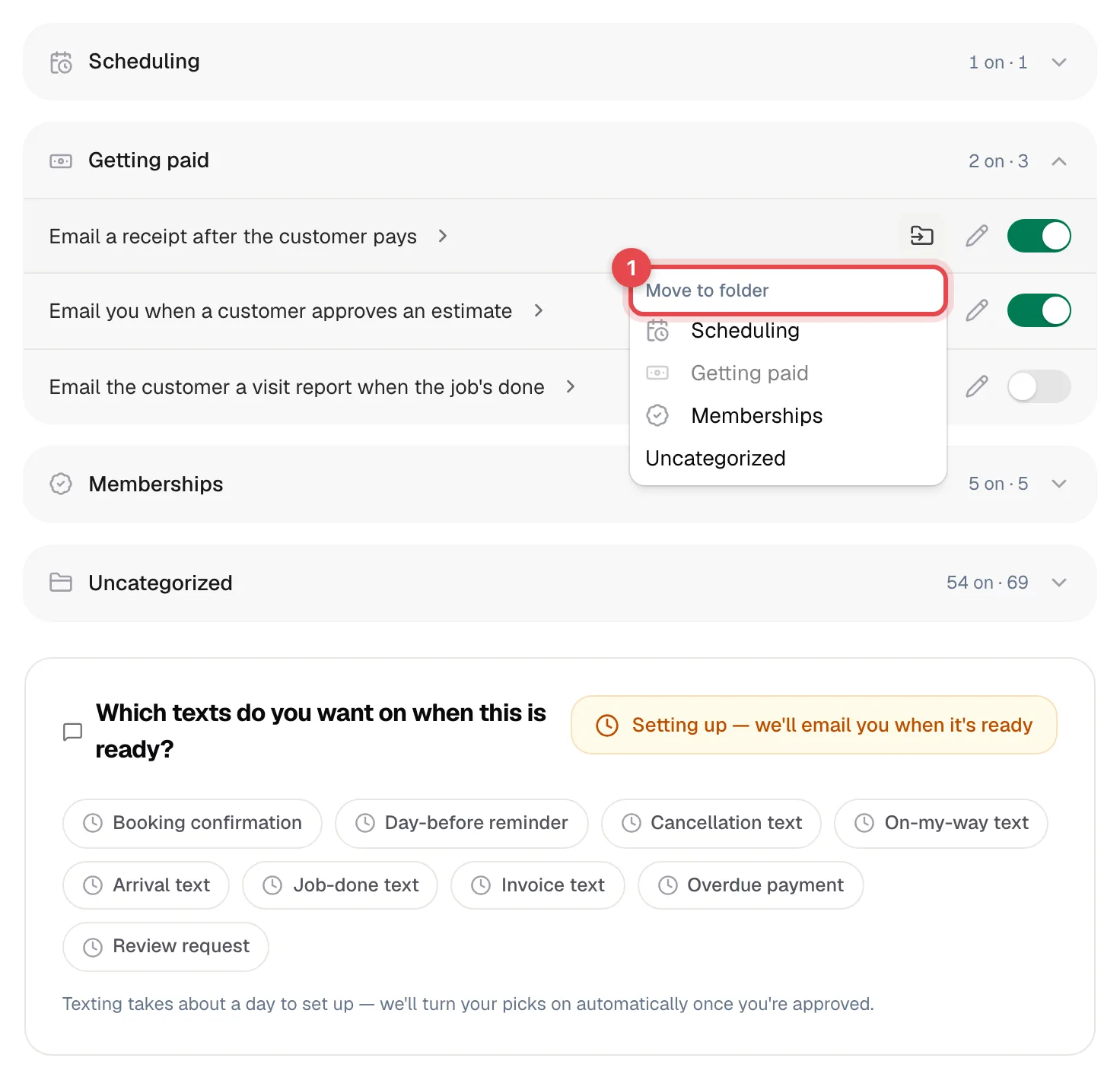
The move menu only lists folders you can see on the page. A built-in folder that's currently empty (for example Texting before texting is live) isn't offered.
Delete a folder
Only folders you created can be deleted, and only when they're empty.
- Move everything out of the folder first.
- Hover over the empty folder's header. A trash icon appears on the right (on a phone it's always visible).
- Click it, then confirm with Delete.
The built-in folders can't be deleted.
Good to know
- Moving never changes what an item does. A message keeps its on/off state and keeps sending exactly as before.
- There's no renaming. To rename a folder you made, create a new one, move the items across, then delete the old one.
- An empty folder you made stays visible, showing Empty — use the folder button on any automation to move it here.