
Automations send the routine messages for you: appointment reminders, payment receipts, on-my-way texts, overdue payment nudges. You flip a switch and Run a Call handles it from then on. When your shop needs something the built-in messages don't cover, you can build your own.
Who can use it
Owners, admins and office staff see Automations in the sidebar. Field technicians don't.
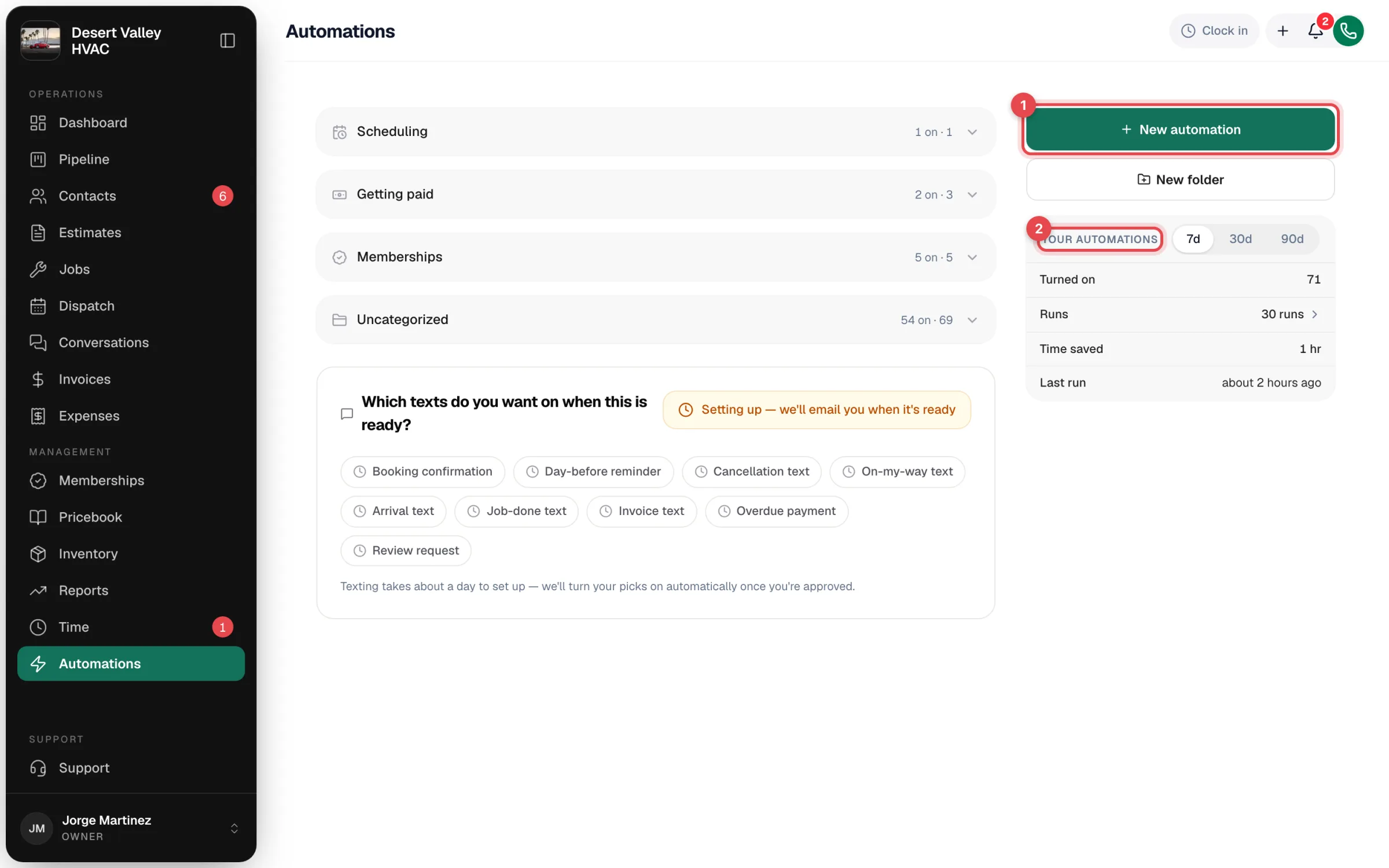
What's on the page
Open Automations from the sidebar. The page has three parts.
| Part | What it's for |
|---|---|
| Folders (left) | Everything that can run on its own, grouped into folders you open and close. Each folder shows how many items are on, for example 2 on · 3. |
| Business texting card (left, below the folders) | Shows up until texting is live on your account. It either invites you to Set up business texting or, while approval is in progress, asks Which texts do you want on when this is ready? |
| Right-hand panel | The New automation and New folder buttons, plus a Your automations summary: how many are Turned on, how many Runs in the last 7, 30 or 90 days, estimated Time saved and the Last run. |
On a brand-new account, before anything has ever run, the page opens with a green card: Stop losing money to no-shows. Its Turn it on button switches on the appointment reminder email. Once you have run history, that card goes away and the reminder lives in the Scheduling folder.
The built-in folders
| Folder | What's in it |
|---|---|
| Scheduling | Email a reminder before each appointment |
| Getting paid | Email a receipt after the customer pays, Email you when a customer approves an estimate, Email the customer a visit report when the job's done |
| Memberships | Five membership emails, from Email members when a payment is late to Email members who haven't booked in a while |
| Texting | The nine customer texts. This folder only appears once business texting is live. |
| Uncategorized | Automations your team built that haven't been filed in a folder yet |
You can add your own folders and move anything between them. See Organizing automations into folders.
Turning a message on or off
- Click a folder to open it.
- Flip the switch next to the message.
That's it. A short confirmation appears, such as Done — customers now get a receipt automatically after they pay. Everything starts off on a new account, so nothing goes to your customers until you turn it on.
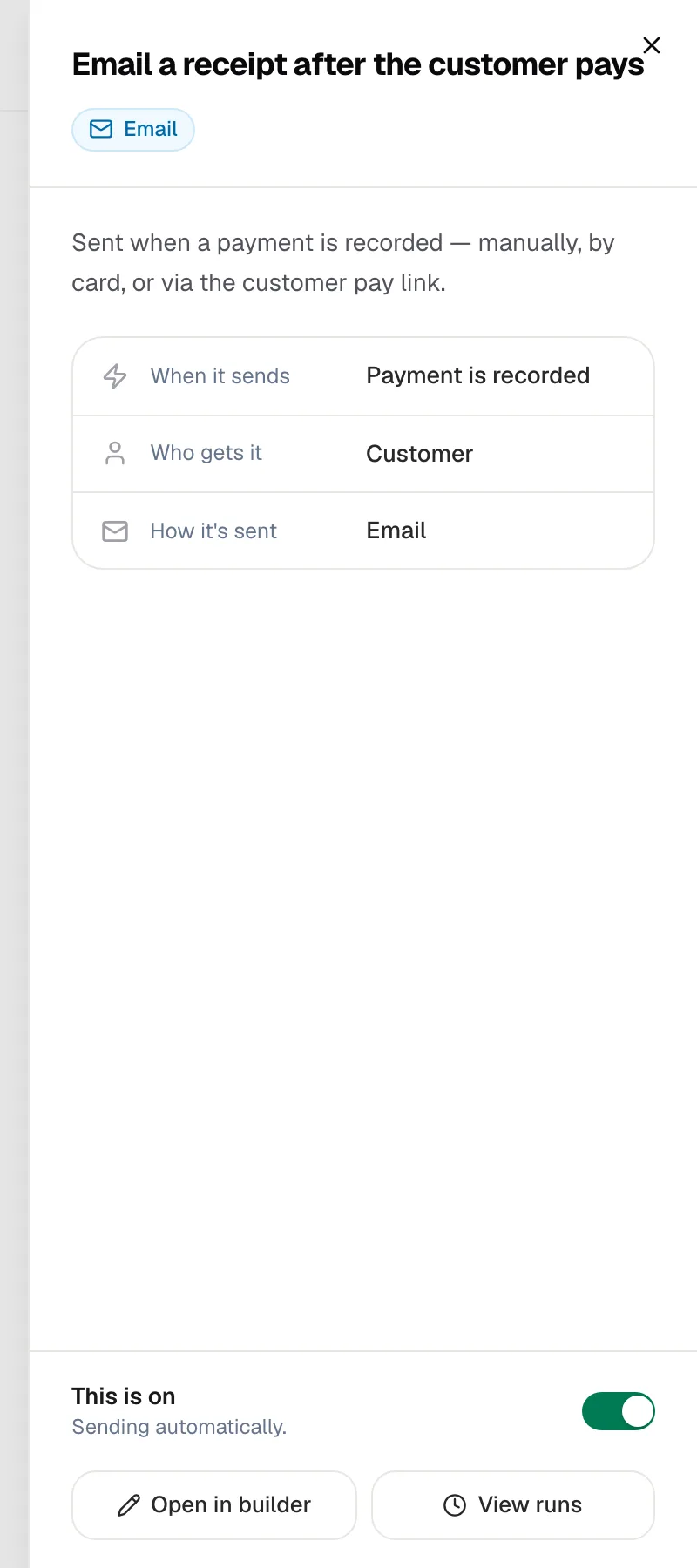
To see exactly what a message does before turning it on, click its name. A panel opens with When it sends, Who gets it and How it's sent, plus buttons to Open in builder and View runs.
Full list of built-in messages and when each one goes out: System templates catalog.
Texts need business texting
The nine customer texts (booking confirmation, day-before reminder, on-my-way, arrival, job done, invoice, overdue payment, review request, cancellation) only work once business texting is set up and your registration is approved. Emails work right away with no setup. See Enabling SMS-based automations.
Changing the wording
Every built-in message comes with ready-to-use wording. For the appointment reminder, receipt and visit report emails and for the customer texts, you can write your own version: click the pencil icon on its row to open it in the builder. See Changing the wording of a built-in message.
Building your own
Click New automation to open the builder. You pick what starts it (a job is completed, an estimate is approved, a call is missed, a tag is added…) and then add steps: send a text or email, update a record, wait, or only continue when a condition is met. See Building a custom automation.
Once you've saved an automation, it shows on the Automations page with its own on/off switch, in the Uncategorized folder until you move it.
Checking what ran
Every time something fires, it's recorded as a run. Click Runs in the right-hand panel to see them all. Runs are kept for 90 days. See Viewing automation runs and step timelines.
Good to know
- Built-in messages can't be deleted, only turned off. Automations you built can be deleted from their row or their detail panel.
- Customers aren't flooded. Automated messages to the same customer are spaced out: at most one text and one email every 25 minutes across all automations.
- Opt-outs are respected. A customer who replied STOP to your texts doesn't get automated texts.
- Per-job opt-out. If a job has customer notifications turned off, scheduling messages for that job are skipped.
- The builder needs a bigger screen. On a phone you can view an automation, but editing needs a tablet or computer.