
Every bill Run a Call sends your company — your subscription plus any add-ons and usage — is listed on the Billing page, with a PDF you can download for your records or your accountant.
These are invoices from Run a Call to you. Invoices you send your own customers live on the Invoices page.
Who can do this: owners and admins, in a web browser.
Open Settings → Billing
Click your name in the bottom-left corner of the sidebar and choose Billing.
Scroll to Invoices
The Invoices card near the bottom shows your five most recent bills. Click Show all invoices to see your full history (up to your last 100).
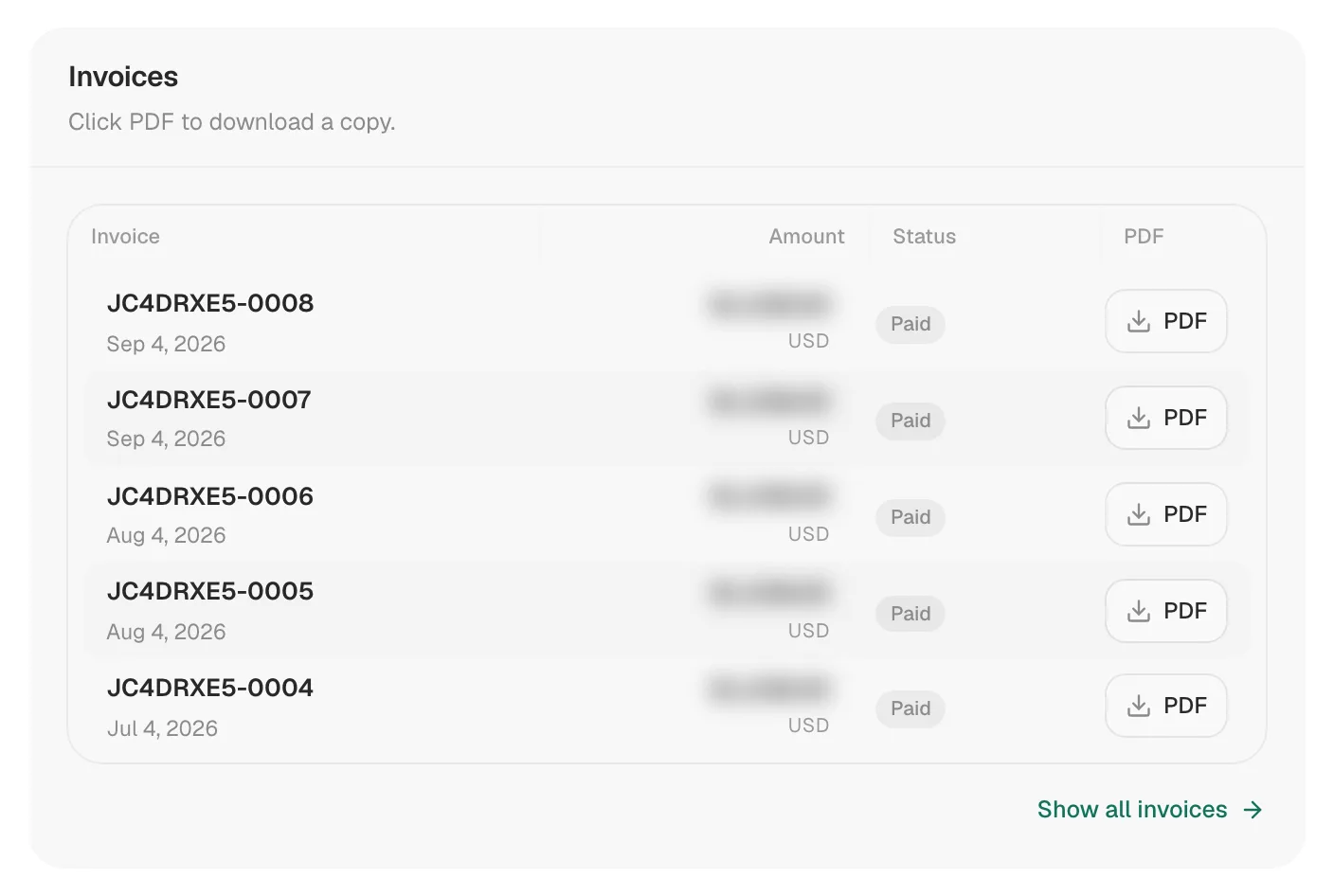
| Column | What it shows |
|---|---|
| Invoice | The invoice number and the date it was issued |
| Amount | The total for that bill |
| Status | Paid, Pending (not paid yet), Void, Uncollectible, or Draft |
| Download a copy |
Download a PDF
Click PDF on any row. The invoice opens as a PDF you can save or print.
What's on a bill
The What you're billed for section higher up on the Billing page lists every line on your subscription, pulled live from our payment processor:
- Your Run a Call platform plan.
- Each add-on you have: Messaging, Voice, AI Receptionist.
- Pay-as-you-go rates — usage past an add-on's included bundle (extra texts, voice minutes, AI-answered calls) bills on your next invoice at those rates.
During your trial this section is titled Nothing billed during your trial and shows what your first bill will be, and when it posts.
Good to know
- No invoices yet? Your first invoice appears after your trial converts to a paid subscription.
- Change the card that pays these bills: click Manage subscription at the top of the Billing page. See Updating the card on file for your subscription.
- Adding or cancelling an add-on mid-month: activating an add-on charges a pro-rated amount for the rest of the billing period. Cancelling keeps it working until the end of the period, then it drops off your next bill.