
This is the card your company uses to pay Run a Call for your subscription and add-ons. It has nothing to do with the cards your customers use to pay your invoices — for those, see Adding a card on file for a customer.
Who can do this: owners and admins. Billing is managed on a computer or in a web browser; the mobile app shows a note pointing you to app.runacall.com.
Open Settings → Billing
Click your name in the bottom-left corner of the sidebar and choose Billing. The Subscription card at the top shows your plan, its status (Trial, Active, Past due, Cancelled, or Expired), and your next bill or trial end date.
Add or change your card
What the button says depends on where your account is:
| You see | When | What it does |
|---|---|---|
| Add payment method | You're on your trial and haven't added a card yet | Opens a secure Stripe checkout page. Enter your card to start your subscription. You aren't charged until your trial ends. |
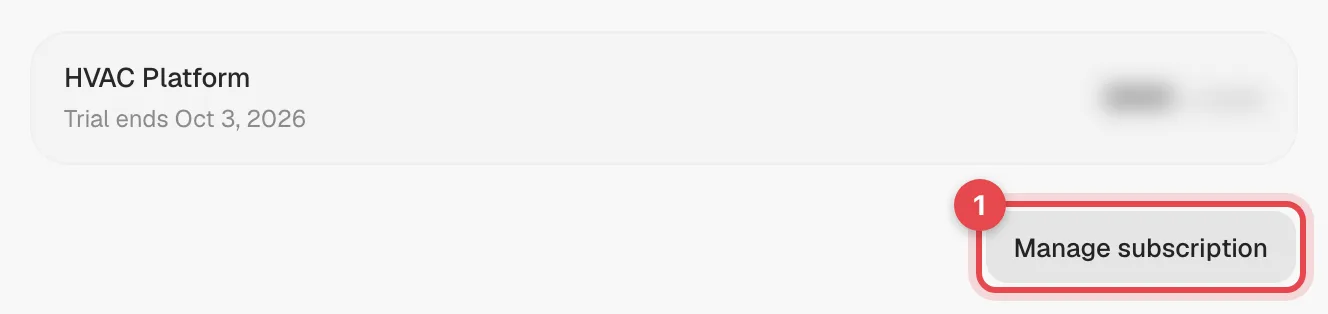
| Manage subscription | A card is already on file | Opens your secure Stripe billing page, where you can replace the card that pays for Run a Call |
| Subscribe or Resubscribe | Your subscription expired or was cancelled | Opens Stripe checkout to start a new subscription |
Save the new card and come back
Enter the new card on the Stripe page and save it. When you're done, use the link back to Run a Call — you'll land on Settings → Billing again.
Card details are entered on Stripe's secure page and stored by Stripe. Run a Call never sees or stores your full card number.
During your trial
- If you haven't added a card, the Billing page shows No payment method on file. Add one before your trial ends to keep uninterrupted access.
- Add-ons (Messaging, Voice, AI Receptionist) need a card on file even during the trial. Adding a card from an add-on's Add card & activate button turns that add-on on. Add-ons are free during the trial; the first charge lands on your first bill.
If a payment fails
When a renewal charge fails, your subscription shows Past due and the page reads Payment failed. Update your card to restore access.
- You keep full access for 7 days after the payment first fails, so a declined card doesn't stop your crew mid-day.
- After that, the app locks. Owners and admins are taken to the Billing page with Your payment is past due — update your card to open … again. Update the card from there; access comes back as soon as the payment goes through.
If you get stuck, click Questions about billing or your subscription? at the bottom of the Billing page. It opens a support request, and it works even while your account is locked.