
Call flows decide who answers each call to your business line, and when. One flow can run every line you have, or each line can run its own.
What a call flow is
A call flow is a short list of steps a call walks through, drawn as a tree. Every step has a plain-English name:
| Step | What the caller gets |
|---|---|
| Greeting | A message, then the next step. |
| Menu | "For service, press 1. For billing, press 2." Each key leads somewhere. |
| Business hours | One path when you're open, another when you're closed or it's a company holiday. |
| Ring people | Rings the office team, specific teammates, a ring group, whoever is on call today, a field tech's cell, or an outside number such as the owner's cell. |
| Voicemail | A named mailbox with its own greeting and maximum message length. |
| AI receptionist | Your AI receptionist answers and takes the details. |
| Send a text | Texts the caller a message or a link, then hangs up or continues. |
| Caller check | Sends callers one way or another before anything rings, based on a yes/no check: the caller is a known customer, has an active membership, is on your block list, has a hidden caller ID, already called recently, or dialed a specific line. |
| Language | Switches to Spanish (or back to English) for every step after it. Pair it with a menu key such as "para español, oprima 2". |
| Message & hang up | Says something and ends the call. |
Caller check, Language, Message & hang up and Go to sit under More steps in the Add step panel.
Every path ends somewhere on purpose. The builder won't publish a flow where a caller could be left hanging.
Simple routing (no builder needed)
Most shops only need two decisions, and those live in the Call routing card on Settings → Phone → Voice (the same card also shows on the Numbers tab): what happens After hours, and what happens when Nobody answers (no one available, or 30 seconds with no pickup). Choose Voicemail or AI receptionist for each; it applies to every line. Changing them there updates your default call flow straight away.
Your opening hours come from Settings → Business, and company holidays count as closed. See Setting your business hours.
Once you customise the default flow in the builder (a menu, an on-call step, an outside number), that card changes to Call routing is customised in Call flows with an Open the builder link. Back to simple routing returns to the two choices; the customised version stays in the flow's version history.
Where to find it
Go to Settings → Phone → Flows (owners and admins). You'll see your flows, which one is the Default, the Lines each flow runs, and your Ring groups. Click Open on a flow to edit it.
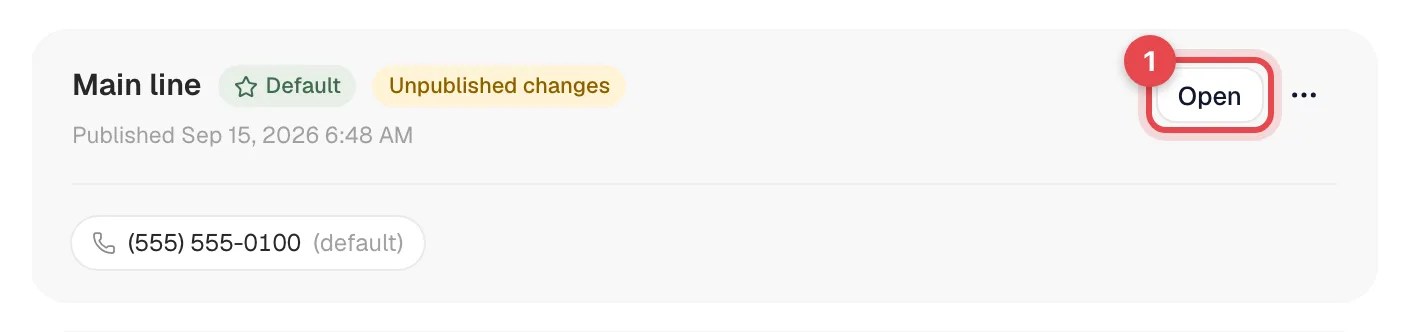
Every account starts with a Main line flow that matches how your calls were answered before: ring the office, then voicemail or the AI receptionist. Nothing changes until you edit and publish.
Building a flow
-
Click New flow and pick a template: Ring the office, then voicemail, AI receptionist answers first, Office in hours, AI after hours, Service / Sales / Billing menu, After-hours emergency line, Press 1 to get a text, English / Spanish, Spam gate, or Start from scratch. Name it and click Create flow.
-
Click any step to change it in the panel on the right. Click an Add step slot to put a new step under a branch.
-
To move a step, drag its card onto an empty Add step slot.

-
Click Simulate to walk through a call in your browser. Pick a time of day, press keys, choose Answered or No answer, and watch the path light up.
-
Click Call me to hear the draft on your own phone. We call you from your business line and run the flow as if you were a customer.
-
Click Publish. New calls follow the new version right away. Calls already in progress finish on the old one. Publish stays greyed out while the flow has a problem, such as a path that leads nowhere; the banner above the canvas tells you which step to fix.
Changes save as a draft while you work (the header shows Saved). Use undo and redo if you change your mind.
Keep the menu prompt under 20 seconds and say the task before the key: "For service, press 1." Three to five options is the sweet spot.
Using your own recording
Any greeting, menu prompt or voicemail greeting can play a recording instead of the typed text. Click the step, switch What the caller hears to Recording, then either:
- Upload a file: an MP3, WAV or M4A file up to 60 seconds and 5 MB.
- Record by phone: we call the number you enter, you speak after the tone and press #. The greeting appears in the list a few seconds later and is selected for that step.
Pick any earlier recording from the dropdown and press the play button to hear it.
Ringing an outside number
Click Add who rings → Outside number…, give it a label (for example "Owner cell") and a 10-digit US or Canadian number. Field techs listed under Field techs (rings their cell) work the same way, using the cell number on their profile.
Outside numbers ring straight through, with nothing to verify. If you'd rather the person press 1 first, click Rings straight through next to the number so it reads Press 1 to accept: they hear a short whisper, and if they don't press 1 the call moves on to the next step instead of landing in their personal voicemail. Change what they hear in Whisper to the person answering, and pick the caller ID they see in Caller ID shown to outside numbers.
A number that rings straight through can be answered by its own voicemail before your flow's next step. The builder shows a reminder when that could happen, but it never stops you from publishing.
Ring groups
A ring group is a named set of people (teammates and outside numbers) you can ring from any flow step, for example "Service desk". Everyone in the group rings at the same time. Create one with New group under Ring groups on the Flows tab, then pick it from Add who rings in a ring step.
The on-call tech
In a ring step, choose Add who rings → On-call tech (from the schedule). The flow rings whoever has an On-Call entry on their schedule for today (set per person in Settings → Team). Nobody on call means the step is skipped.
Versions
Every publish is saved. Open Versions to read what any version did, or Restore one into your draft and publish it again.
Which line runs which flow
On the Flows tab, each line has a dropdown. Pick the flow it should run, or leave it on the default. Many lines can share one flow.
Inside a published flow, click an empty part of the canvas to open Flow settings. The Lines running this flow list shows every line with a switch: on means the line runs this flow, off sends it back to the default.