
If your books live in QuickBooks Desktop Pro, Premier or Enterprise on an office computer, Run a Call can still send your customers, pricebook items, invoices and payments to it. It works through Intuit's Web Connector — a small program that comes with QuickBooks Desktop — which checks in with Run a Call every few minutes and picks up whatever is waiting. Setup takes about ten minutes at the computer that runs QuickBooks.
Before you start
| You need | Why |
|---|---|
| A login that can manage integrations | The account owner can always set up QuickBooks. So can anyone whose role has Integrations set to Everything, including delete (Settings → Team → Roles). |
| The office computer with your company file | The Web Connector runs there. |
| The QuickBooks Admin user | You approve Run a Call's access to the company file once, as Admin. |
| QuickBooks Online not connected | The Desktop option only shows before any QuickBooks connection has been made. Using QuickBooks Online instead? See Connecting your QuickBooks Online account. |
Choose Desktop
Go to Settings → QuickBooks. Under the QuickBooks Online card, click Set that up instead next to "Using QuickBooks Desktop or Enterprise instead of Online?".
Click Set up Desktop
On the QuickBooks Desktop or Enterprise card, click Set up Desktop.
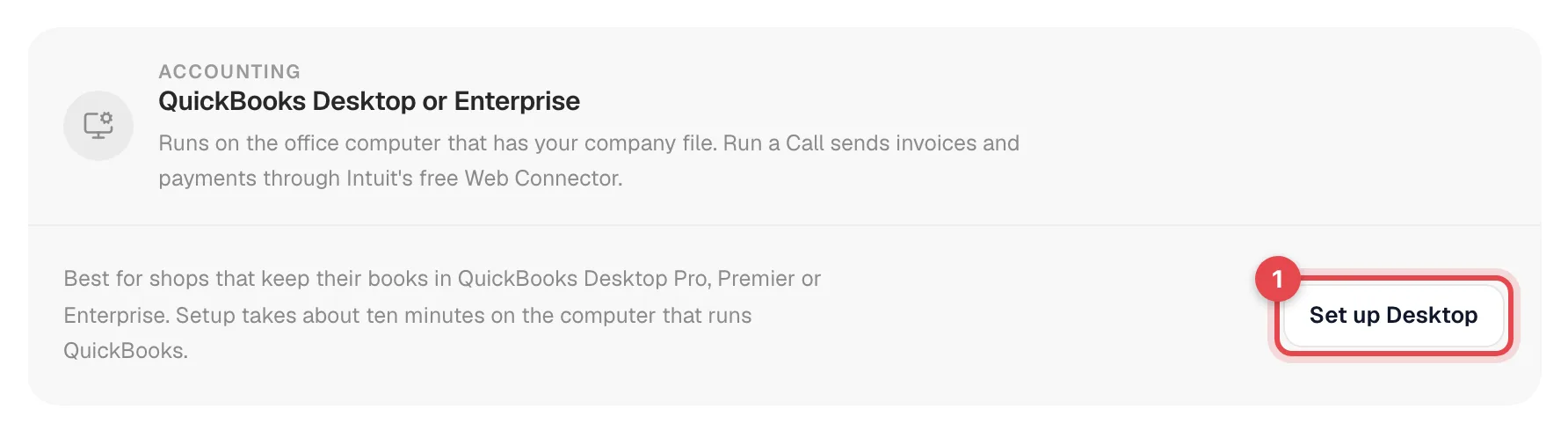
Run a Call creates your connector and shows a connector password. It's shown only once — copy it now. (Lost it? Reset password on the QuickBooks Desktop card gives you a new one.)
Connect your QuickBooks computer
A guided Install step walks you through four things on the office PC:
- Open QuickBooks on your company file and sign in as the Admin user. Leave it open.
- Click Download the connector file on that computer and double-click it. It opens in the QuickBooks Web Connector. (If Windows asks what to open it with, install the Web Connector from Intuit's download page first.)
- When QuickBooks asks whether Run a Call may access your company file, choose Yes, always; allow access even when QuickBooks isn't running, then Continue and Done.
- Back in the Web Connector, click the Password box on the Run a Call row, type the connector password, press Enter and say Yes to saving it. Tick the row and click Update Selected.
Run a Call waits on this screen ("Waiting for your QuickBooks computer to check in…") and moves on by itself as soon as the computer checks in.
Finish the setup steps
| Step | What you choose |
|---|---|
| Income account | Where invoices and pricebook items post. A cost-of-goods account is optional (only used for purchase orders). |
| Sales tax | The QuickBooks sales tax item for taxable invoice lines. Shown if you charge sales tax. |
| Classes | Shown if your company file tracks classes: a default class and, optionally, one per job type. |
| Match customers | Links your Run a Call customers, pricebook items and vendors to the ones already in the company file so nothing is created twice. Sure matches link on their own; for close calls you pick Same customer or Different. Anything with no match is created in QuickBooks the first time it's used. |
| Confirm | Click Start syncing. |
What syncs
From then on, Run a Call queues changes and the Web Connector picks them up on its next check-in:
- Customers (leads stay out until they become customers) and pricebook items.
- Invoices once sent, voids, and payments — including one payment spread across several invoices.
- Purchase orders marked Billed (as bills) and expenses, if you turn them on and map their accounts under Books.
Use the Sync Settings switches on the page to choose what goes over. Sync is one way — Run a Call → QuickBooks Desktop.
Keeping an eye on it
After setup the QuickBooks page shows:
- QuickBooks Desktop card — Company file, QuickBooks version, Last contact, and Waiting to send. Its status reads Connected, Waiting for your computer, or Not checking in if the computer hasn't checked in for a while.
- What's waiting — requests queued for the next check-in.
- Matching with QuickBooks — re-run matching any time (Match again).
- Books — cost of goods and expense accounts, what each expense "paid with" method posts as, classes (including business units), sales tax by jurisdiction, and payment methods. Click Save books settings.
- The same records that need attention list and Sync Log as QuickBooks Online.
Nothing reaches QuickBooks while that computer is off, QuickBooks is closed on the company file, or the Web Connector isn't running. If you see Not checking in, check those three things. Queued changes go over at the next check-in — nothing is lost.
Messages you may see
| Message | Fix |
|---|---|
| QuickBooks couldn't save it right then | QuickBooks Desktop was busy, the company file was locked (single-user mode, a backup), or the record was open on someone's screen. When the record was open on screen (QuickBooks error 3185), Run a Call sends it again on the next check-in by itself, up to three times. For any other reason, click Retry once the file is free; nothing is lost. |
| the QuickBooks copy changed since we last saw it | Someone edited the record in QuickBooks Desktop (error 3200). Run a Call reads the QuickBooks copy again and resends the update on its own, up to three times. |
| the name is already used in QuickBooks | QuickBooks Desktop uses one name list for customers, vendors and employees. Rename or merge, then retry. |
| QuickBooks already has a record with this name | You renamed a customer here and QuickBooks refused the new name because another customer, vendor, employee or other name there already uses it (error 3170). QuickBooks won't merge records. Rename it here (add the location, for example), or link it to the existing QuickBooks record under Matching, then click Retry. |
| QuickBooks has this name but we couldn't link it | QuickBooks has a record with this name but Run a Call couldn't link to it on its own. Open Details on the row to see why, then see below. |
| QuickBooks isn't allowing this | The connector's QuickBooks user lacks permission. Give it access to customers, items, invoices and payments (or run it as Admin), then retry. |
| no sales tax item is set | Pick the sales tax item under Books, then retry. |
Only two Desktop errors are sent again on their own: the record was open on someone's screen (3185) and the QuickBooks copy changed (3200). Everything else waits for you to click Retry, and a name collision needs a rename or a match first.
More: Resolving common QuickBooks errors.
When two customers share a name
QuickBooks Desktop keeps one customer per name. If two customers in Run a Call are both called Rocky Mountain Plaza, the first one goes over and the second is held back under each shares its name with another customer here. Details on the row reads Another customer here is also named "Rocky Mountain Plaza". Nothing lands on the wrong QuickBooks record.
- Open the held-back customer in Run a Call and rename it so the two can be told apart. Include the location, for example Rocky Mountain Plaza - 12 Main St.
- Back on the QuickBooks page, click Retry on the row. It goes over on the next check-in.
If the two records are really the same customer, merge them in Run a Call instead and retry.
<!-- shot: records that need attention list with a customer held back as "each shares its name with another customer here", the Details row open -->QuickBooks has this name but we couldn't link it
Run a Call found a record in QuickBooks with this name but couldn't use it. Details on the row says which case it is:
| Details says | What to do |
|---|---|
| The item is a Discount or Subtotal item (or another kind that can't go on an invoice line) | QuickBooks won't let that kind of item be used on an invoice, so it can't be linked. Rename the item here, or rename the one in QuickBooks, then Retry. |
| The name may sit under a parent item (for example Parent:Item) | Open Matching with QuickBooks, pick the QuickBooks item that is this one, then Retry. Or rename the item here. |
| The name may be a vendor, employee or other name | QuickBooks uses one name list. Link it under Matching if it really is this customer, or rename the customer here, then Retry. |
| QuickBooks has the name more than once | Open Matching and pick the right one, then Retry. |
| QuickBooks' record is already linked to another customer or item here | Two records here point at one QuickBooks record. Merge them in Run a Call, or rename this one if it's a separate record, then Retry. |
Disconnecting
Click Disconnect on the QuickBooks Desktop card and confirm. Run a Call stops sending invoices and payments; nothing already in QuickBooks is changed.
If you set Desktop up again on the same company file, what was already sent is not sent twice. If the file was moved or renamed in the meantime, the card asks "Is this the same company as before?" — choose Same company, keep links unless it really is a different company.