
Out of the box, Run a Call records a payment as Cash, Check, Card, ACH, Zelle, Wire or Financing. Most shops also have names their bookkeeper actually uses — the card processor they ran before, a financing partner, "Money order" — and QuickBooks has a payment method for each. Custom payment methods let you add those names once, decide which ones your techs see, and map each one to the matching QuickBooks payment method so payments sync under the same label.
Where to find it
- Settings → Payments, in the Payment methods section — for every company, with or without QuickBooks. When QuickBooks Online is connected, this section also has the QuickBooks mapping and Import from QuickBooks.
- Settings → QuickBooks — the same list, next to your other QuickBooks settings (owners only).
Owners and admins can change the list.
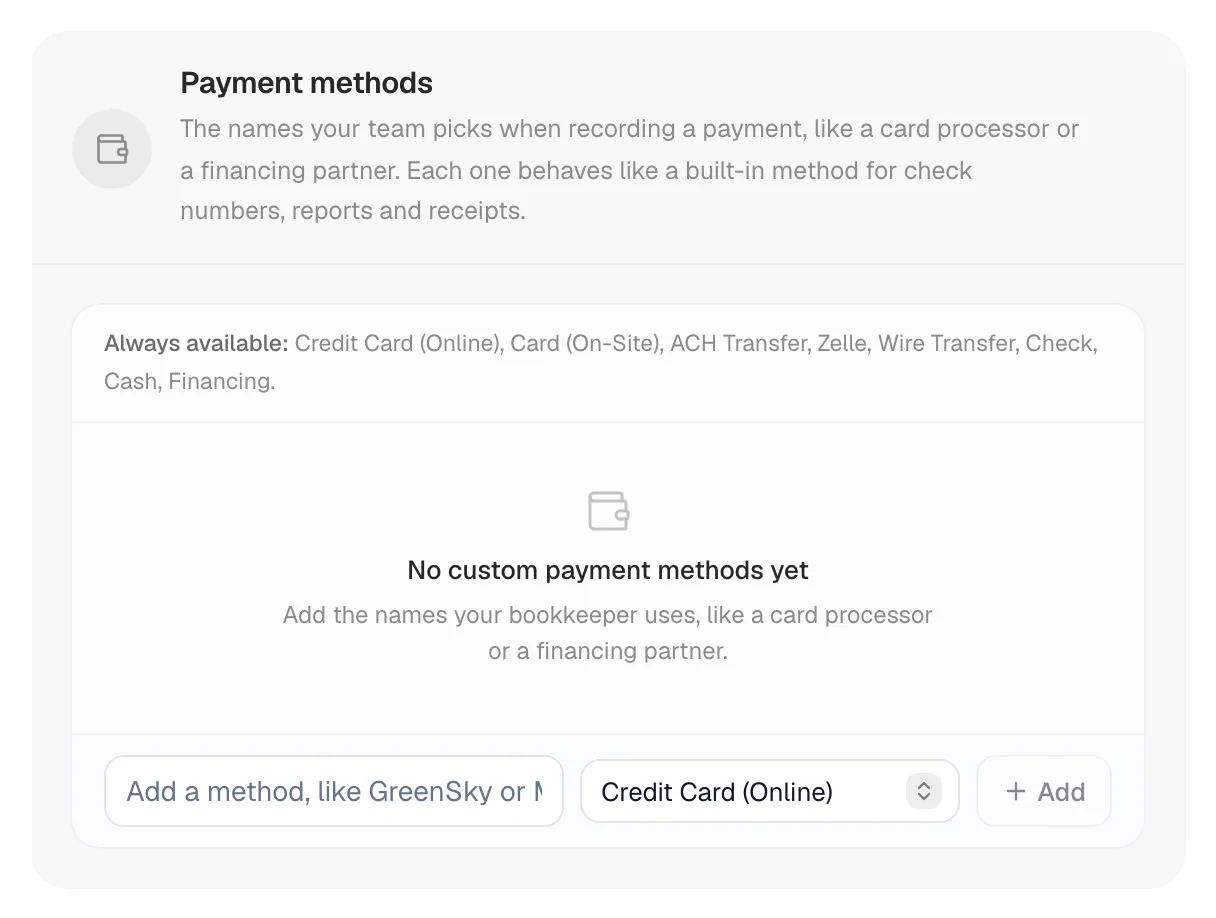
Adding a method
- Type the name in the Add a method, like GreenSky or Money Order field.
- In the dropdown next to it, pick what the method behaves as: Credit Card (Online), Card (On-Site), ACH Transfer, Zelle, Wire Transfer, Check, Cash or Financing. This decides what the payment screen asks for (a check-like method asks for the number), where the method appears when you record a payment, and which QuickBooks method it falls back to.
- Click Add.
Names are limited to 31 characters and must be unique — the same rule QuickBooks applies, so every method here can exist there too.
Mapping to QuickBooks
With QuickBooks Online connected, each row has a QuickBooks method dropdown listing the payment methods in your book. Pick the one this method should post as. A payment recorded under GreenSky then reaches QuickBooks with the GreenSky method, not a generic Credit Card or Check.
- Not mapped — the payment syncs under its kind (Card, Check, Cash…), exactly as built-in methods do.
- Create "…" in QuickBooks — when the method does not exist in your book yet, one click creates it there and maps it.
- Import from QuickBooks — pulls every payment method from your book that is not here yet, pre-mapped, with a suggested kind you can change before importing. The best first step after connecting.
If a mapped method is later made inactive in QuickBooks, the row shows an amber note and payments recorded under it fall back to their kind until you pick another method. Nothing is lost and nothing fails to sync.
For QuickBooks Desktop, type the payment method's name exactly as it appears in the company file.
Showing methods to techs
Each row has a Techs switch. Turn it off for methods only the office records — financing partners, processor-specific card types — and they stay out of the field app's payment screen. The office still sees every active method.
Recording a payment
- Office — on the invoice, click Record Payment, pick the kind (Cash, Check, Card, Bank transfer or Financing), and your custom methods of that kind appear as choices under it.
- One payment across several invoices (Record one payment for all on the customer's Invoices tab) — the method list includes your custom methods.
- Field app — custom methods marked Techs appear as extra buttons under Collect payment on site. A check-like method asks for the number, just like Check.
The payment shows the custom name on the invoice, on the receipt and in QuickBooks.
Removing a method
Click the trash icon on the row and confirm. Payments already recorded with it keep the name; the method simply stops being offered. To keep it for the office but hide it from techs, turn off Techs instead.