
Stuck, found something that isn't working the way you expect, or want to ask for a feature? Send the Run a Call team a support request from inside the app. We reply by email, usually the same day, and you can follow the whole conversation in the app.
Who can do this: everyone on your team, including technicians.
From a computer
Open Support
Click Support at the bottom of the left sidebar (it's also the last item in the Settings menu).
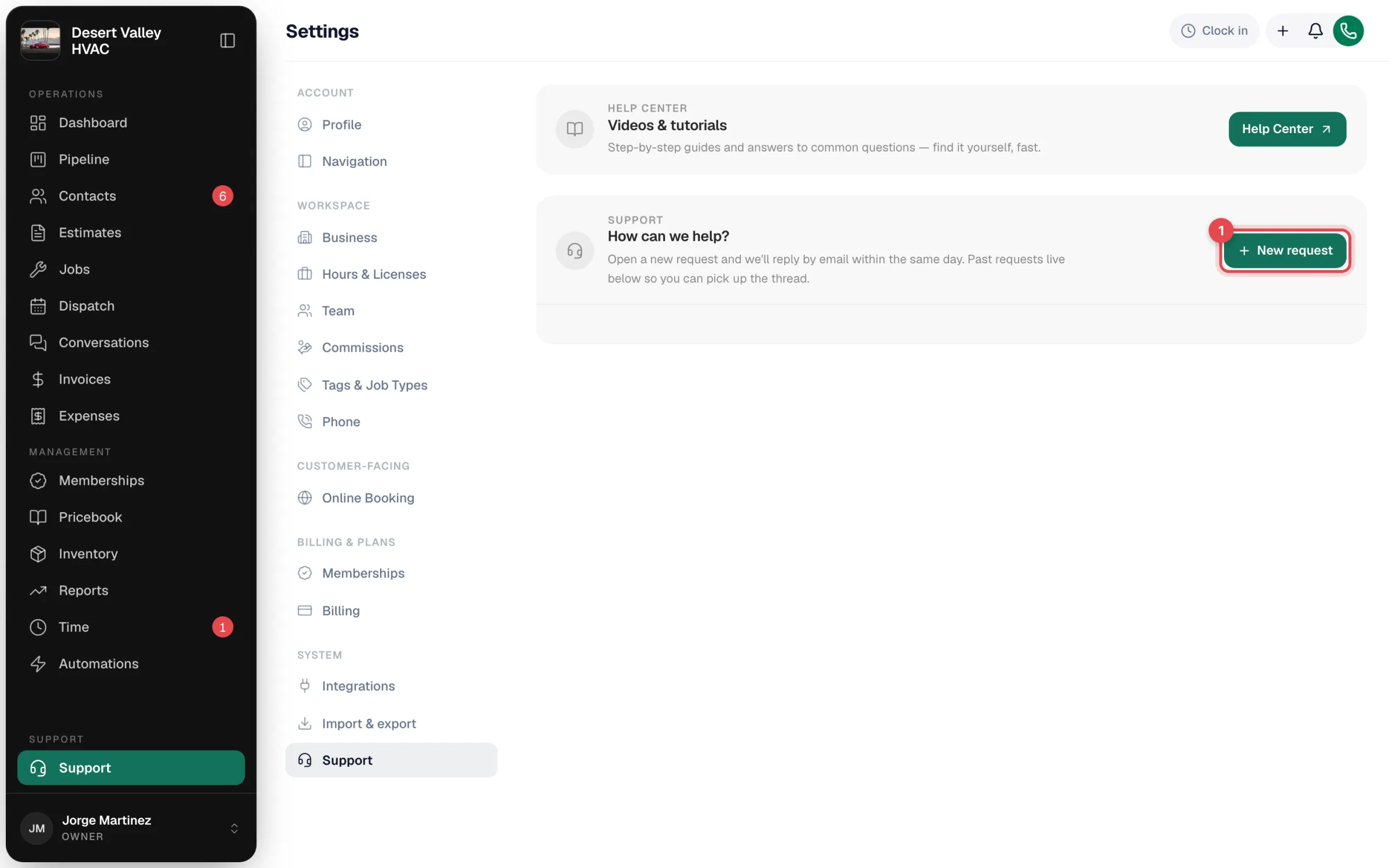
Click New request
Tell us what's going on
In What's going on?, describe what you're trying to do and what happened. The more specific the better: which customer, job, or invoice, and what you clicked. The box grows as you type, so a long description stays in view.
Add screenshots or a screen recording: drag them onto the box, paste them, or click browse. You can attach up to 5 files per message: photos up to 10 MB each, and videos (MP4, MOV or WebM) up to 100 MB. While a video uploads you'll see Uploading video… keep this page open. A big video can take a minute on a slow connection.
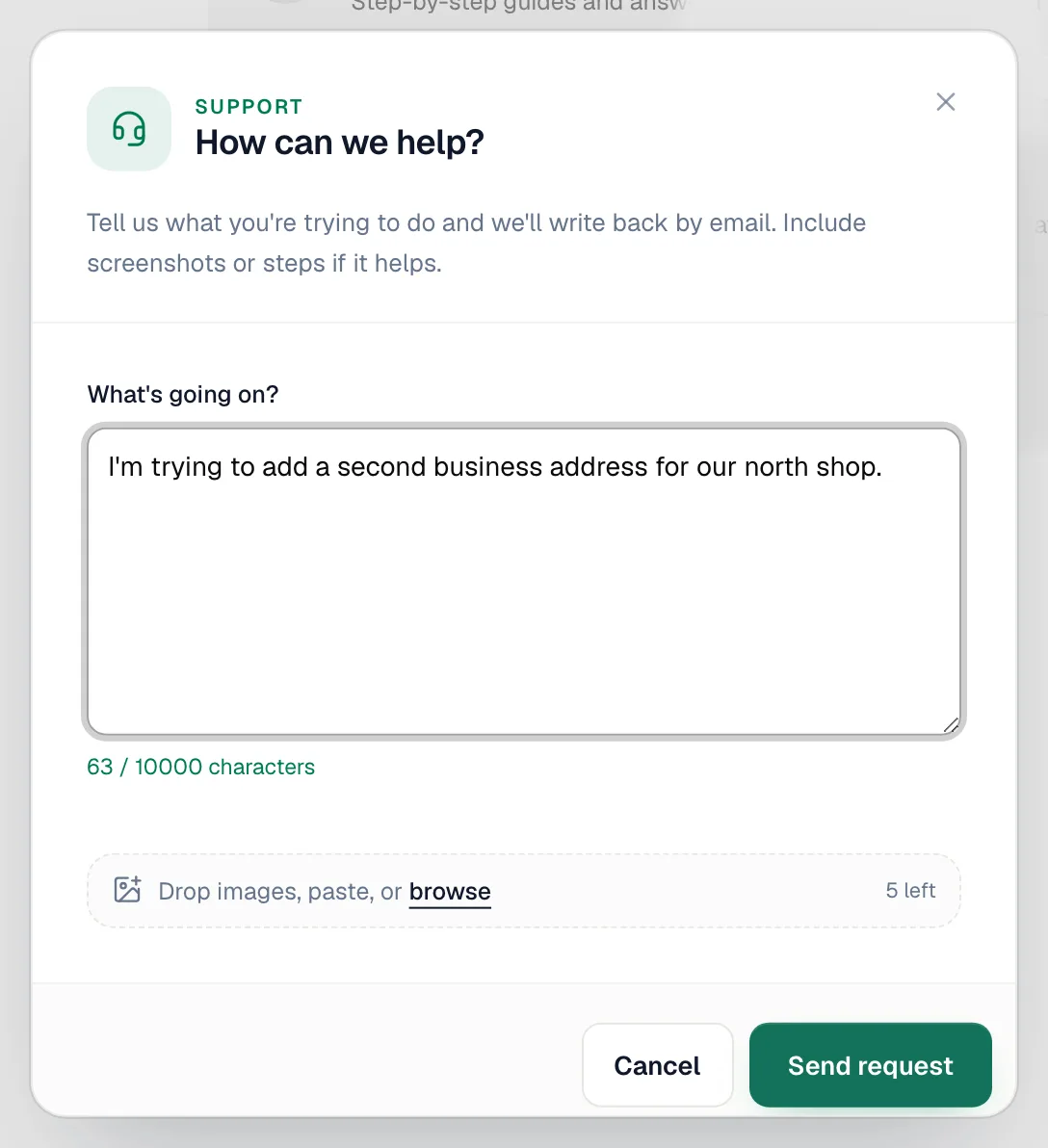
Click Send request
You'll see Got it — we'll be in touch by email. The request appears in the list on the Support page.
From the mobile app
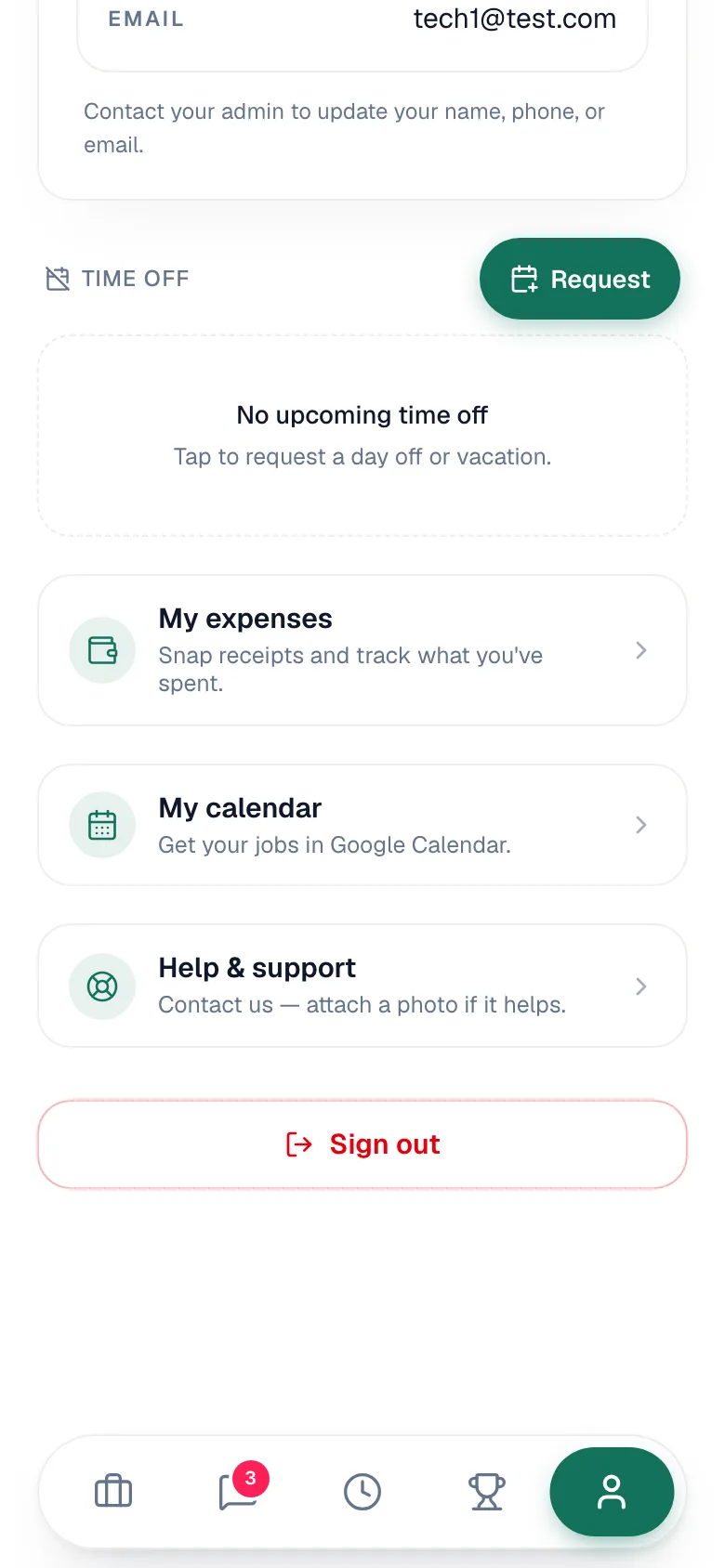
Technicians: tap the Profile tab, then Help & support. You can write a message and attach photos or a video from your phone, such as a screen recording of what happened. The message box grows as you type.
Follow up on a request
Your past requests are listed under How can we help? with their status — Open, In progress, Resolved, or Closed — and the latest reply. Click one to read the whole conversation and send another message. Videos play right in the conversation. The email we send you links to the request instead of attaching the video.
Replying to a resolved request re-opens it, so there's no need to start a new one for the same issue.
When your account is locked
If your trial has ended or a payment didn't go through, the Support page still works. Owners and admins also see Questions about billing or your subscription? at the bottom of Settings → Your plan, which takes you to the Support page.
Tips for a faster answer
- One problem per request.
- Include the job, invoice, or customer name, and roughly when it happened.
- A screenshot of what you see is often the fastest way to explain it. For something that happens over several steps, a short screen recording is even better.
- Asking for a feature? Say what you're trying to get done and how you handle it today. See Requesting new features in Run a Call.