
A purchase order (PO) records what you're buying from a supplier: for a specific job, for stock on the shelf or truck, or for a one-off counter run. Linking it to a job puts the cost into that job's profit, and receiving it adds parts to inventory if you track stock.
Who can do this: owners, admins and dispatchers.
Start a new purchase order
Go to Expenses in the sidebar, click the Purchase Orders tab, then New PO.
From a job, you can also open the Purchase orders section on the job page and click Add PO; the job is filled in for you.
Drop in the vendor's quote or invoice (optional)
If you have the supplier's quote or invoice as a PDF or photo, drop it on Have the vendor's quote or invoice? (or click it to browse). Run a Call reads it and fills in the vendor and line items:
- Each line is matched against your pricebook. Lines it couldn't match are counted under the total (2 lines aren't in your pricebook).
- If the vendor isn't in your list yet, it's suggested as a New vendor and only created when you save.
- If the document total doesn't match your lines, you can add the difference as its own line in one tap.
- If it looks like a receipt you've already paid, you'll be asked whether to Log as expense instead, or Keep as an order.
The document stays attached to the purchase order and shows beside the form while you check it.
Fill in the details
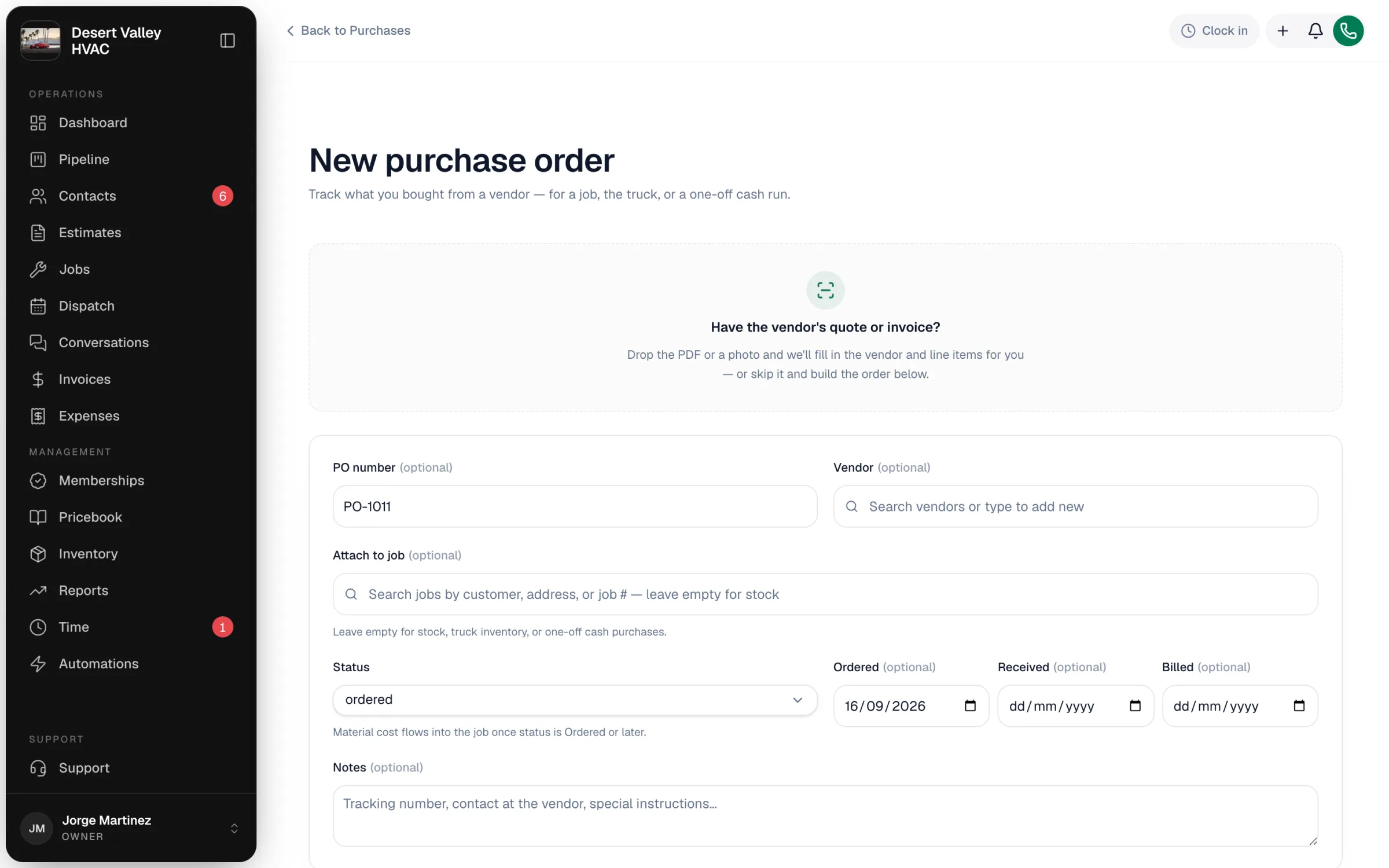
| Field | What to enter |
|---|---|
| PO number | Filled in with your next number as soon as the page opens, so you can read it to the supplier over the phone. You can type your own; numbers must be unique. |
| Vendor | Search your vendors, or type a new name to add one on the spot. See Managing your vendor directory. |
| Attach to job | Search by customer, address or job number. Leave it empty for stock, truck inventory or a cash purchase. |
| Status | Starts as Ordered. See Purchase order statuses. |
| Ordered, Received, Billed | Dates for each step. Ordered starts as today. |
| Notes | Tracking number, contact at the vendor, special instructions. |
Add the line items
Under Line items, click Add items from your price book to pick parts (prices show as your Unit cost), or type a one-off item. Each line has a Description, Qty and Unit cost. The Total cost adds up at the bottom.
Pick parts from the pricebook rather than typing them. Only pricebook parts add to inventory when the order is received.
Save
Click Create purchase order. You'll see Created PO-1011 (with your number).
What happens next
| When the status is… | Effect |
|---|---|
| Ordered, Received or Billed | The total is added to the linked job's material cost. Requested, Draft and Cancelled orders don't count. |
| Received | Tracked parts are added to inventory. See How purchase orders receive stock. |
| Synced to QuickBooks | See Syncing purchase orders to QuickBooks as Bills. |
Supplier invoices you email to your company's receipt address attach to the matching open purchase order automatically when they mention its PO number. The address is shown at the top of the Purchase Orders tab.
Edit, link or delete
- Edit: click the purchase order in the list, change anything and click Save changes. Once a purchase order is Billed or Cancelled, its line items are locked; notes, dates, vendor and status can still change.
- Link to a job later: on the job page, open Purchase orders and click Link existing, or edit the PO and set Attach to job. Moving it to another job moves the cost too.
- Delete: open it and click Delete, then Delete PO. The job's costs recalculate. A parts request from the field can't be deleted; decline it instead.
Good to know
- Purchase orders aren't emailed to suppliers from Run a Call. Place the order the way you normally do and use the PO number as your reference.
- Techs can ask for parts from the mobile app; those arrive as Requested purchase orders for the office to approve. See Requesting parts from the field.