
If a teammate is locked out, an owner or admin can email them a password reset link from the team page. You never see or set their password — they choose a new one themselves.
Who can do this: owners and admins.
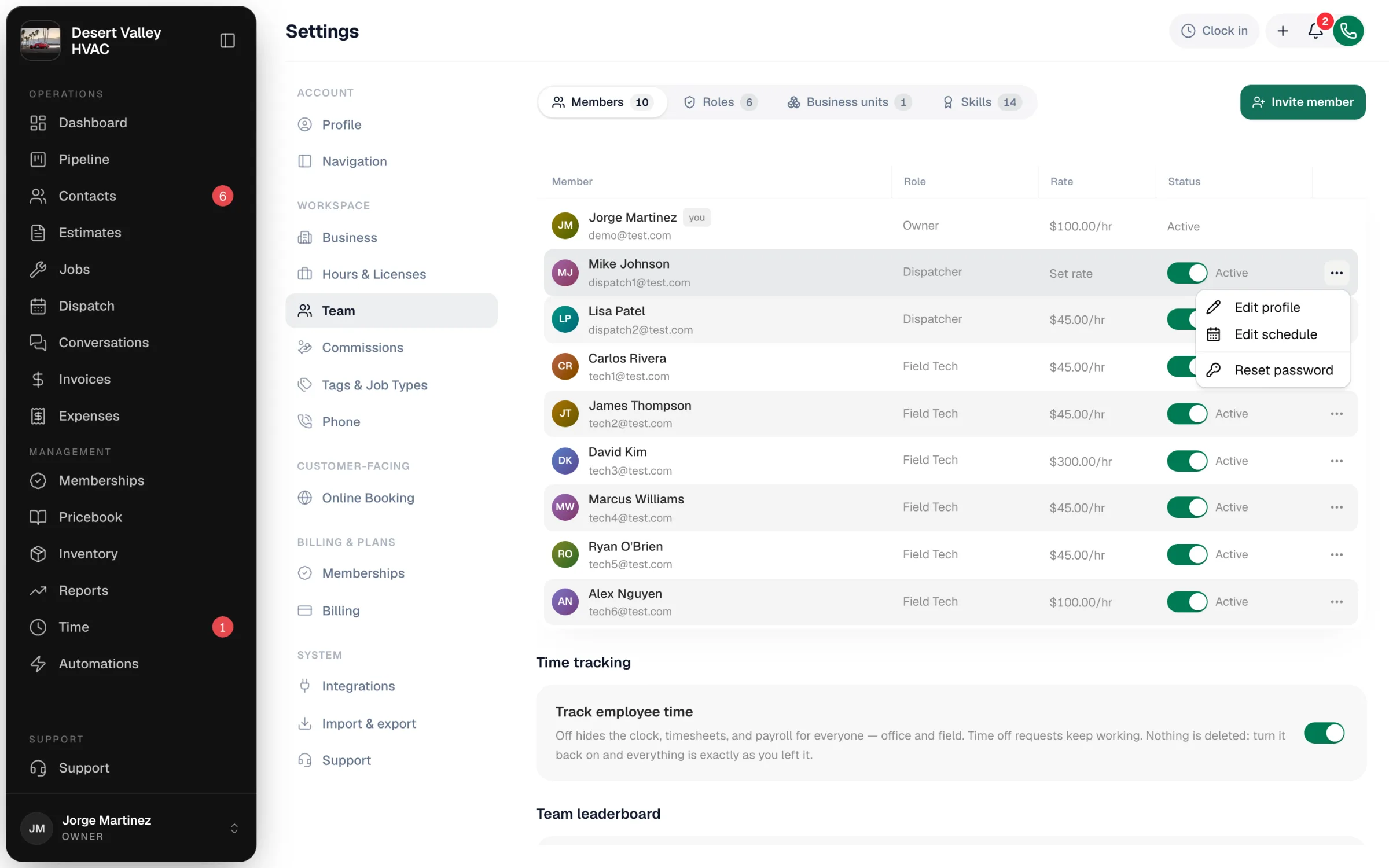
Open Settings → Team
Find the person on the Members tab.
Send the reset link
Click ⋯ on their row and choose Reset password. You'll see Password reset link sent to their email.
Have them open the email
They get an email titled Reset your Run a Call password saying an admin on their team requested a reset. They click Reset password in the email and choose a new password (8+ characters with an uppercase letter, a lowercase letter, a number, and a symbol).
The link works once, and the email says how long it's valid. If it expires, just send another one.
Reset password or Resend invite?
| The person… | Use |
|---|---|
| Has signed in before and forgot their password | ⋯ → Reset password |
| Never finished setting up (their row says Invited) | The Resend button in the Status column. Reset password isn't offered for them — they don't have a password yet. |
They can also do it themselves
Anyone can reset their own password from the sign-in page with Forgot your password? — no admin needed. See Changing or resetting your own password.
Good to know
| Situation | What to do |
|---|---|
| The email never arrives | Have them check spam. Confirm their email on the team page is right — for someone who has already joined, it can only be changed by Run a Call support. |
| They signed in on a new phone | No reset needed. The same email and password work on every device. |
| You think their account was misused | Deactivate them first (that signs them out everywhere), send the reset, then turn them back on. See Deactivating a team member. |