
Each person on your team has a profile: their name, photo, phone, role, hourly rate, and working schedule. Owners and admins manage everyone's from Settings → Team; each person can update their own basics.
Edit a team member (owners and admins)
Open Settings → Team
The Members tab lists everyone with their Role, Rate, and Status. When anyone has been deactivated, filter chips above the list switch between Active, Inactive, and All.
Open the member's menu
Click ⋯ at the end of the person's row.
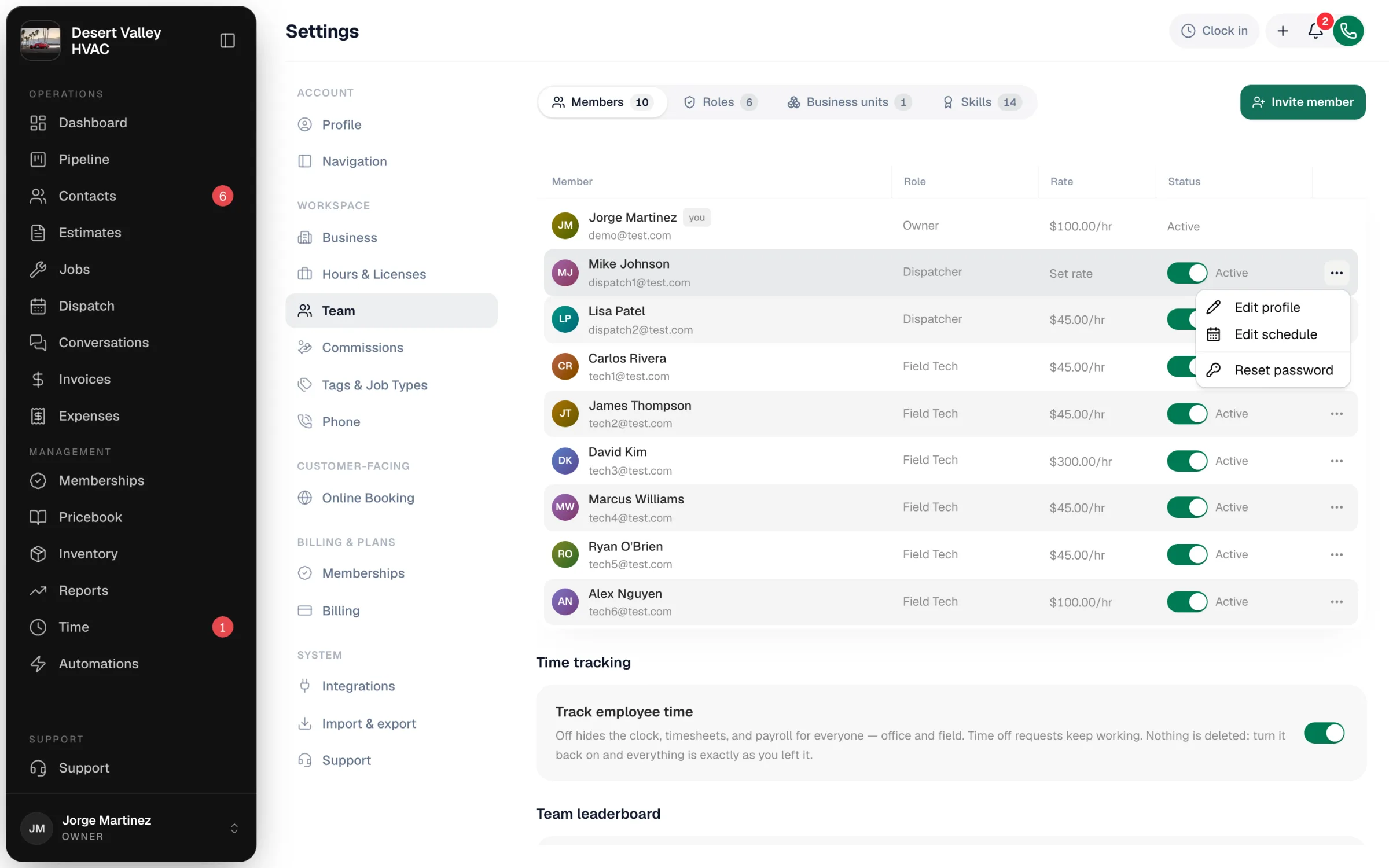
| Menu item | What it does |
|---|---|
| Edit profile | Change their photo, name, role, and phone |
| Edit schedule | Set their normal weekly hours and add days off or other exceptions |
| Reset password | Email them a link to choose a new password. See Resetting a team member's password. |
The owner's row, and your own row, have no menu — you edit your own details from your profile (below).
Edit their profile
Choose Edit profile:
| Field | Notes |
|---|---|
| Photo | Click Change on the avatar to upload a picture. It shows on the dispatch board and in messages. |
| Name | How they appear across the app, including on messages customers receive |
| Role | What they can open and change. See Customizing team roles and permissions. Takes effect the next time they load a page. |
| Phone | Optional. Used for customer notifications, e.g. "Your tech is on the way". |
Click Save changes.
A person's sign-in email can only be edited while their invite is still pending (the dialog is called Edit invite then). Changing it cancels the old invitation and sends a fresh one to the new address.
Set an hourly rate
Click the amount (or Set rate) in the Rate column, type the hourly rate, and press Enter. When a job is completed, the assigned tech's rate becomes that job's labor rate, so your job costing and profitability numbers stay realistic.
Leave no one at Set rate. A blank rate means labor on their jobs costs nothing in your reports, which makes margins look better than they are.
Set someone's working schedule
Choose ⋯ → Edit schedule.
- Weekly Hours — turn each day on or Off and set the start and end time. The dispatch board uses this to show when each tech is working.
- Schedule Exceptions — add a Start Date (and End Date for more than one day), a Type (Vacation, Sick Day, Half Day, Holiday, Training, On-Call, Unpaid, or Other), optional times, and a note. Click Add Exception.
Technicians can also ask for time off from the mobile app; you approve those in Time → Time Off. See Requesting time off from the app.
Update your own profile
Office users: click your name in the bottom-left corner of the sidebar and choose Profile. You can change your Full name, Phone, and photo (Change photo), then click Save changes. Your Email and Role are shown with a lock — only an owner or admin can change your role. The same page has your Password and Connected calendars.
Technicians: tap the Profile tab in the mobile app to change your photo, see your schedule, and reach My calendar and Help & support. Your name, phone, and email are shown there but can only be changed by an owner or admin.