
Every estimate has a PDF version. Use it to print, to file, or for a customer who needs a document to forward, like a landlord or a lender. Customers still approve online; the PDF points them to the approval link.
Download from the office
- Open the estimate.
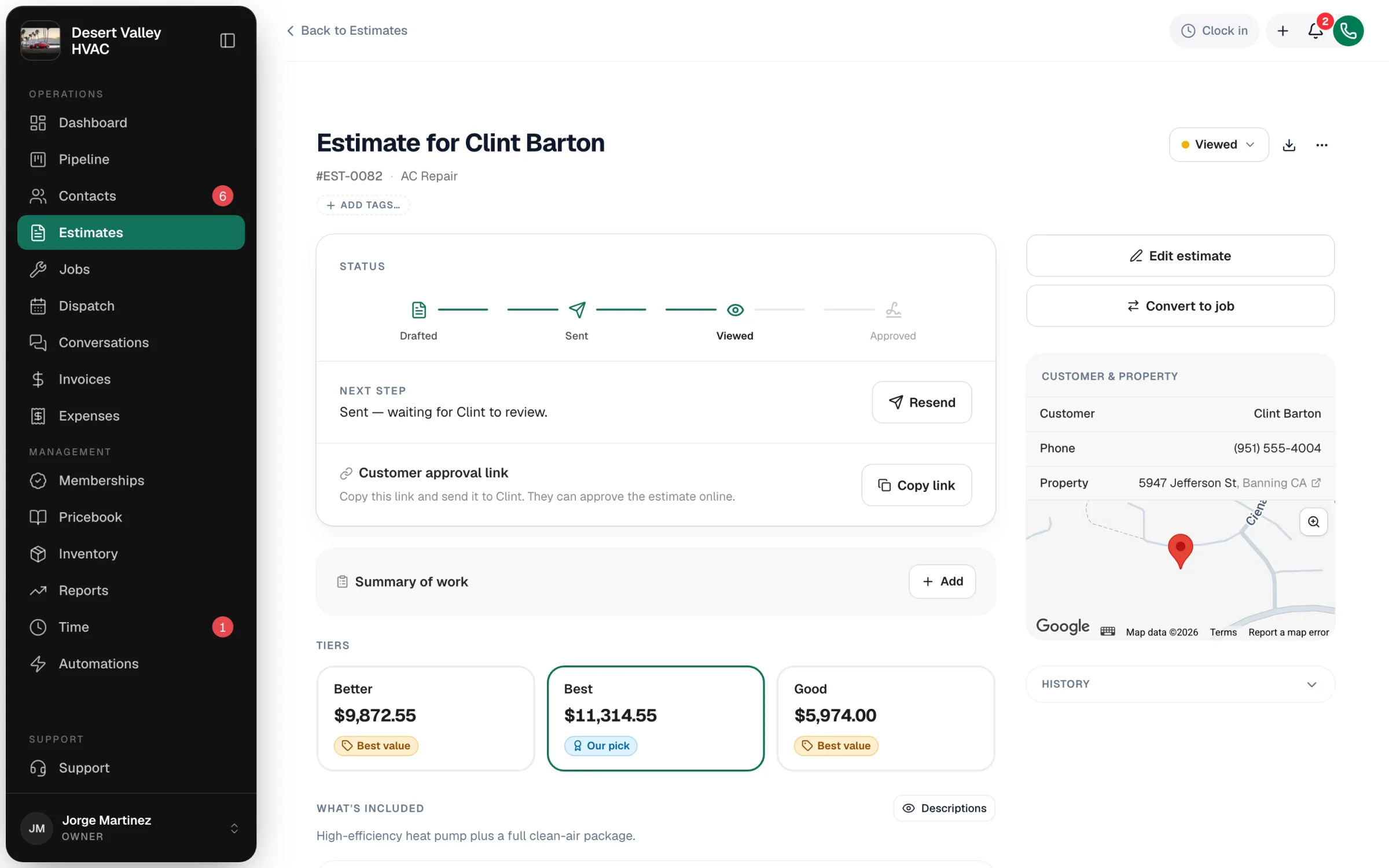
- Click the download icon (Download PDF) at the top right, next to the status menu.
The PDF opens in a new browser tab, where you can save or print it.
Send the PDF with the estimate
When you click Send estimate (or Resend), tick Attach a PDF copy in the send window. The email still has the approval button, because the customer approves online.
What your customer can download
- Before approving: the Download PDF link at the bottom of their approval page.
- After approving: their project page has Signed estimate, the PDF with their signature.
What's on the PDF
| Section | What it shows |
|---|---|
| Header | Your logo and business details, the estimate number, date and Valid Until date. |
| Prepared for | The customer and service address, plus the equipment if the estimate is tied to a unit. |
| Summary of work | Your summary, if you wrote one. |
| Your options | Each option with its description, line items and total. |
| Optional add-ons | Extras the customer can choose. |
| Flexible financing | The monthly payment, if the estimate offers financing. |
| Payment plan | The deposit and progress payments, if there's a payment schedule. |
| Note | Your note to the customer. |
| Terms & conditions | Your estimate terms. |
| Review & approve online | How to reach the approval page. |
| Accepted & signed | On an approved estimate: the chosen option, the signature and when it was signed. |
The word on the document (Estimate, Proposal or Quote) comes from Estimate settings → Basics → What to call it. The look comes from the estimate's Estimate design.
Exporting many estimates
There's no bulk PDF download. For a spreadsheet of all your estimates, go to Settings → Import & export, choose Estimates (status, option sold vs. proposed, conversions) under Export your data, and we'll email you a download link. Owners and admins can export.