
When you send an estimate, the customer gets a link to their own approval page. On it they compare your options, pick one, sign on their phone and pick a time. Or they can say no thanks. Here's what they see, and what happens in Run a Call either way.
What the customer sees
The page is built for a phone and uses the estimate design you chose.
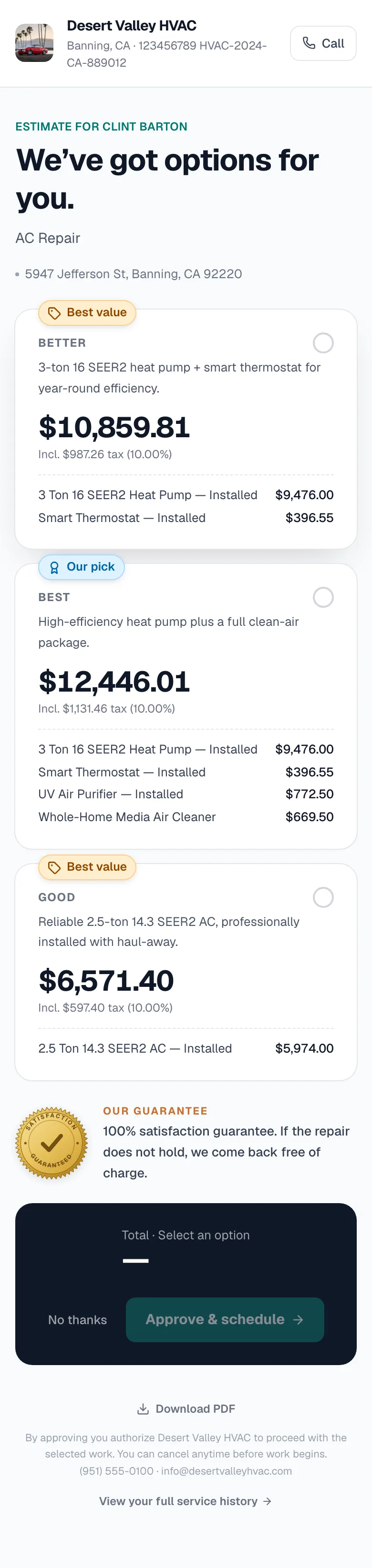
- Header. Your logo, company name and a Call button.
- Headline and title. The estimate headline, the title, and the service address.
- Option cards. One card per option, each with your description, price (including tax), line items and any badge such as Our pick or Best value. The customer taps a card to select it.
- Optional add-ons. Extras they can tick to add to the price.
- Payment plan. Shown if the estimate has a payment schedule: the deposit and progress payments for the option they're looking at.
- Financing. Shown if you offer it: Get this work for as low as $X/mo, with an apply button or a QR code. See Offering financing on estimates.
- Membership offer. Shown if you turned on Offer membership plans: a Protect your new system card.
- Your guarantee, and the Terms & conditions or contract, if you've set them.
- Bottom bar. The total for the selected option, No thanks, and Approve & schedule.
- Download PDF.
The customer approves
- They select an option. Approve & schedule stays inactive until they do.
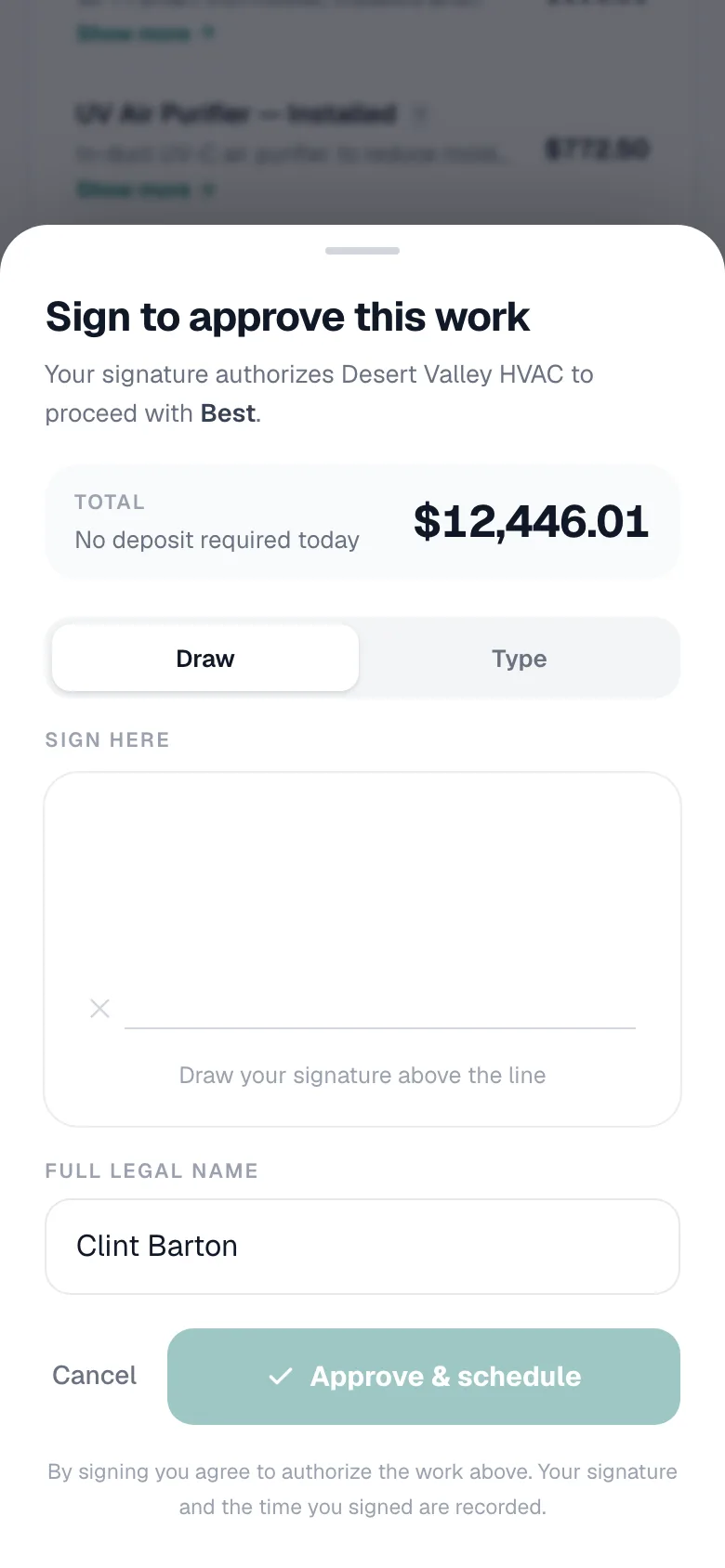
- They tap Approve & schedule. The Sign to approve this work panel opens with the total for their choice.
- They sign by choosing Draw (finger on the screen) or Type, and confirm their Full legal name.
- If a contract is attached, they tick to accept it.
- They tap Approve & schedule.
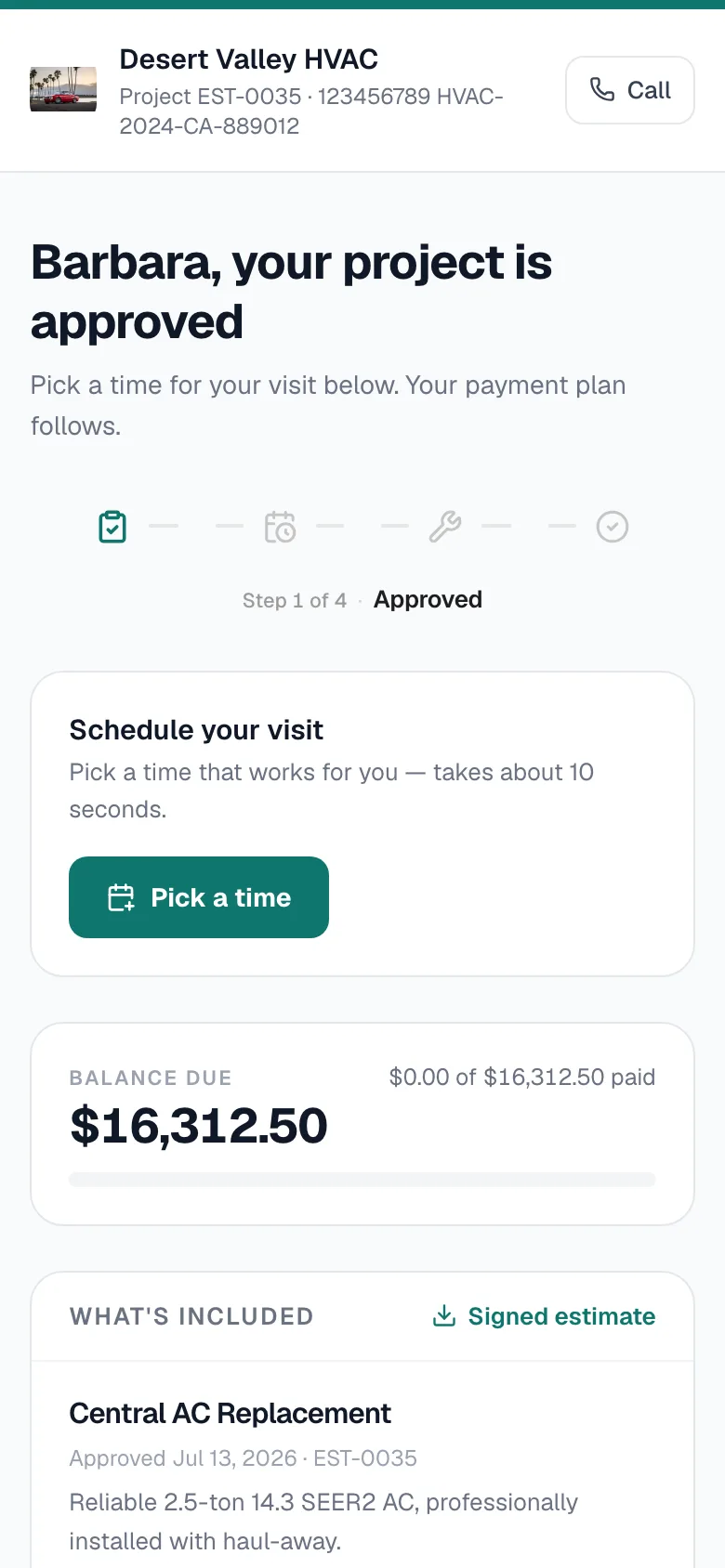
The page shows Thank you, [name]. and turns into the customer's project page. There they can:
- Pick a time for the work, if you've turned on Customers pick their own time under Estimates → Estimate settings → Approval page.
- Pay the deposit, if the estimate has a payment schedule.
- Download the signed estimate.
What happens in Run a Call when they approve
| What | Result |
|---|---|
| Estimate | Changes to Approved, with the chosen option, the signature, the time signed and the approximate location recorded. |
| Job | Created automatically with the sold option's line items, ready to schedule. If the estimate was built from an existing job, the work is added to that job instead. |
| Contract | If one was attached, the signed contract is saved to the job's files. |
| Deposit invoice | If there's a payment schedule, it's created (due on receipt) and sent to the customer, unless you turned that off in the schedule. |
| Your team | Everyone gets a notification: [Customer] approved an estimate. If the Estimate approved (internal) automation is on, your company email gets a message too. |
The customer declines
- They tap No thanks.
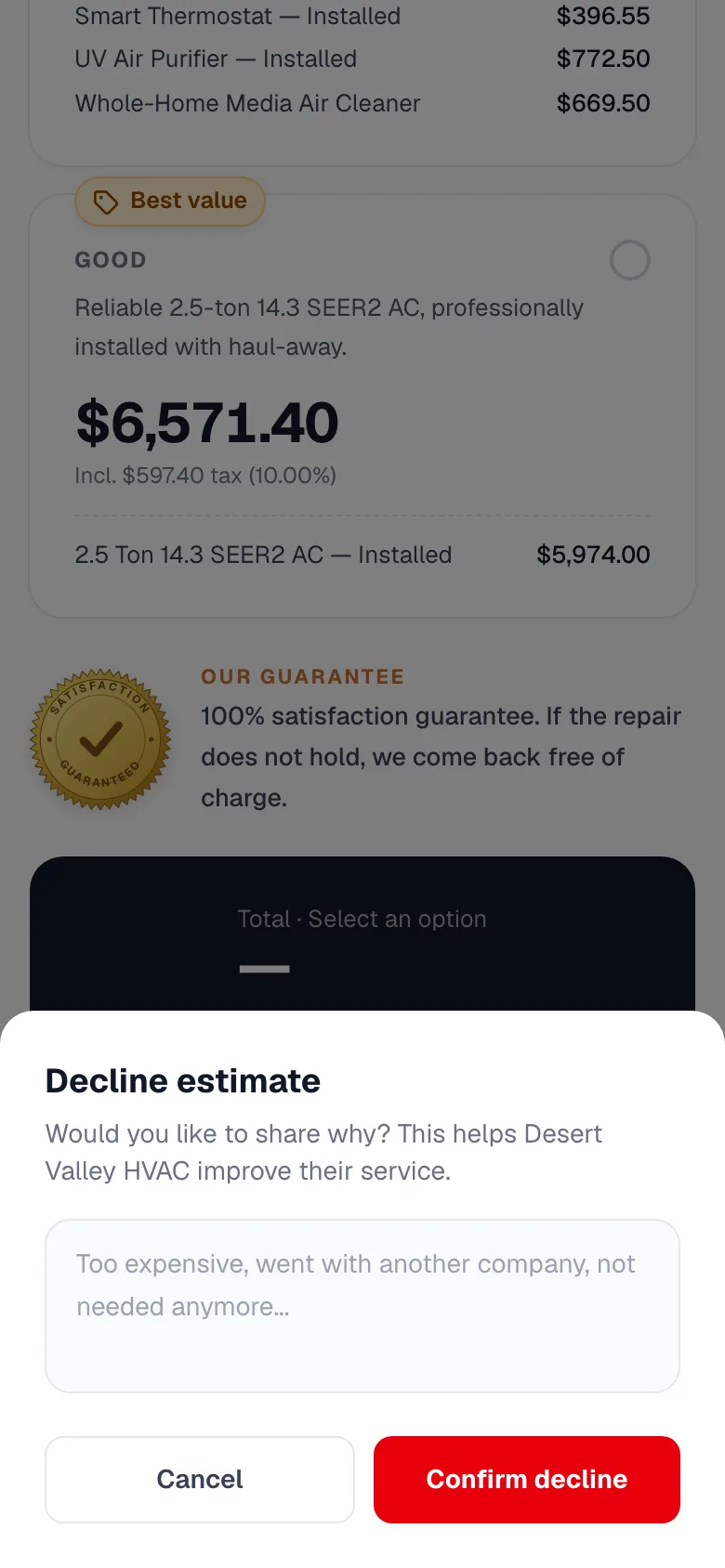
- The Decline estimate panel asks Would you like to share why? They can type a reason; it's optional.
- They tap Confirm decline.
The customer sees that the estimate has been declined and is invited to contact you if they change their mind. In Run a Call:
- Estimate changes to Declined.
- Estimate page shows This estimate was declined by [name]. along with their reason.
- Your team gets a notification with the reason.
A declined estimate can't be sent again. To try a different offer, Duplicate it and send the copy.
If they don't respond
- Views. Once the customer opens the link, the estimate changes to Viewed. The estimate page shows how many times they opened it and which option they looked at most. See Knowing when a customer has viewed an estimate.
- Reminders. Run a Call doesn't send estimate follow-ups automatically. Click Resend on the estimate to email it again, or build a follow-up with a custom automation. See Building a custom automation.
- Expiry. After the Valid until date, the estimate changes to Expired. The link says This estimate has expired and asks the customer to call you; they can't approve it. To give them more time, click Resend and choose a New validity date.
Approvals that happen in person or by phone
If the customer says yes on the phone or in person, you don't need the link:
- Record the approval: change the status on the estimate to Approved. In the Approve estimate window, pick the Approved option and who Sold by, and choose whether to Create a job from this estimate.
- Convert straight to a job: click Convert to job. See Creating a job from an estimate.
- On site: a tech can present the estimate in the mobile app and have the customer sign on their device.
If the estimate has a contract attached that the customer hasn't signed, it can't be approved from the office. Send them the link to sign, or remove the contract first. An estimate past its Valid until date also has to be extended before you can approve it.