
Your logo appears on the estimates, invoices, emails, and payment pages customers see from you — and at the top of the app for your team. Upload it once and it's used everywhere.
Who can do this: owners and admins.
Open Settings → Business
Click your name in the bottom-left corner of the sidebar and choose Business.
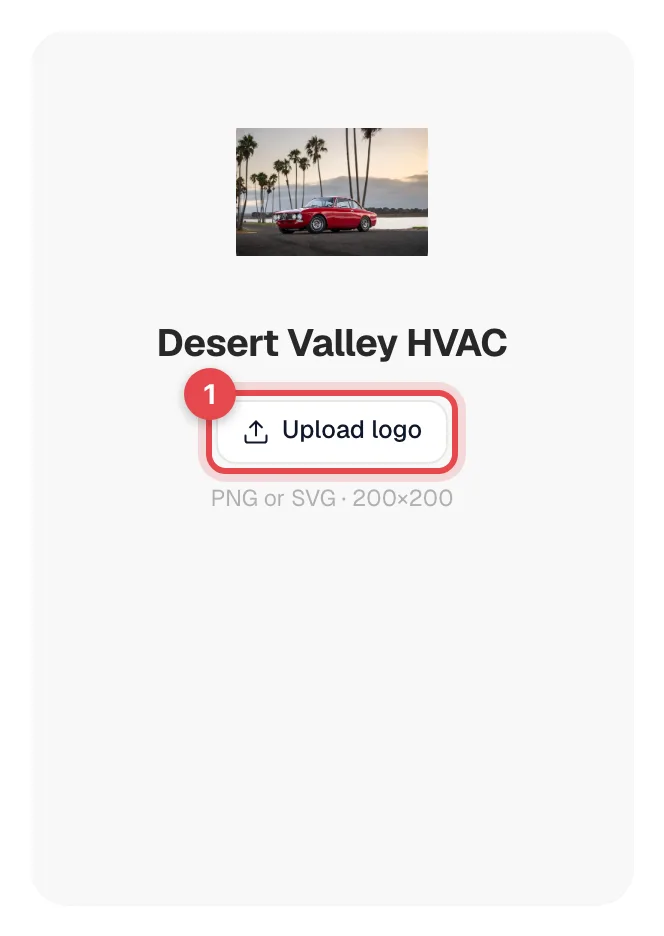
Click Upload logo
Click Upload logo under the logo square (or click the square itself) and pick your file.
The new logo shows right away and you'll see Logo updated. There's nothing else to save.
File requirements
| File types | PNG, JPG, WebP, or SVG |
| Maximum size | 2 MB |
| Best results | A square-ish logo (the page suggests 200×200) on a transparent or white background. SVG or a high-resolution PNG stays sharp on printed PDFs. |
If the upload fails with File must be under 2MB, export a smaller version of the file and try again.
Where your logo appears
| Surface | Who sees it |
|---|---|
| Estimate and invoice PDFs | Customers |
| Estimate approval page and invoice payment page | Customers, when they open the link you send |
| Customer project page | Customers following a multi-visit job |
| Emails sent from Run a Call (estimates, invoices, reminders) | Customers |
| Work orders and purchase order PDFs | Your techs and vendors |
| Top of the sidebar and the mobile app | Your team |
Tip
Set your Brand color on the same page. It's used alongside your logo on buttons and links customers see. See Updating your business info.
Good to know
- Replacing a logo: upload a new file the same way. From then on, pages and PDFs show the new logo.
- One logo per account. Run a Call sizes it to fit each place it appears, so you don't need different versions.