
If you look after several addresses for the same customer, such as a property manager or a landlord, Run a Call can file each invoice in QuickBooks Online under the address the work was done at. Your bookkeeper sees what is owed for each address, and the customer is still billed as one account.
It is a setting. It is off until you turn it on.
What it does
When the setting is on:
- Each service address becomes a sub-customer under its customer in QuickBooks Online. It is billed with the parent customer.
- Each new invoice is filed under the address it was for.
The result in your QuickBooks customer list looks like this:
Hartwell Property Management
    12 Oak Street
    48 Pine Avenue, Unit B

The customer's total still adds up on the top line. Each address shows its own balance underneath.
Turn it on
- Go to Settings → QuickBooks.
- Open Sync settings & account mapping.
- Switch on File invoices under the service address.

The description under the switch reads: "Each service address becomes a sub-customer of its customer in QuickBooks, and new invoices go there with the service address as the shipping address and the Run a Call job number on the first line of the message to the customer. Invoices already in QuickBooks stay where they are, but editing one while this is on adds the address and job number to it."
Only the account owner can change this switch.
If your QuickBooks calculates sales tax automatically (Automated Sales Tax): invoices are only filed under the address when the address check for sales tax is also switched on for your account. Even then, only taxed invoices move. A line under the switch tells you which case applies to you. Before the check has run it reads "We check how QuickBooks calculates sales tax when you turn this on; until then invoices stay on the customer." If you are unsure, contact support from Settings → Support. If your QuickBooks is on manual sales tax, nothing extra is needed.
What the invoice looks like in QuickBooks
| On the QuickBooks invoice | What you see |
|---|---|
| Customer | The address, shown as Customer:Address. For example Hartwell Property Management:12 Oak Street. |
| Bill to | The customer's billing address. |
| Ship to | The service address. |
| Note to customer | The first line is the job number and street, for example Job JOB-1041 · 12 Oak Street. Your own note follows if the invoice has one. |
The customer field on the invoice shows the address:

Bill to (left) keeps the billing address. Ship to (right) is the service address:

QuickBooks Online has no P.O. number field by default, so the job number goes on the first line of Note to customer:

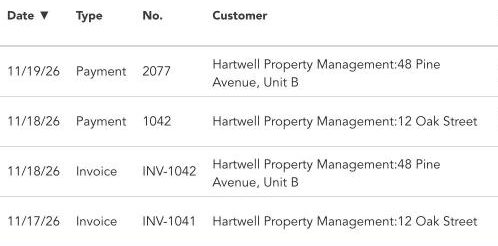
In your QuickBooks transaction lists, invoices and their payments show the customer and the address together:
Addresses that are already in QuickBooks
- The address already exists as a sub-customer under that customer. Run a Call links to it. It does not create a second one.
- Another customer or vendor in QuickBooks already uses that exact name. QuickBooks does not allow two records with the same name, so the sub-customer is created as the street followed by the customer name in parentheses. For example 12 Oak Street (Hartwell Property Management).
What happens in each situation
| Situation | What happens |
|---|---|
| An invoice with no job | It stays on the customer. |
| Invoices already in QuickBooks | They stay where they are. Editing one while the switch is on adds the service address and the job line to it. It is not moved. |
| Payments, credit memos, refunds and card-fee receipts | They follow the invoice to the same sub-customer. |
| One check that covers invoices at several addresses of the same customer | It is recorded as one payment on the customer. |
| You turn the switch off later | New invoices go back to the customer. Invoices already filed under an address stay there, and their payments still post there. |
| The address belongs to a different customer than the invoice | The invoice stays on its own customer, with the service address as Ship to. |
Good to know
- Later address changes do not update QuickBooks. If you change an address, or the customer's billing address, in Run a Call, the sub-customer already created in QuickBooks is not renamed or updated.
- Moving an address to a different customer. The address appears under records that need attention on the QuickBooks page and waits until you click Retry.
- Credits. A credit that sits on the customer can be applied to an invoice filed under one of that customer's own addresses. A credit on a different customer record is not applied automatically. The list tells you to apply it in QuickBooks.
- Purchase orders. Purchase-order bills in QuickBooks Online do not carry the customer or the address on their lines.
- Changes made in QuickBooks stay in QuickBooks. They do not come back to Run a Call.