
Finished and cancelled jobs are never hidden or thrown away. The Jobs list shows every job, whatever its status, so finding an old one is a matter of filtering or searching.
On the Jobs page
Go to Jobs
Click Jobs in the sidebar. The list shows all jobs, most recently created first — including completed, invoiced, closed, cancelled and no-show jobs.
Filter by status
Click Status: All above the list and pick the status you want, such as Completed or Cancelled. You can also click the Completed tile at the top of the page.
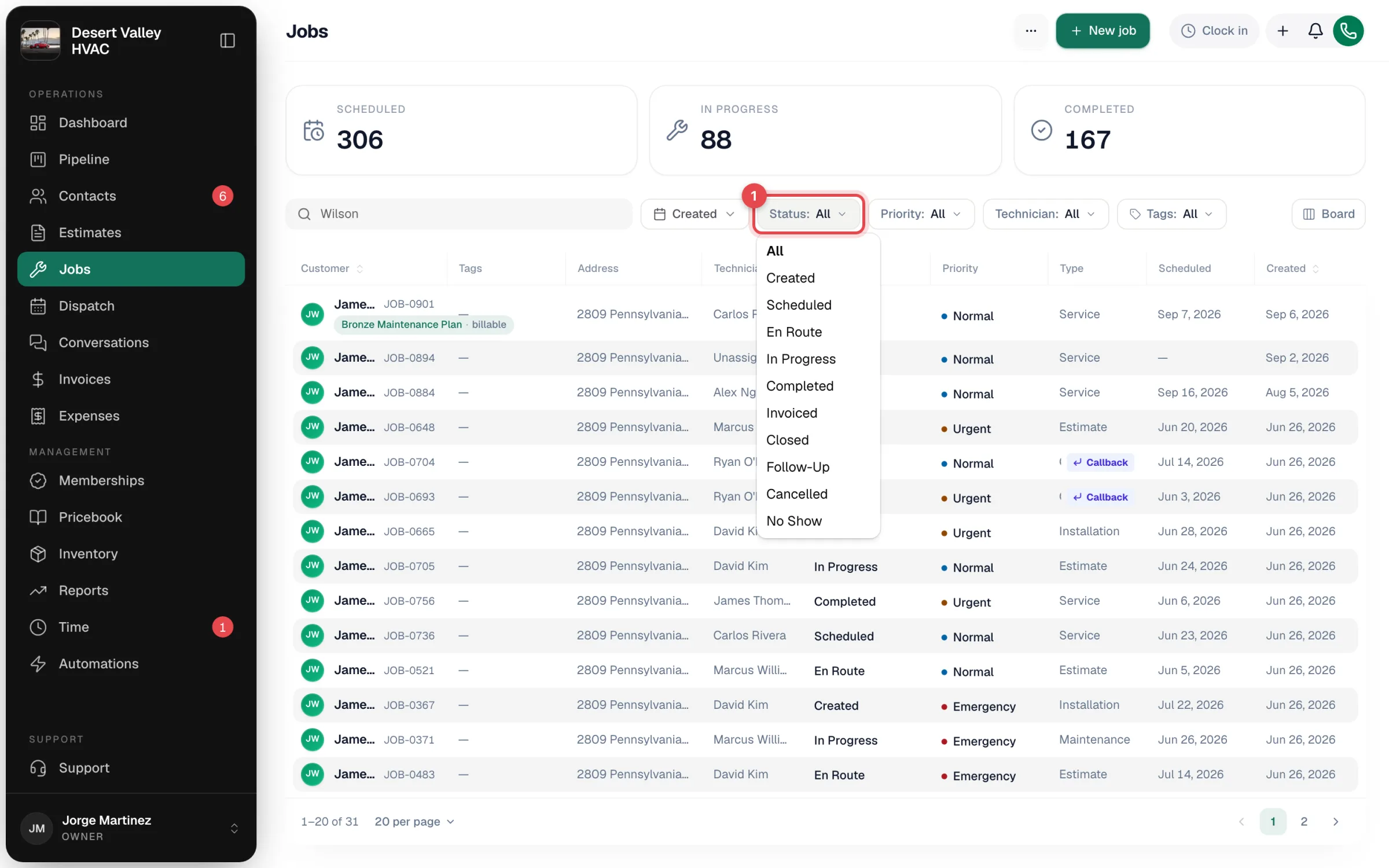
Narrow it down
Combine the status with the other filters:
| Filter | Use it to… |
|---|---|
| Search | Find a job by customer name, address, job number, reference/PO number or description |
| Created | Limit to jobs created in a date range |
| Priority | Show only Emergency or Urgent jobs |
| Technician | See one tech's jobs |
| Tags | Show jobs with any of the tags you pick |
Click a column header — Customer, Technician, Status or Created — to sort the page you're looking at.
Looking for everything from one customer? Open the customer and use their Jobs tab, then View all to open the Jobs list filtered to that customer.
Which status to pick
| You're looking for… | Pick |
|---|---|
| Work that's done but not billed yet | Completed |
| Work that's billed but not paid | Invoiced |
| Work that's paid in full | Closed |
| Visits called off by the customer | Cancelled |
| Visits where nobody was home | No Show |
On the dispatch board
Finished jobs stay on the dispatch board on the day they happened — their cards simply show the new status (for example, Done or Invoiced). Go back to that day with the date arrows. Cancelled jobs are taken off the board, so use the Jobs list for those.
On the pipeline board
On Pipeline → Jobs, each column stands for a status, so finished and cancelled jobs sit in the columns set up for those statuses. Use the Status and Created filters on a busy month. See Using the pipeline boards.
Counts and totals
For totals across a date range, use Reports. See Job Volume report.