
Every job keeps an automatic record of the big changes made to it: who created it, who moved it through each status, who assigned or reassigned it, and when it was rescheduled. Check it when a customer asks why their appointment moved, or when a job isn't where you expect it to be.
Open the Activity tab
- Open the job.
- Scroll down to the tabs under the job details and click Activity.
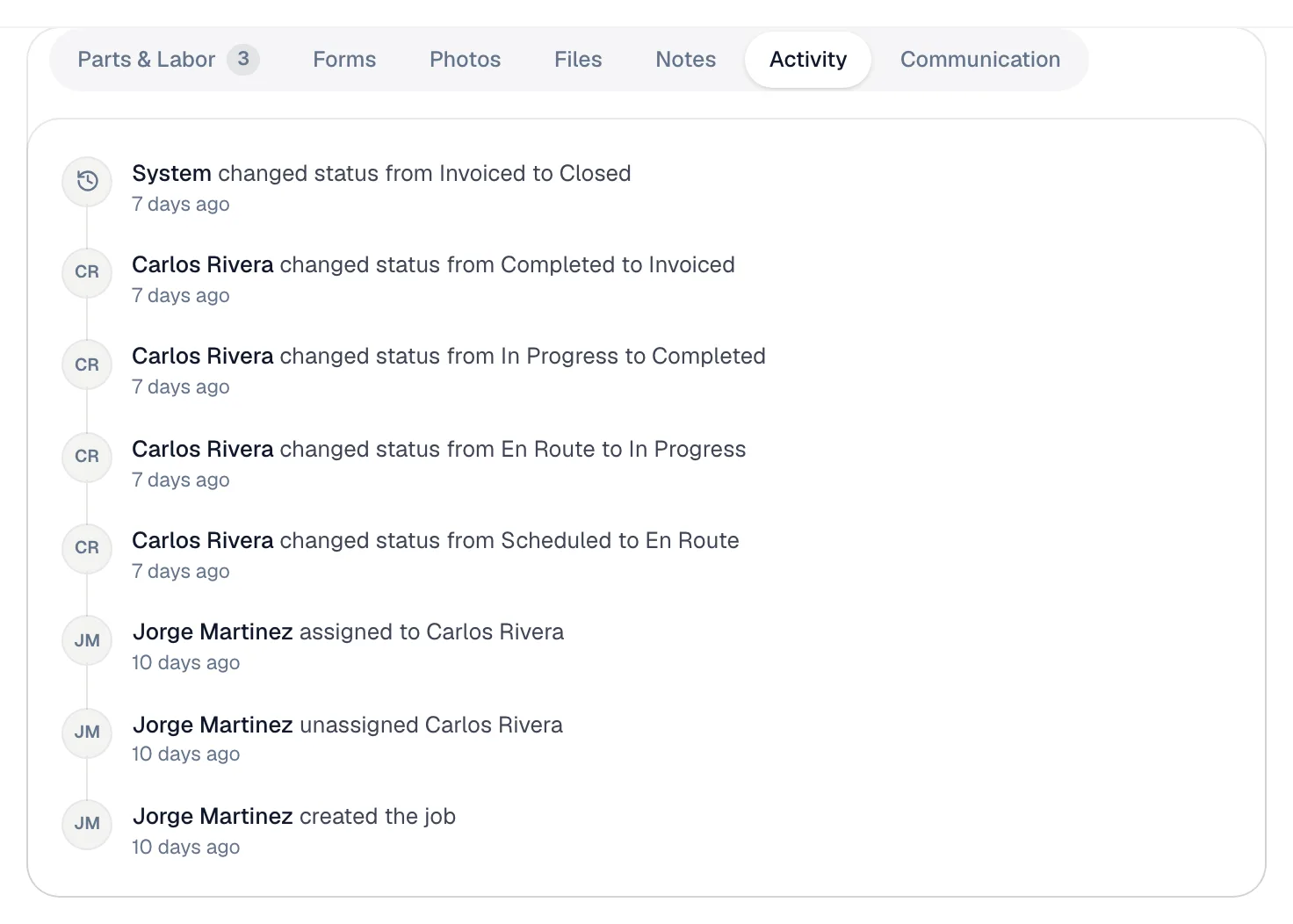
The newest change is at the top. Each line shows who made the change and how long ago; hover the time to see the exact date and time.
What gets recorded
| Change | How it reads |
|---|---|
| Job created | Created the job |
| Status changes | Changed status from Scheduled to En Route, or Cancelled the job |
| Assignment | Assigned to Carlos Rivera, Reassigned from Carlos Rivera to David Kim, Unassigned Carlos Rivera |
| Schedule | Scheduled for …, Rescheduled from … to …, Changed the appointment time, Removed from the schedule |
Changes a tech makes in the mobile app (like tapping On My Way) are recorded under the tech's name. Changes made automatically, with nobody signed in, show System as the name.
The tab shows the latest 100 changes.
Where to find everything else
The Activity tab is about the job's status, schedule and assignment. Other history lives on its own tab:
| You're looking for… | Look here |
|---|---|
| Texts and emails sent to the customer about this job | Communication tab |
| Notes from the office or the tech | Notes tab — each note shows its author and time |
| Photos and when they were added | Photos tab |
| Parts and labor on the job | Parts & Labor tab |
| Clock-in and clock-out times | Time card further down the job page |
Activity recording started when the feature was added, so older jobs may show only part of their history. When there's nothing yet, the tab says No activity recorded yet. Changes made from now on will show up here.