
Have a spreadsheet of units from your old software or a customer's asset list? Import it as a CSV file instead of typing each unit in. Each row is matched to an address you already have in Run a Call.
Who can do this
Owners and admins.
Before you start
- The customers and their addresses must already exist in Run a Call. Import customers first if you need to.
- Save your spreadsheet as a .csv file (up to 5 MB and 10,000 rows).
- The import has a wide preview table, so it's easier on a computer than a phone.
Open Import equipment
Go to Contacts, open any customer that has at least one address, and click the Properties tab. Scroll to the bottom and click Import equipment.

The import isn't limited to that customer. Each row is matched to an address anywhere in your account.
Upload the file
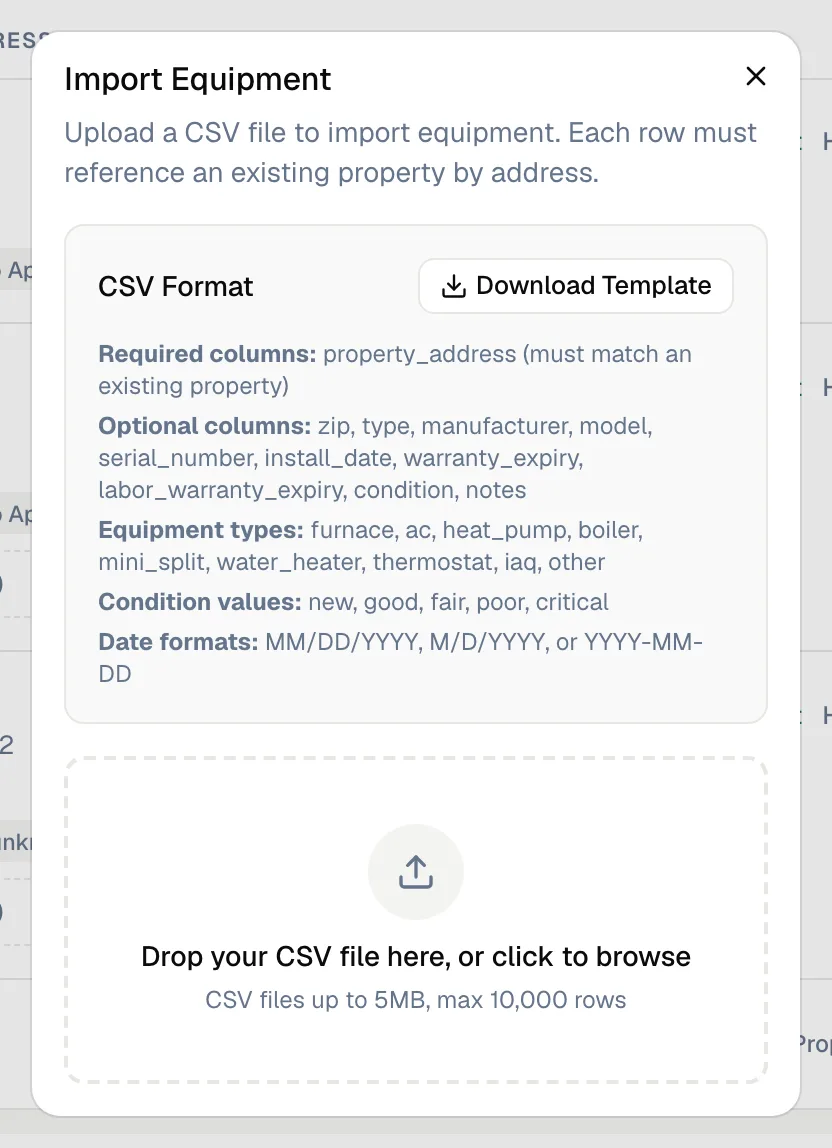
The Import Equipment dialog explains the format. Click Download Template for a ready-made file with the right column headers, then drop your CSV into the upload area.
Match your columns
Match each column in your file to a Run a Call field:
| Field | Notes |
|---|---|
| Property Address | Required. The street address, e.g. 1868 Alejo Rd. It must match an address already on file. |
| ZIP Code (for matching) | Optional, but recommended when the same street address exists in more than one town. |
| Equipment Type | furnace, ac, heat_pump, boiler, mini_split, water_heater, thermostat, iaq or other. |
| System (e.g. Cooler A) | Optional. Units with the same system name at an address are grouped together, and the system is created if it doesn't exist. |
| Asset ID (e.g. EVAP-A-12) | Optional. |
| Manufacturer, Model, Serial Number | Optional. |
| Install Date, Parts Warranty Expiry, Labor Warranty Expiry | Dates as MM/DD/YYYY, M/D/YYYY or YYYY-MM-DD. |
| Condition | new, good, fair, poor or critical. |
| Notes | Optional. |
Then choose Duplicate handling (by serial number), which decides what happens when a unit at the same address already has that serial number:
| Option | What happens |
|---|---|
| Skip duplicates | Keeps the existing unit and skips the row. |
| Update existing | Updates the existing unit with the row's values. |
| Create anyway | Adds a second unit. |
Preview and import
Check the preview, then start the import. When it finishes you'll see how many units were Imported, Skipped and had Errors. If any rows failed, click Download Error Rows (CSV) to get just those rows back, for example when an address couldn't be matched. Click Done.
Good to know
- Systems created by the import get the category Other. Edit a system on its page to change the category.
- Rows that fail don't stop the rest of the file from importing. Fix those rows and import them again.
- Stuck on a file? Email admin@runacall.com and the team will help you get it in.