
A system is a named group of units at one address, such as a walk-in cooler with its condenser and evaporators, a rooftop unit, or Building B at an apartment complex. Grouped units add up their repair spend under the system, so you can talk about Cooler A the way your customer does.
Systems are optional. A home with one furnace and one AC never needs one.
When systems are worth it
| Situation | What grouping gets you |
|---|---|
| Commercial refrigeration | Dozens of units at one site become a short list of coolers, each with its own units and spend. |
| Multi-building properties | Techs find the right unit faster, and owners see spend per building. |
| Shared costs | Bill compressor oil or a refrigerant charge to the whole system instead of guessing which unit it belongs to. See Assigning job and invoice items to equipment. |
| Memberships | A service plan can cover specific systems, and the equipment lists show whether each system is covered by a plan. |
Open the property page
Go to Contacts, open the customer, and click the Properties tab. On the address, open the ⋯ menu and choose Property page.
The property page shows three counts at the top (Systems, Units on file, Jobs here), then a Systems section, a Not in a system list and Latest work here.
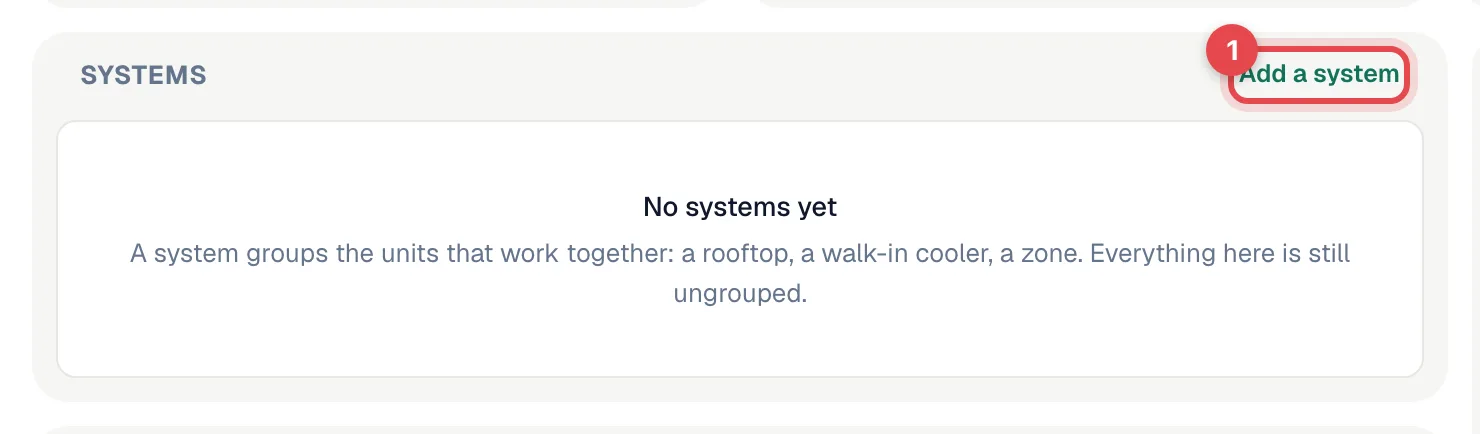
Click Add a system
Fill in the system
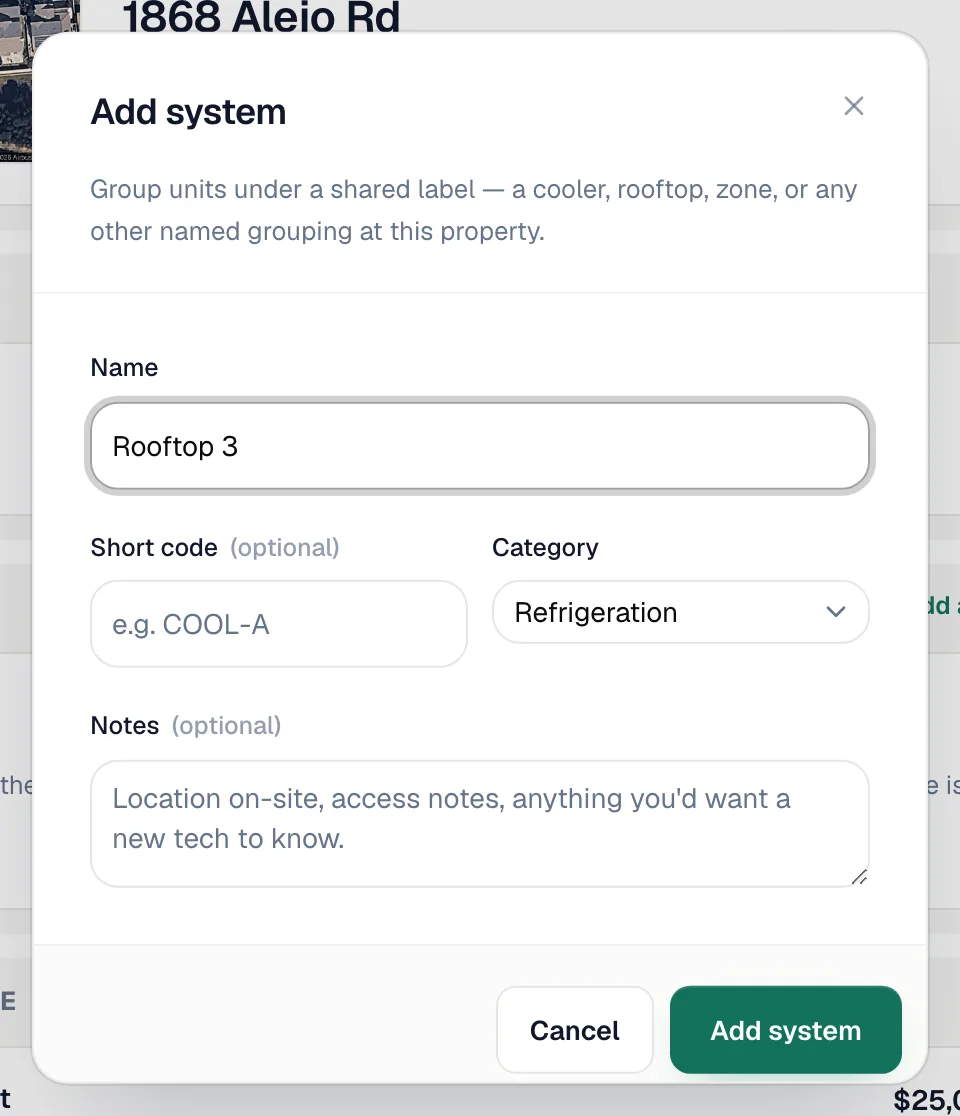
| Field | What to enter |
|---|---|
| Name | Required. What everyone on site calls it, e.g. Cooler A or Rooftop 3. |
| Short code | Optional abbreviation, e.g. COOL-A. |
| Category | Refrigeration, HVAC, Plumbing, Electrical or Other. |
| Notes | Optional. Where it is on site, access notes, anything a new tech should know. |
Click Add system.
Put units in the system
-
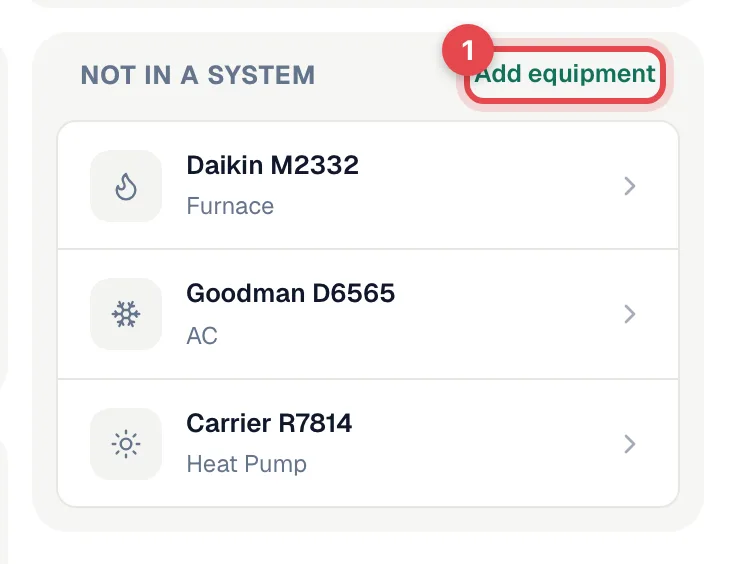
New unit: click Add a unit on the system's row. The equipment form opens with that system already picked.
-
Existing unit: click it in Not in a system to open it, click Edit, and choose the system from the System dropdown.
-
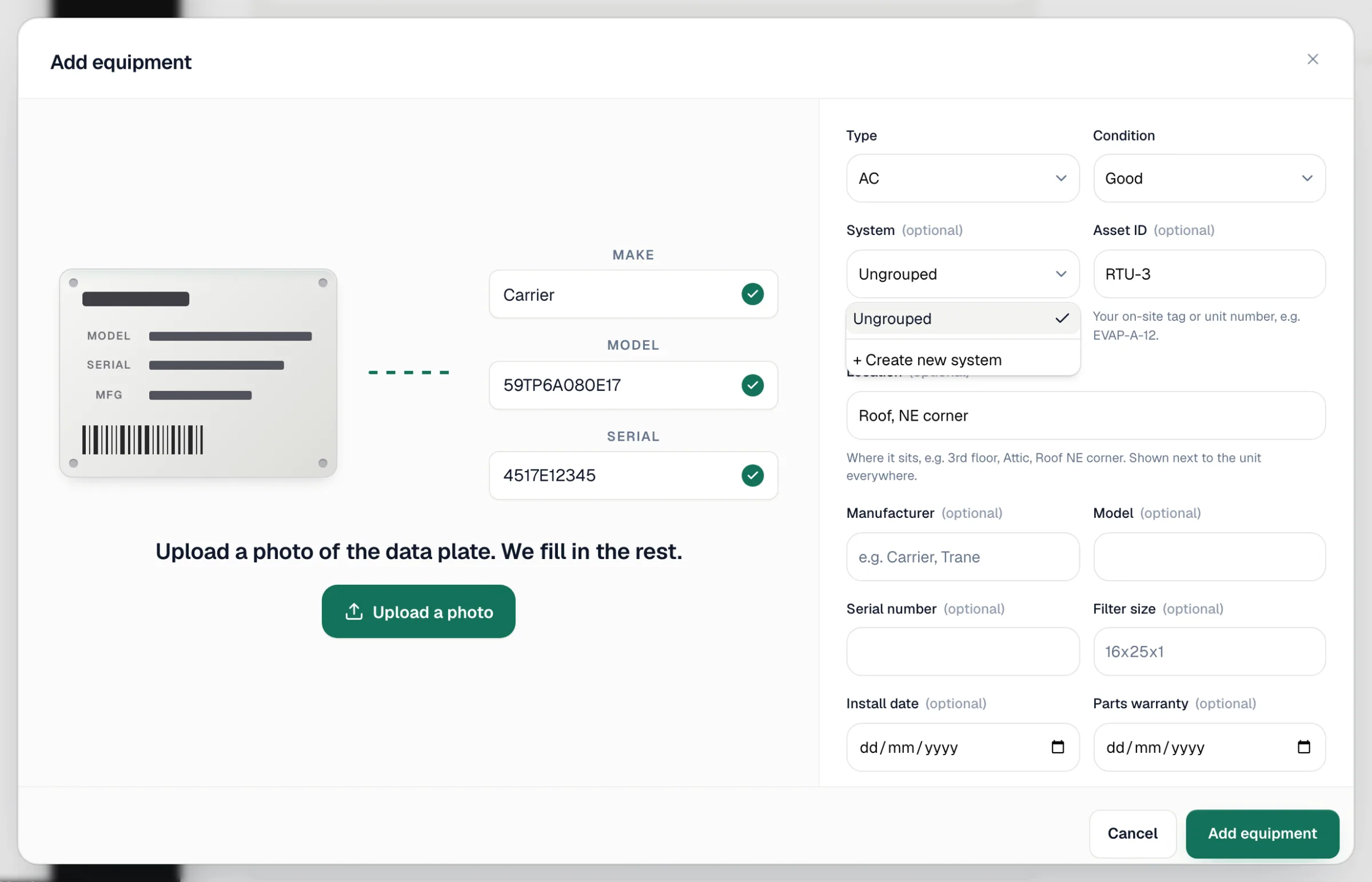
While adding any unit: the System dropdown also offers + Create new system, so you don't have to go to the property page first.
A unit's history comes with it when you move it into or out of a system.
The system page
Click a system on the property page to open it.
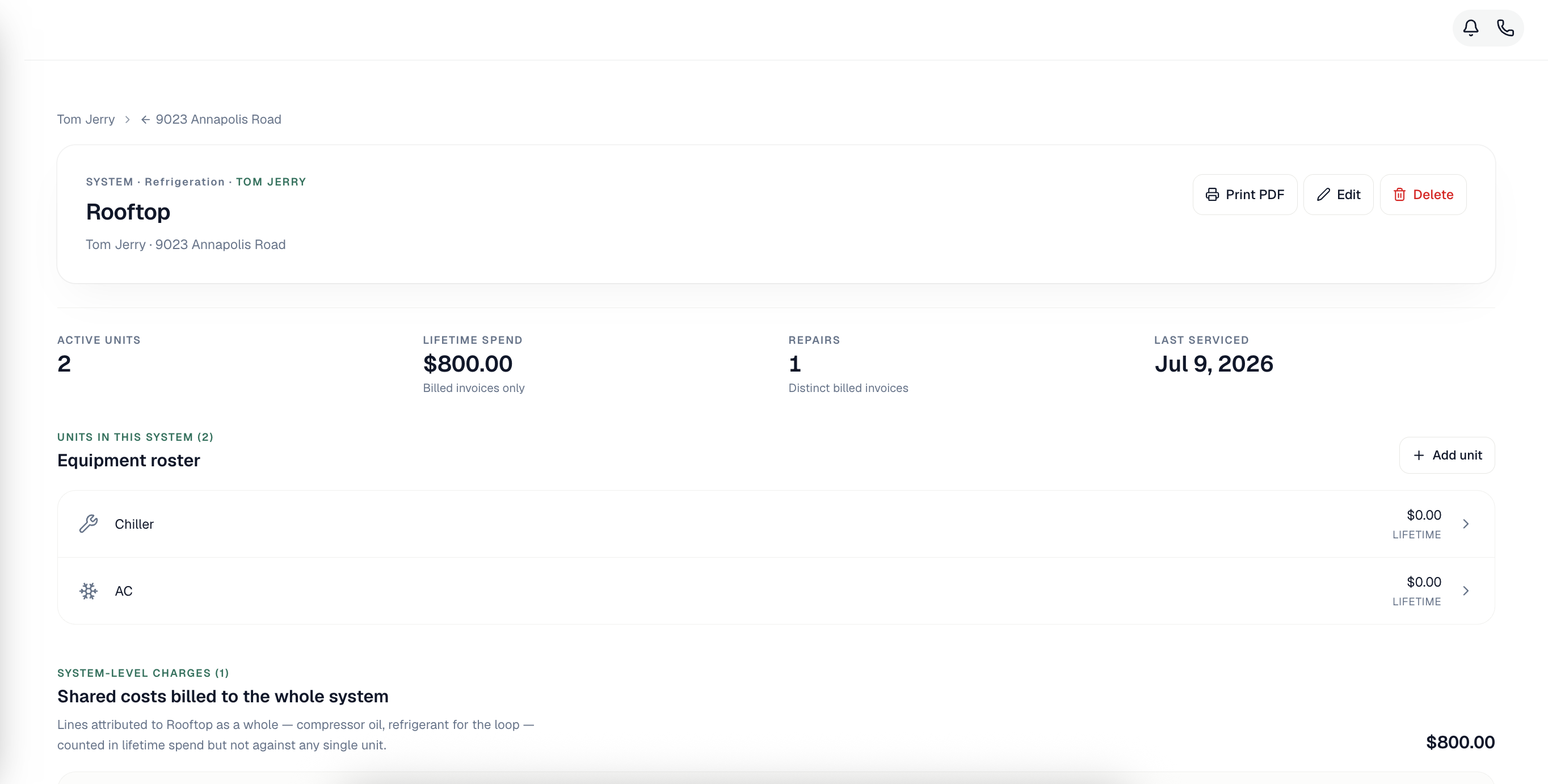
| Section | What it shows |
|---|---|
| Header | Name, category, short code, notes, and a Covered by (plan) badge if a membership covers it. Buttons: Print PDF, Edit, Delete. |
| Active units, Lifetime spend, Repairs, Last serviced | Totals for the whole system. Spend counts billed invoices only. |
| Equipment roster | Every active unit with its asset ID, type, make and model, serial number and lifetime spend. Add unit adds another. |
| System-level charges | Lines billed to the system as a whole, with their total. |
| Service history | The 10 most recent jobs at this address. |
Deleting a system doesn't delete its units. They move to Not in a system and keep their history. By default only owners and admins can delete a system.
Bringing in a big site? The equipment import has a System column. Systems that don't exist yet are created for you, so the units arrive already grouped. See Importing equipment from a spreadsheet.