
If your logo prints too small (or too large) on your paperwork, you can change it. Logo size on documents has three sizes, and one choice applies to every document your company sends.
Who can do this: owners and admins.
Open Settings → Business
Click your name in the bottom-left corner of the sidebar and choose Business.
Pick a size
Under your logo, find Logo size on documents and click Small, Medium or Large. The preview underneath shows your logo at that size on a sample document header.
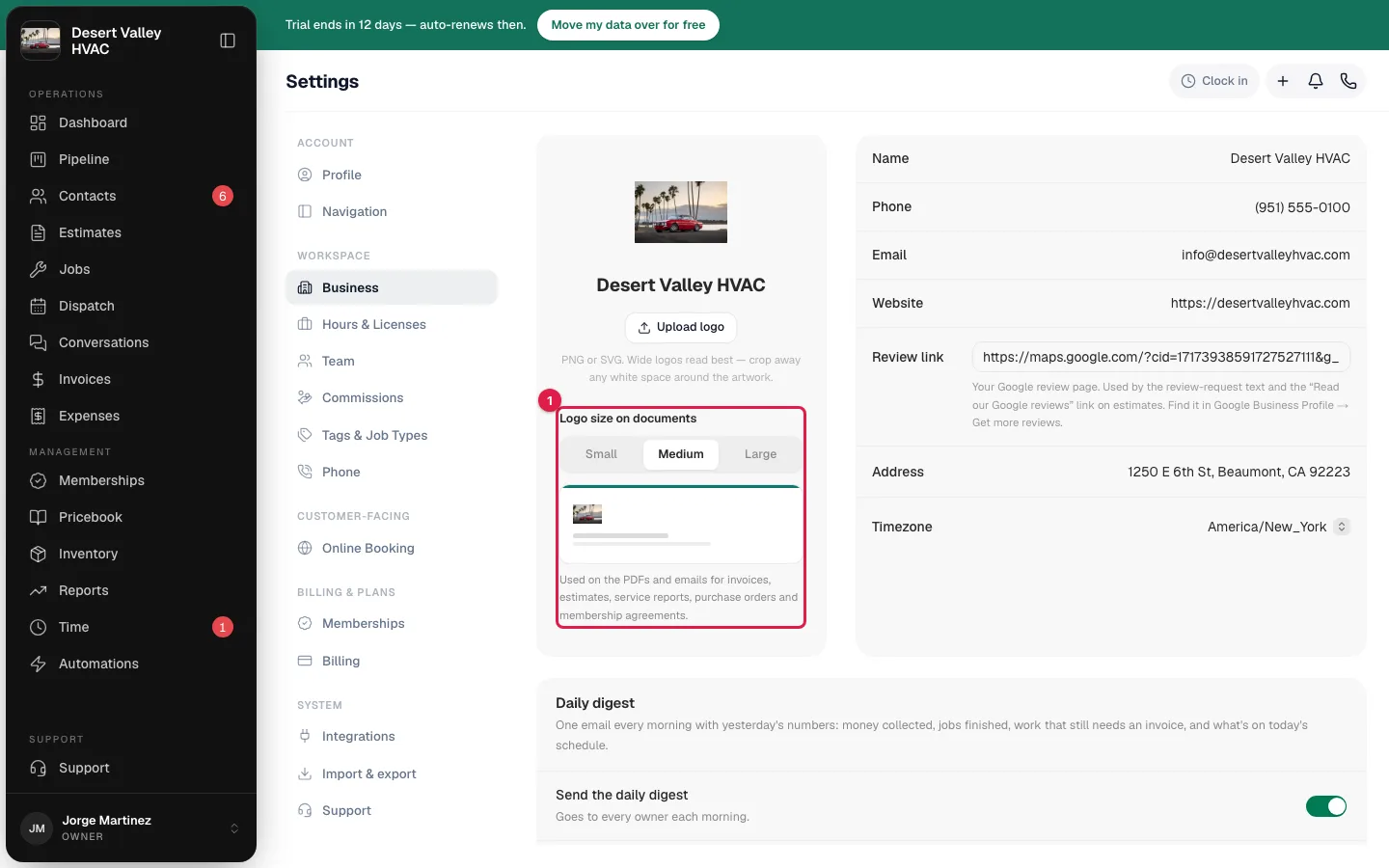
There's no save button. The page saves on its own and you see Saved.
| Size | Compared with Medium |
|---|---|
| Small | Three-quarters the size |
| Medium | The size your documents have always used. Every account starts here. |
| Large | One and a half times the size |
Where it applies
| Applies to | Doesn't apply to |
|---|---|
| The PDFs and emails for invoices, estimates, service reports, purchase orders and membership agreements | The online pages customers open from a link: the invoice pay page, the estimate approval page, the project page and the customer portal |
| The invoice as it's shown inside Run a Call | Your logo at the top of the sidebar and in the mobile app |
The PDF a customer downloads from the pay page is an invoice PDF, so it does use your size.
Documents you've already sent aren't changed in the customer's inbox. Anything you send, resend or download after changing the size uses the new one.
Get the most from your logo
Wide logos read best. Before uploading, crop away the white space around the artwork. A logo saved as a small mark in the middle of a big square prints small at every size, because the empty space counts as part of the image.
- Use a PNG or SVG so the logo stays sharp on printed PDFs.
- The logo is always fitted inside a box, never stretched. A tall logo is limited by height and a wide logo by width, so a wide logo makes the most of Large.
- To replace the file, see Uploading your company logo.