
Every invoice has a PDF version with your logo, the line items, the totals and how to pay. You can download it from the office, and your customer can download it from their pay page.
Download from the office
- Open the invoice.
- Click the download icon (Download PDF) at the top right, next to Edit and the ⋯ menu.

The PDF opens in a new browser tab, where you can save or print it.
What your customer gets
- In the invoice email. When you send an invoice, the PDF is attached automatically.
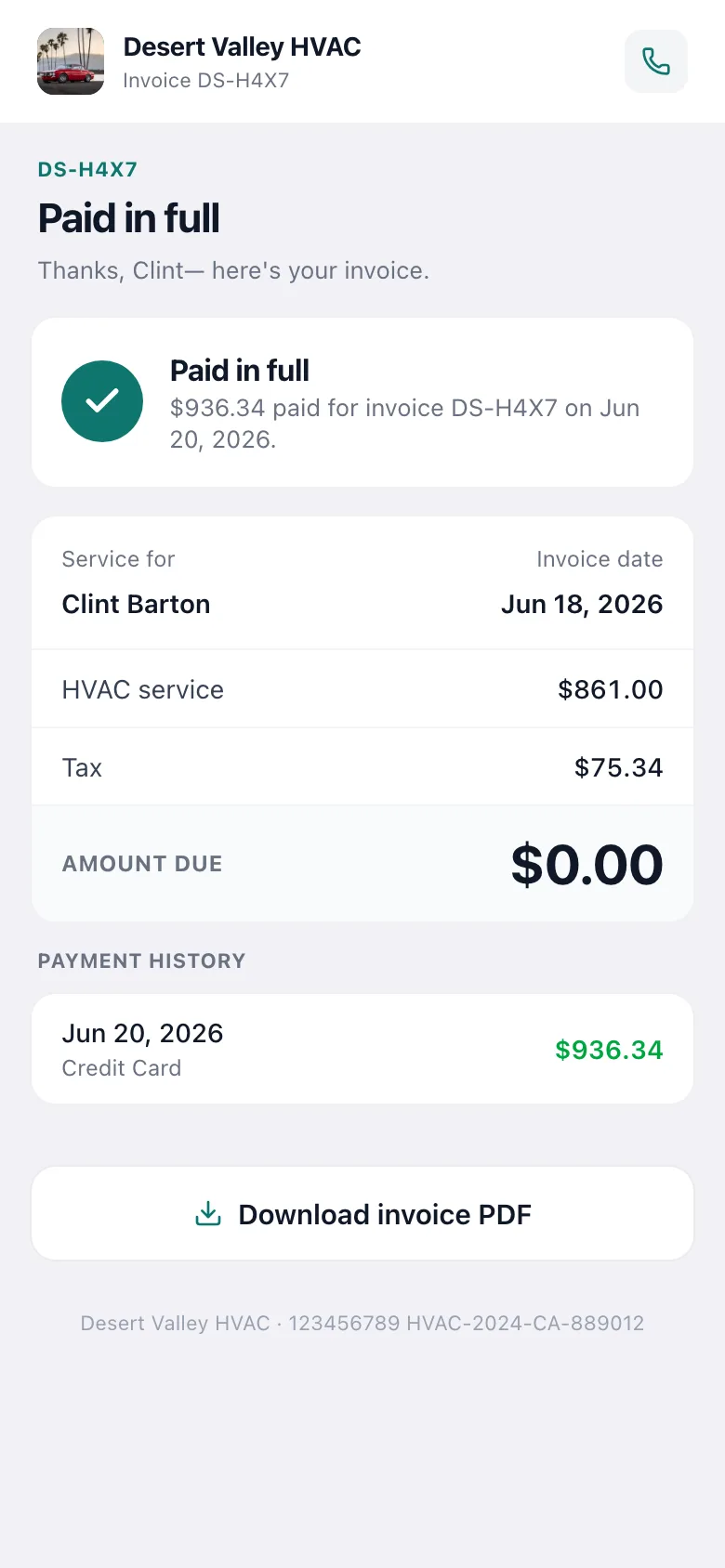
- On the pay page. The Download invoice PDF button is always there, before and after they pay. On a paid invoice, the pay page becomes their receipt.
- As a receipt. Sending a paid invoice gives you Send receipt, which emails the customer a receipt PDF showing the amount paid and the method, without a pay link.
What's on the PDF
| Section | What it shows |
|---|---|
| Header | Your logo, business name and contact details, and the INVOICE title with the invoice number, date, due date and terms. |
| Bill to / Service location | The customer's billing details and the address where the work was done. |
| Line items | Description, quantity, unit price, any discount, and the line total. A small T marks taxable lines. |
| Totals | Subtotal, tax and total. If payments have been made, also Paid and Balance Due. If you've asked for part of the balance, a Due now line. |
| Payment plan | On milestone invoices, which payment this is (for example Payment 2 of 3), the project total, paid to date and the remaining balance. |
| Pay online | A link to the pay page, shown when there's a balance and Stripe is connected. |
| Notes | The notes you wrote for the customer. |
| Inspection summary | Included when the job has one. |
| How to pay | Your payment instructions from Invoice settings → Payment → How customers can pay you. |
| Terms & conditions | Your invoice terms from Invoice settings → Terms. |
Your company logo and brand color come from your business settings. See Uploading your company logo.
In the field app
On the job's invoice screen, a tech taps View invoice to show the customer the invoice on the phone, then Send to Customer to email it, PDF included.
Exporting many invoices
There's no bulk PDF download. To pull invoice data into a spreadsheet:
- Go to Settings → Import & export.
- Under Export your data, choose Invoices (amounts, balance, sent and paid dates) or Payments.
- We email you a download link for the CSV when it's ready, usually within a few minutes.
Owners and admins can export data.