
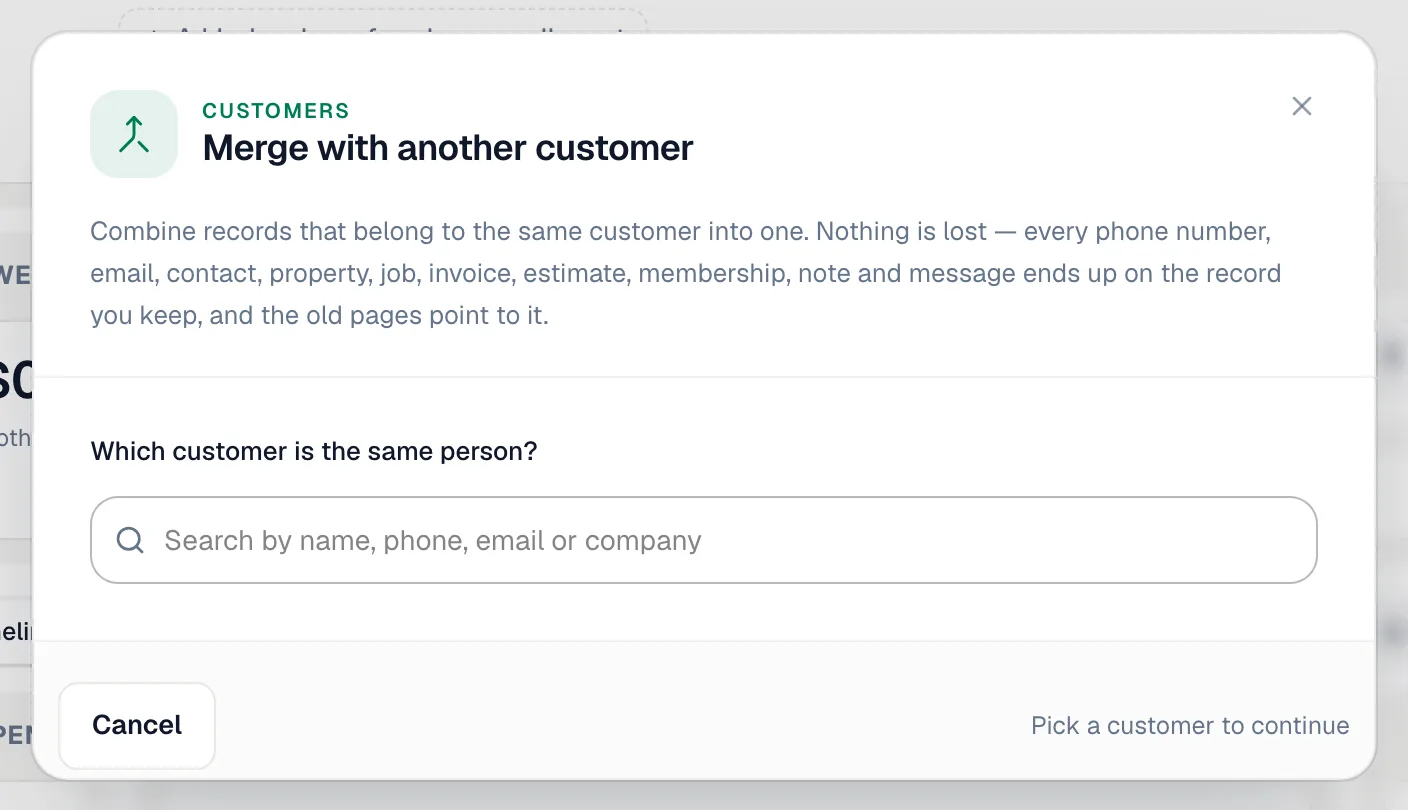
Duplicates creep in — a customer calls from a second number, books online with a new email, or gets typed in twice. Merging combines two (or more) records into one: every job, invoice, estimate, property, membership, contact, note and message ends up on the record you keep, and the old record's page sends people to the kept one.
Who can do this
Owners, admins and dispatchers (anyone who can edit customers).
How Run a Call spots duplicates
Run a Call compares your contacts by phone number, email and name, but never merges anything on its own. You'll see possible duplicates in three places:
- When you add a customer — a card appears if the name, phone or email matches someone you already have, with Open and Continue anyway. See How to add a new customer.
- On the Contacts list — a line like 7 groups of customers look like duplicates with a Review link.
- On a customer's profile — Might be a duplicate of [name] with a Compare link.

Option A: review all possible duplicates
- Click Contacts in the sidebar, then Review next to groups of customers look like duplicates.
- The Possible duplicates page lists each group with Why (same email, same phone number, same name) and a confidence label: Likely or Maybe. Use All, Likely and Maybe at the top to filter.
- For each group, click Merge… to combine them, or Not a duplicate (Not duplicates for bigger groups) if they really are different people. Dismissed groups don't come back.
Option B: merge from a customer's profile
- Open the customer.
- Click Compare on the duplicate banner — or click ⋯ → Merge with another customer and, under Which customer is the same person?, search for the other record by name, phone, email or company.
Finish the merge
1. Choose the record to keep
Under Which record do you want to keep?, pick one. Run a Call suggests the record with more history (more jobs and invoices).
2. Settle the details that differ
Under Details that differ, choose which name, phone, email or billing address to keep for each field that doesn't match. If nothing conflicts you'll see No conflicting details — everything combines cleanly.
3. Read "What happens"
This summary says exactly what moves — for example 32 jobs, 3 invoices and 2 properties move to Barbara White — plus anything to watch out for:
| Message | What it means |
|---|---|
| Email … is kept as an additional contact. | The other record's extra email isn't lost — it's saved on the Contacts tab. |
| Both customers have memberships… | The kept record will have more than one membership. Cancel one afterwards if needed. |
| Both customers are linked to QuickBooks… | QuickBooks will still show two customers — merge them in QuickBooks too. |
| … sub-accounts will move under the customer you keep. | Sites under the other record move to the kept one. |
A few merges are blocked — for example you can't merge a parent account into one of its own sites. Keep the parent instead.
Click Continue.
4. Confirm
Type MERGE and click Merge customers.
A merge can't be undone from the app. If you merge the wrong records, contact support at admin@runacall.com — every change is recorded, so it can be reversed.
Good to know
- Merge, don't delete. Deleting a duplicate leaves its jobs and invoices on a record nobody can open. Merging keeps everything together.
- Links still work. Old links to the merged-away record — in notifications or bookmarks — open the kept record.
- Different people, same phone? Spouses or a landlord and tenant often share a number. Click Not a duplicate and they won't be suggested again.