
Messages is your team's shared text inbox. Every text with a customer — the ones your team types, the automatic reminders, and the customer's replies — sits in one conversation per customer, next to the emails and calls with them. The same page holds your internal team chat.
Who can use it
Owners, admins and dispatchers. Click Conversations in the sidebar, then Messages at the top of the page (next to Calls and AI). Technicians don't see Conversations; they text customers from the mobile app — see Texting customers from the app.
Messages opens once business texting is set up. Until then, the page shows Set up Texting for your business or your approval progress. See Registering your business for A2P 10DLC.
The layout
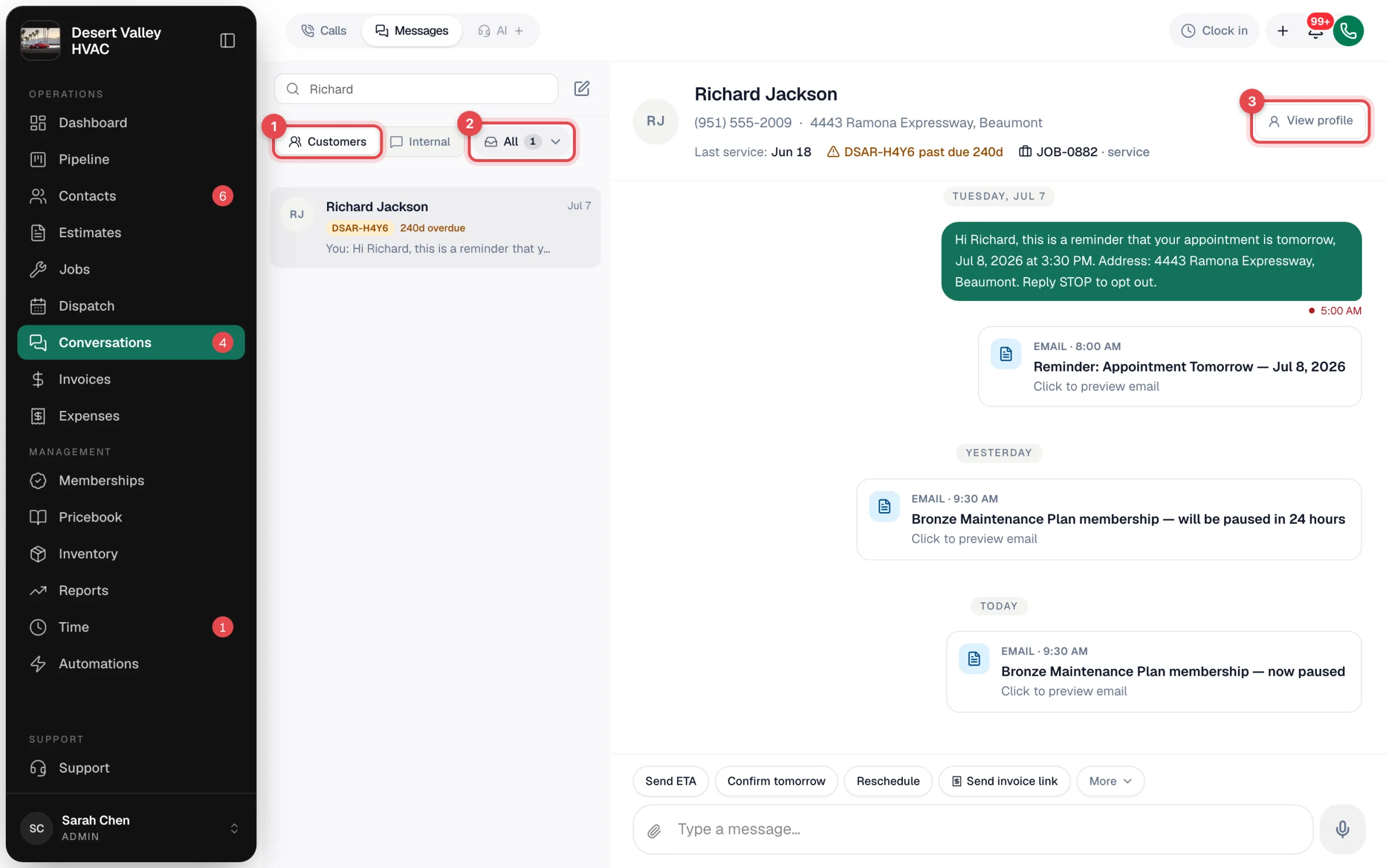
| Area | What it's for |
|---|---|
| Search and the pencil icon | Find a conversation by name, or start a new text (Message a customer). |
| Customers / Internal (1) | Switch between customer conversations and your team chat. |
| Filter menu (2) | Narrow the customer list — see below. |
| Conversation list | One row per customer, newest activity first. |
| Customer header | Phone, address, last service date, plus any past-due invoice and open job (click either to open it). View profile (3) opens the customer. |
| Thread | Texts, emails and calls with the customer, oldest at the top. |
| Message box | Type a reply, use a shortcut, attach a photo or file. |
Each row in the list
- Name — bold when there's something unread, with an unread count on the right.
- A tag — the customer's past-due invoice (with how many days overdue), otherwise their open job or open estimate.
- Last message — You: in front means your side sent it.
- A thin coloured bar on the left edge: red when a text to them failed, blue when they're waiting on a reply.
To mark a conversation unread again, hover its row and click the small arrow icon (Mark as unread). It appears when the last message came from the customer.
Filters
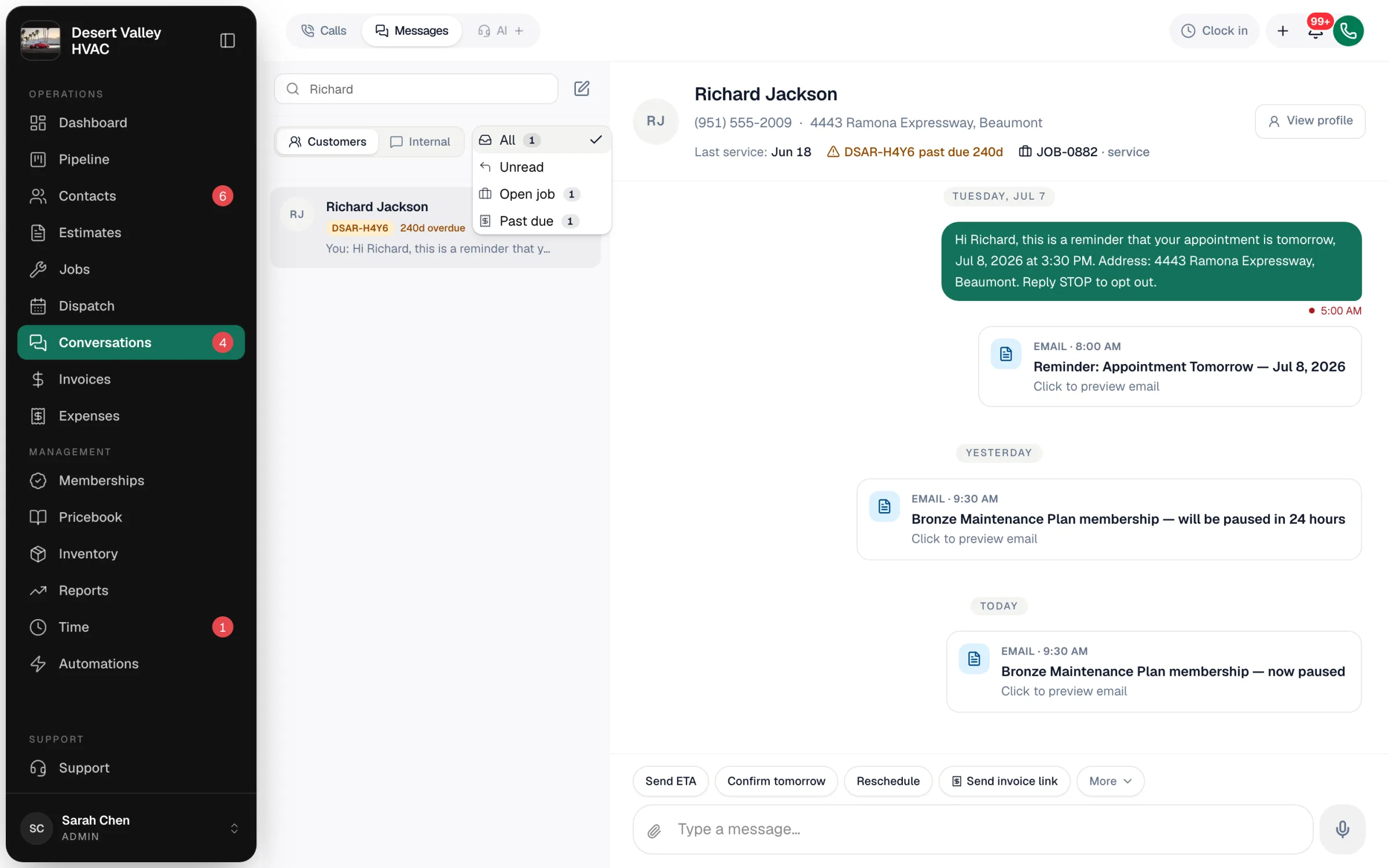
| Filter | Shows |
|---|---|
| All | Every customer conversation. |
| Unread | Conversations with texts you haven't opened. |
| Open job | Customers with a job that isn't finished yet (created, scheduled, en route or in progress). |
| Past due | Customers with an overdue invoice. |
What's in a thread
| You'll see | What it is |
|---|---|
| Green bubbles on the right | Texts from your business. Under each: the time, one check (sent) or two (delivered), a red dot if it failed, and who sent it — for example Dispatcher: Mike Johnson. |
| Grey bubbles on the left | The customer's texts. If the number belongs to one of the customer's extra contacts, it says who, like From Maria — Property manager. |
| auto under a bubble | A text Run a Call sent automatically — a reminder, confirmation or automation. Hover it to see which. |
| Email cards | Emails sent to the customer, with the subject. Click to preview the full email. |
| Call cards | Calls with the customer, in the same timeline. |
| Photos and files | Shown inline — click to open. |
If automatic texts to a customer keep failing, a red banner at the top of the thread tells you how many, with a Check with support → link.
Texts from numbers you don't know
When someone who isn't in your contacts texts your business number, Run a Call creates a new lead named after their phone number, so the text shows up in Messages right away. Open the conversation, click View profile, and add their name.
Notifications
- Conversations in the sidebar and the Messages tab show how many conversations are unread.
- Office users who allowed notifications from the app get a push notification for each incoming text (SMS from {customer name}).
Other places you'll find the same conversation
- The Communication tab on a customer's profile — the full thread with a message box.
- The Communication tab on a job — texts and emails tied to that job.
- Text at the top of a customer's profile opens their conversation.