
Text any customer from your business number, straight from Run a Call. Replies come back into the same conversation, so the whole office sees the thread — nobody texts customers from a personal phone.
Before you start
- Business texting has to be set up and approved. Until it is, Conversations → Messages shows the setup screen or your approval progress — see Registering your business for A2P 10DLC.
- Owners, admins and dispatchers can text customers. Technicians text from the mobile app — see Texting customers from the app.
- The customer needs a mobile phone number on their profile.
Start a text from Conversations
Open Conversations → Messages
Click Conversations in the sidebar, then Messages at the top.
Click the compose button
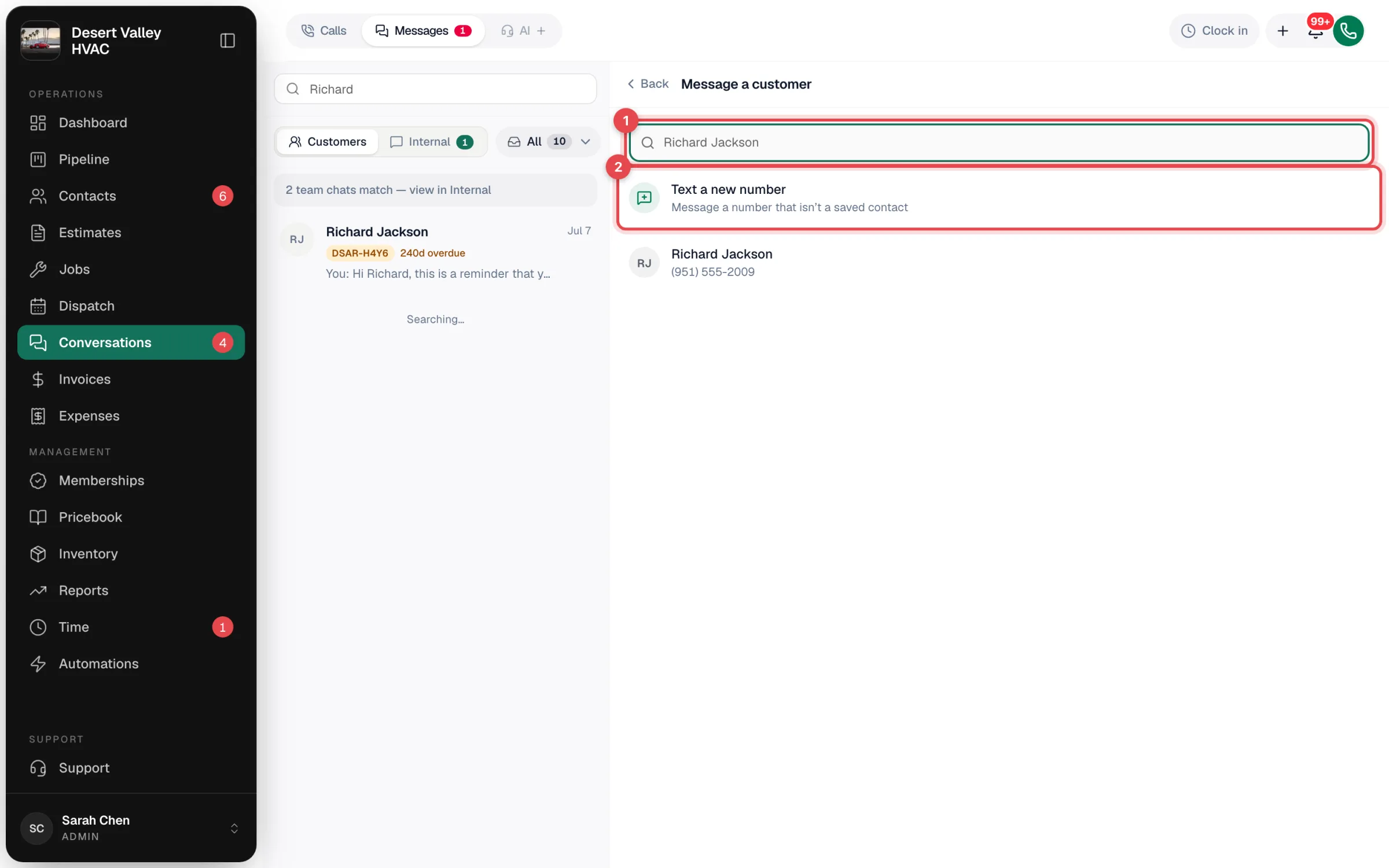
Click the pencil icon next to the search box (Message a customer).
Pick the customer
Start typing a name to search your customers. Customers without a phone number are greyed out.
To text someone who isn't saved yet, click Text a new number, enter the number and click Text — or type the full number into the search and click the Text (number) row. Run a Call saves the number as a new lead named after the number, so you can rename them later.
Type and send
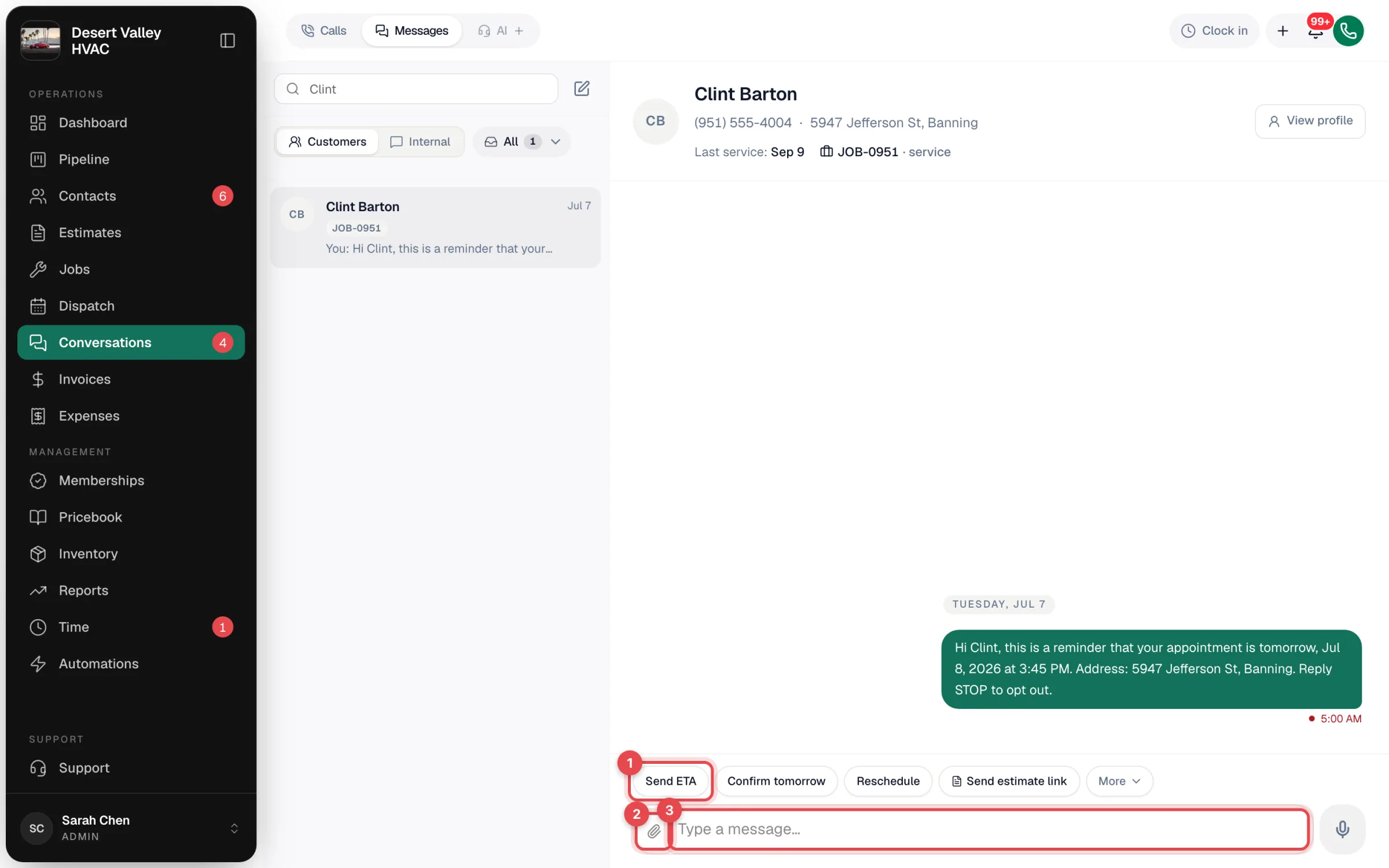
Type in the Type a message… box and press Enter (or click the green send button). Press Shift + Enter for a new line.
Start a text from a customer's profile
Open the customer in Contacts and click Text at the top of the profile. That opens their conversation with the message box ready.
You can also open the customer's Communication tab, which shows the same conversation with a message box, plus an Open in Messages link.

Shortcuts above the message box
The buttons above the message box fill in the text for you. Nothing sends until you press send, so you can edit first.
| Button | What it fills in |
|---|---|
| Send ETA | "Quick heads-up — your technician is on the way and should arrive in about 30 minutes." |
| Confirm tomorrow | A confirmation of tomorrow's appointment. |
| Reschedule | Asks the customer which day and time work this week. |
| Send invoice link | A link to view and pay an unpaid invoice. Shows only when the customer has one; with several you pick which. |
| Send estimate link | A link to review and approve an estimate. With several you pick which. |
| More | More ready-made texts: Confirm appointment, Tech running late, Reschedule, Estimate follow-up, Invoice reminder, Review request. |
If you pick a draft estimate under Send estimate link, Run a Call marks that estimate as sent so the customer can open it.
The microphone button (shown while the box is empty) lets you dictate instead of typing. To add photos or files, click the paperclip — see Sending photos and files by text.
What the customer receives
- The text comes from your business texting number, never a personal cell.
- Every text starts with your business name, for example Desert Valley HVAC: Quick heads-up — your technician is on the way…
- Their reply comes back into the same conversation.
Receiving texts
- Replies land in the customer's conversation and move it to the top of Messages.
- Unread messages show a count on Conversations in the sidebar, on the Messages tab, and on the conversation itself.
- Office users who have notifications turned on for the app get a push notification: SMS from {customer name}.
- A text from a number that isn't saved creates a new lead named after the number, so the message never gets lost. Open the conversation and click View profile to rename them.
Message status
Under each text you send:
| What you see | Meaning |
|---|---|
| One check | Sent. |
| Two checks | Delivered to the customer's phone. |
| Red dot | The text failed to deliver. |
| auto | Sent automatically (a reminder, confirmation or automation), not typed by a person. Hover to see which. |
| Owner: Jorge Martinez (role and name) | Who on your team sent it. |
If several automatic texts to the same customer fail, a red banner at the top of the conversation says so, with a Check with support → link.
When a text won't send
| Message | Why |
|---|---|
| Customer has no phone number | Add a phone number to the customer's profile. |
| Recipient has opted out of text messages | The customer replied STOP. See How customers can opt out of texts. |
| Messaging not active | Your business texting subscription isn't active. |
| SMS not available | Texting registration isn't finished yet. |
| This is the sample customer… | The sample customer can't receive texts. Use a real customer. |
Good to know
- Automatic texts (booking confirmations, day-before reminders, on-my-way, arrival, job done, invoice, overdue payment, review request, cancellation) are turned on and edited in Automations. To avoid flooding a customer, an automatic text is skipped when that number already received a text from you in the last 25 minutes. Texts your team types always go out.
- Emojis are removed before a text goes out. They make texts cost more and get filtered more often by carriers.
- One customer at a time. There's no bulk or group texting to customers.
- The job page has a Communication tab that lists the texts and emails tied to that job. To reply, use Conversations or the customer's profile.