
In the app, the pricebook opens wherever you're adding work: a job's Parts and labor or an estimate you're building. Search your company's items, add them with quantities, and adjust the price on a single line when you need to. Techs can't change the pricebook itself.
Open the pricebook
- On a job: tap Parts and labor under This visit, then Add part or labor.
- On an estimate: tap Add item on the option you're building.
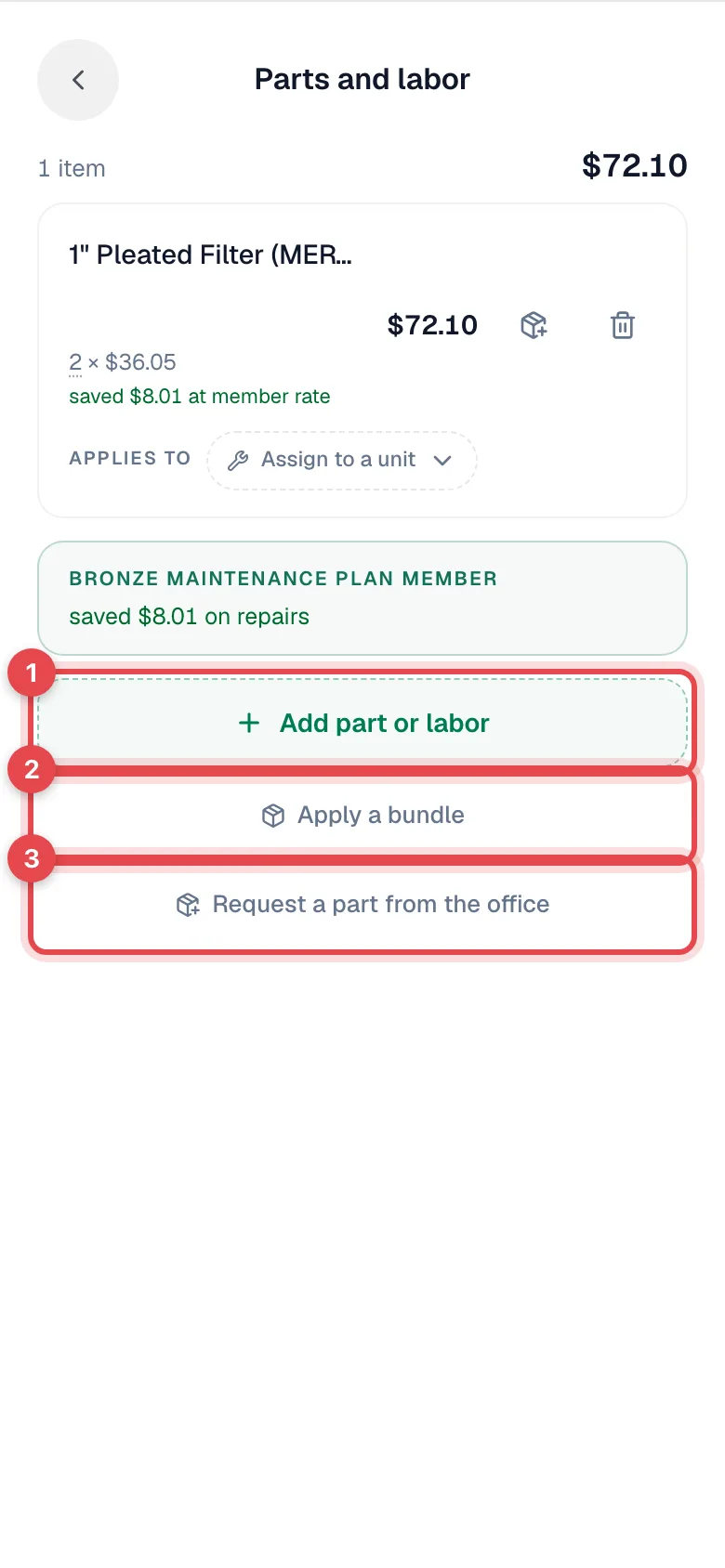
There's no separate pricebook tab in the app. The search opens in the moment you need it.
Find the item
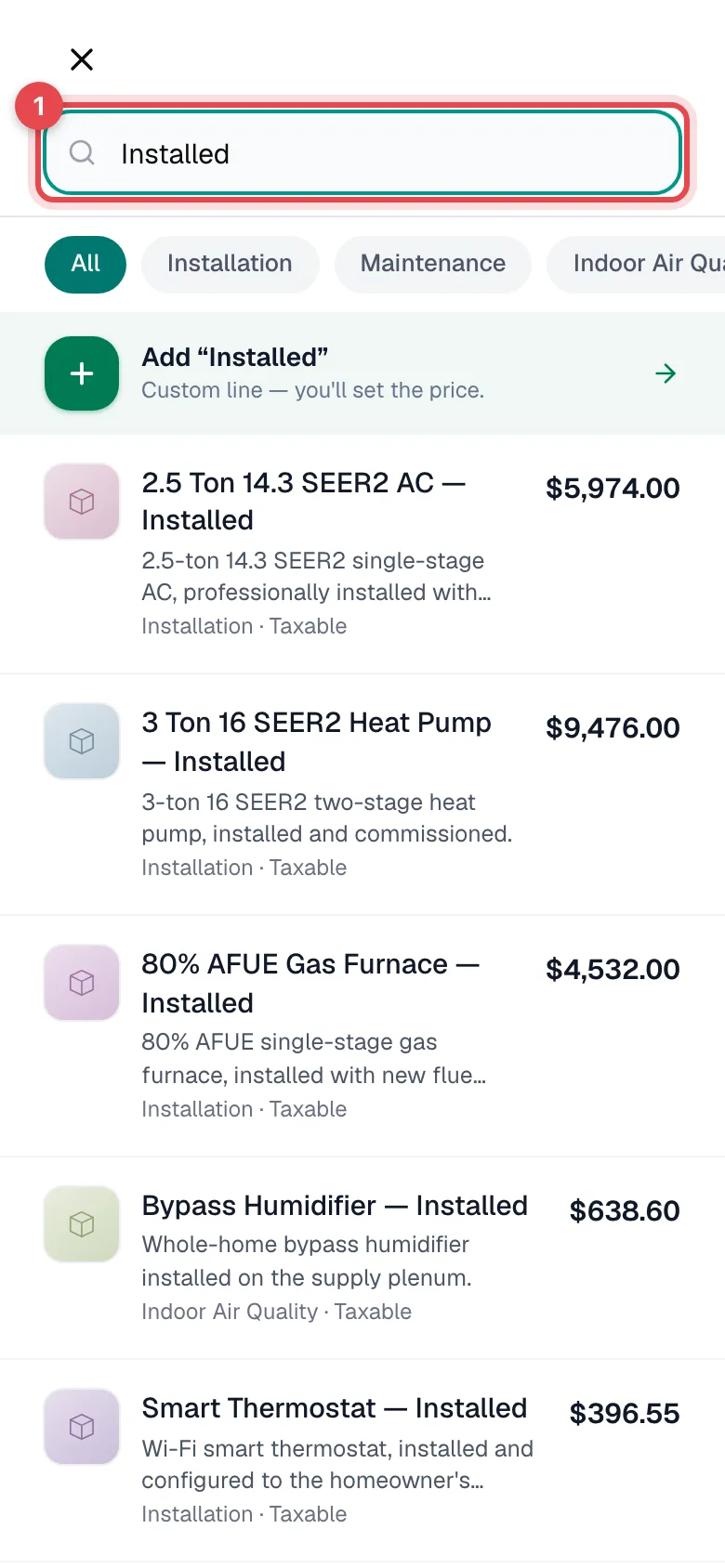
- The full list loads right away, so you can scroll without typing.
- Type in Search pricebook... to narrow it down. The search matches item names and descriptions.
- Tap a category chip to see only that category. All clears it.
Each item shows its picture, name, a short description, its category, whether it's taxable, and its price.
Pick items and quantities
Tap an item to select it, then use − and + to set the quantity. Select as many items as you need, then tap Add 3 items at the bottom.
Something that isn't in the pricebook?
Type what it is. At the top of the list, tap Add "Condensate pump" (Custom line — you'll set the price.). On a job, the app asks you to Set the price before adding it. On an estimate, tap the line afterwards to price it.
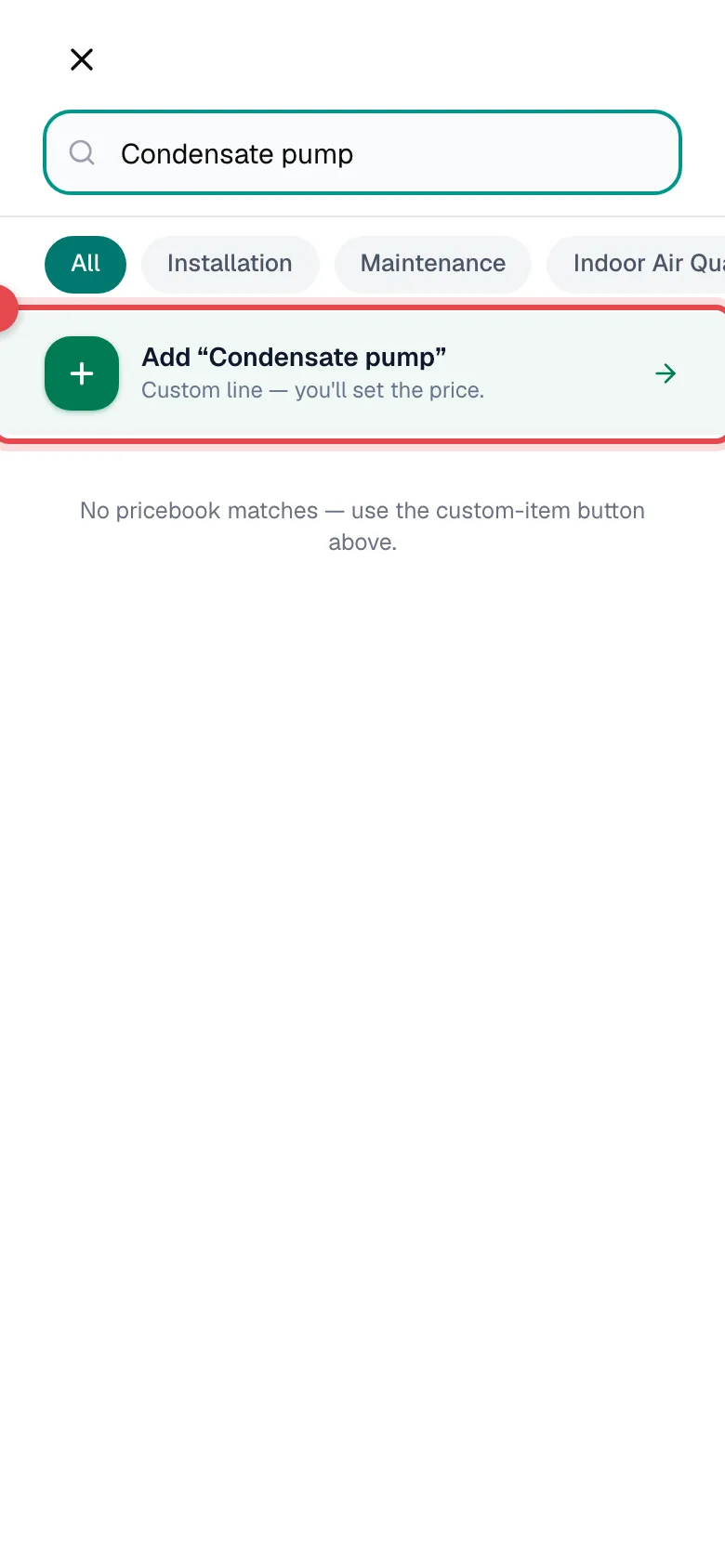
Custom lines exist only on that job or estimate. They don't create a pricebook item.
Change the quantity or price on one line
On Parts and labor, tap the quantity and price under a line (for example 2 × $36.05). You can change:
- Quantity, including decimals like 0.5 for half a unit.
- Unit price. Changes this line only. Your price book and other jobs keep their price.
Check the Line total and tap Save.
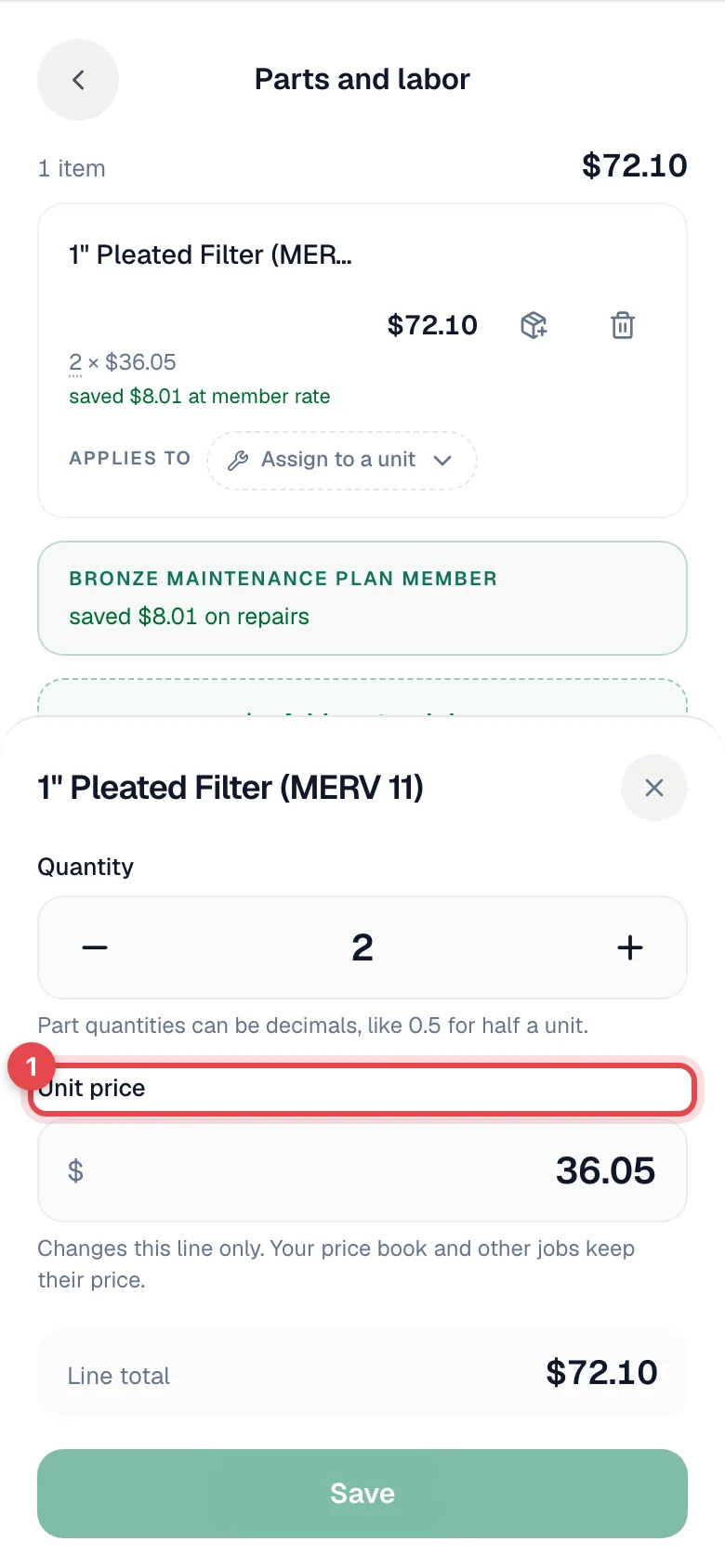
Each line also has:
- A trash icon to remove it.
- A request icon to ask the office to order more of that part. See Requesting parts from the field.
- Applies to, which ties the line to one of the customer's units so it shows up in that unit's service and cost history.
Bundles
Apply a bundle adds a saved group of items (for example a full tune-up) in one tap. If the bundle comes in Good, Better, and Best versions, you pick one. Bundles are set up by the office in the pricebook.
Members' prices
When the customer has a membership, a card at the top of the job shows their plan and its repair discount. Pricebook prices are not lowered for members automatically. To give the member rate, tap the line and change its price, or ask the office to add a discount.
Lines on a member's job show an estimated saved $X at member rate, and a card under the list totals what the membership covered and saved today. These figures are worked out from the plan's discount percentage, even when a line is still at the full price, so check the line prices before you go over the total with the customer.
Good to know
- Can't see prices? Your company can hide prices from certain roles. You'll still see items, just not dollar amounts.
- No signal? The pricebook is saved on your phone, so search keeps working offline and new lines are queued until you reconnect. Apply a bundle needs a connection.
- Parts and labor locks once the invoice has been sent or paid. Ask the office to make changes after that.
- Wrong price in the pricebook? Tell the office. Owners, admins, and dispatchers can edit it from Pricebook in the office app, and the new price is used on lines added after that.