
The Run a Call mobile app is what technicians use in the truck and at the customer's home: today's jobs, directions, notes and photos, parts, estimates, invoices, payments, and the time clock. It runs on iPhone, iPad, and Android, and signs in with the same email and password as the web app.
Get the app
Install Run a Call from the App Store (iPhone and iPad) or Google Play (Android), then sign in with the email your office invited. See Installing the Run a Call app on iPhone & iPad and Installing the Run a Call app on Android.
When the app asks, allow notifications (so you hear about new and changed jobs) and location (so the office can see where the crew is on the map).
The tabs
| Tab | What's in it |
|---|---|
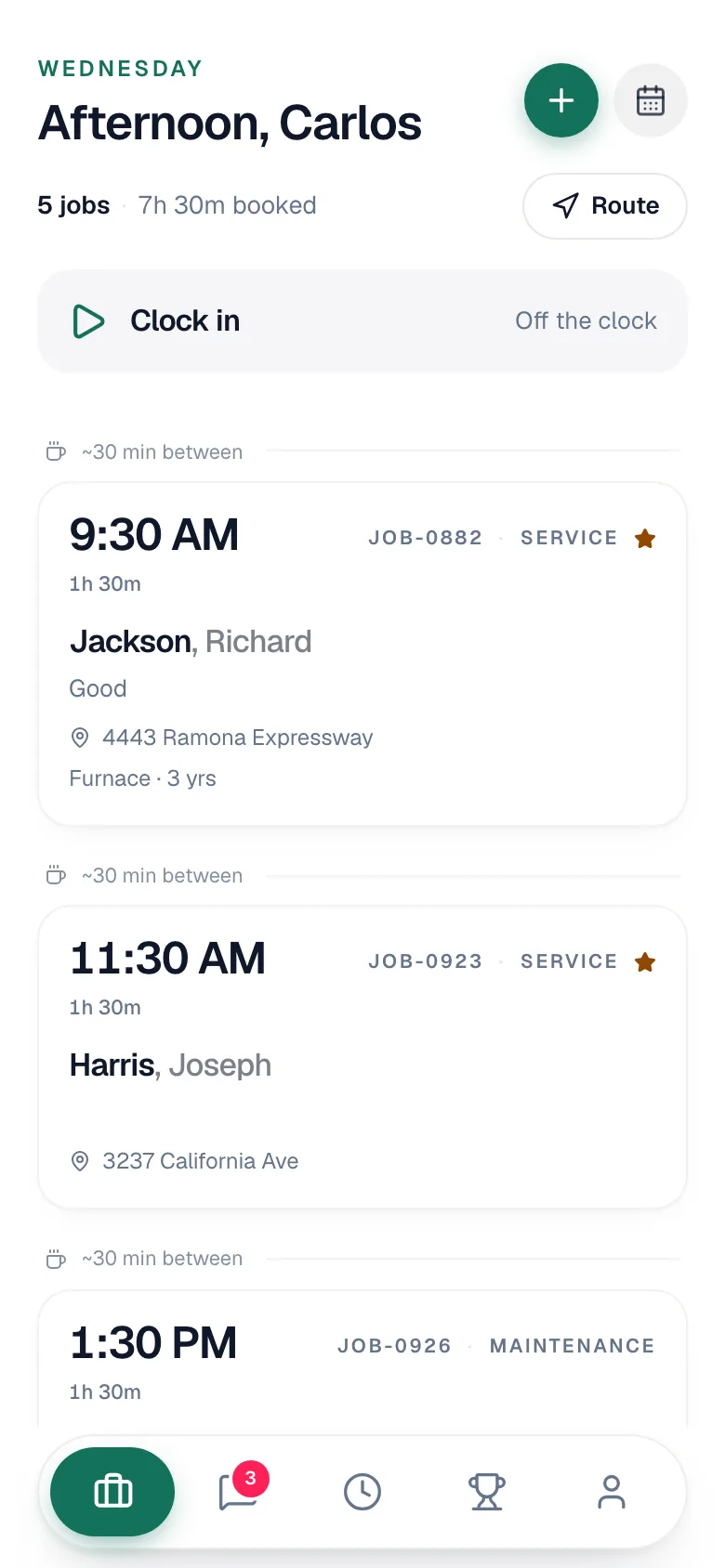
| Jobs | Today's jobs in order, how many you have and how long they're booked for, Route for the day's stops, Clock in, the + to book a job for yourself, and the calendar for your full schedule |
| Conversations | Texts with your customers and chat with your team |
| Timesheet | The time clock and the hours you've worked today. Hidden if your company turned time tracking off. |
| Ranks | How you stand against the rest of the crew. Only there if the office turned on the leaderboard. |
| Profile | Your details and schedule, time off requests, My expenses, My calendar, Help & support, and Sign out |
A job, start to finish
- Open the job from the Jobs tab. You'll see the address, Call and Text buttons, the customer's equipment, and what they reported.
- Tap On My Way when you head out. The button then changes to Arrived on Site. If nobody's there, tap Mark No Show.
- Do the work. Add notes, take photos and video, log equipment and refrigerant, and fill in any forms the office attached.
- Add parts and labor from the pricebook. If something isn't on the truck, send the office a parts request — see Requesting parts from the field.
- Sell the next job. Build an estimate the customer can approve and sign on your screen, or tap Flag for estimator to hand a replacement lead to the office.
- Tap Complete Job. Then Generate Invoice, send it to the customer, and record the payment — cash, check, card, financing, or a split payment.
Everything you do shows up for the office right away.
Owners, admins, and anyone whose role uses both apps can switch to this same technician view with Drive Mode in the mobile app.
Working without signal
The app keeps today's and tomorrow's jobs on your phone. Status changes, notes, photos, parts, and forms you add without signal are saved and sent when you reconnect. A few things — like taking payments, clocking in, and texting customers — need a connection. See Working offline in the mobile app.