
Jobs, estimates, invoices and purchase orders all use the same pricebook picker, so a part costs the same no matter who adds it. Pick from the pricebook whenever you can; type a custom line only for true one-offs.
Where to find it
| On a… | Click |
|---|---|
| Job | Parts & Labor tab → Add item |
| Invoice | Add item under the line items |
| Estimate | Add item inside the option you're building (each Good / Better / Best option has its own) |
| Purchase order | Add items from your price book under Line items |
| Mobile app job | Parts and labor → Add part or labor. See What techs can do with the pricebook. |
Open the picker
Click Add item. The Your Price Book window opens with a search box, category chips and your items.
Search and tap to add
Type part of a name or description, or tap a category chip to narrow the list. Tap an item to add it; tap again to add another one. The window stays open so you can add several items in a row, then click Done.
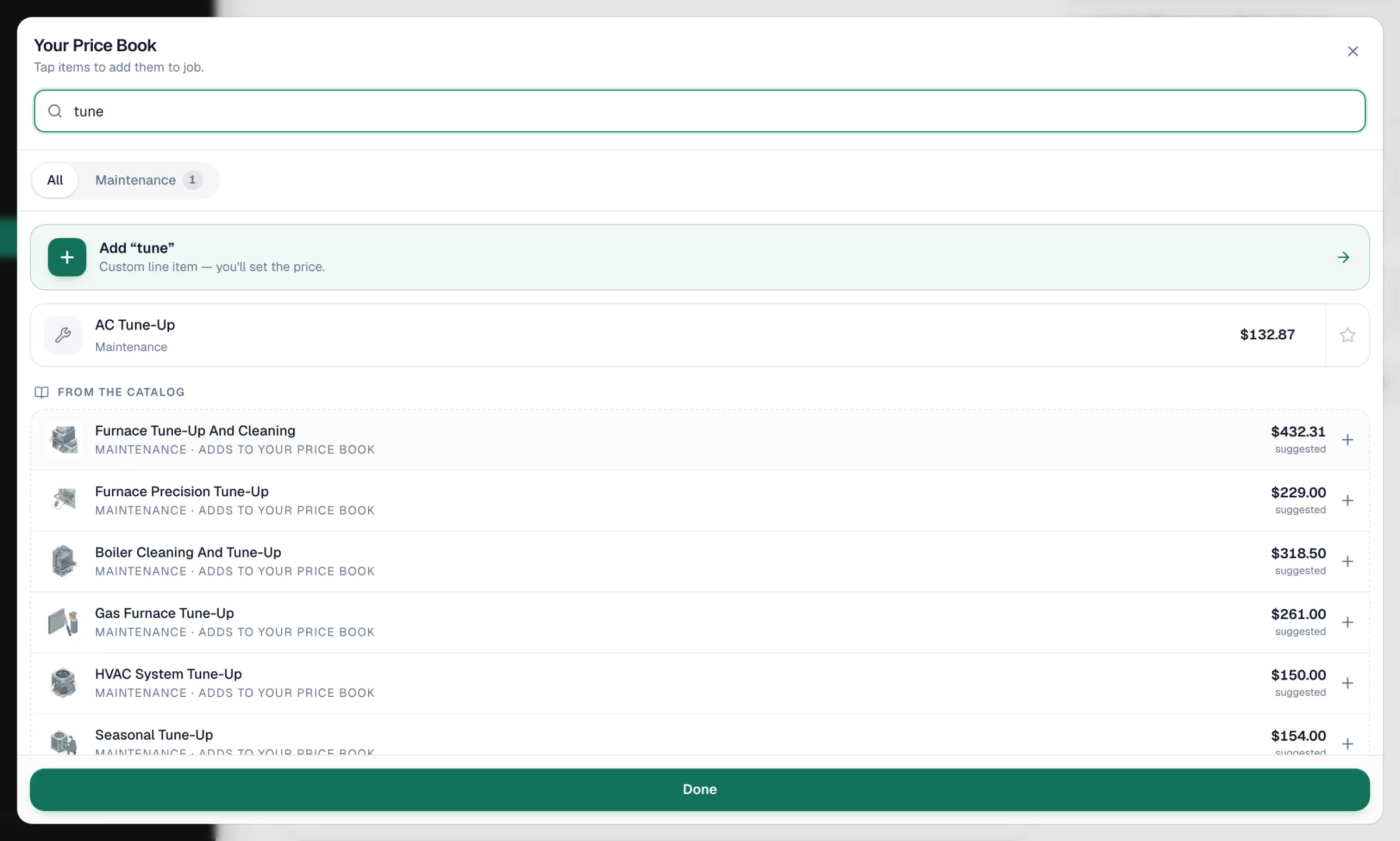
| What you see | What it does |
|---|---|
| Star next to an item | Marks it as a favorite. Favorites are listed first every time the picker opens, for everyone in your company. |
| From the catalog | When nothing (or not enough) matches, suggestions from the Run a Call catalog appear under your own items. Tapping one copies it into your pricebook and adds the line. Review its suggested price afterwards. |
| Add "…" | Adds what you typed as a custom line (see below). |
Adding the same part, service or labor item again raises the quantity on the existing line. On jobs and estimates, Equipment items are the exception: each one gets its own line, so you can label every unit (for example by floor). On an estimate, a line's menu also offers Duplicate this line to copy it with one click.
Adjust the line
Once the line is on the job, estimate or invoice you can change its quantity and price, or open its ... menu to Add discount. Changing a price here affects this line only; the pricebook keeps its price.
Custom lines (not in the pricebook)
For a one-off charge:
- Type what it is in the search box.
- Choose Add "…".
- Fill in Name, Unit price and Quantity, set Taxable or Not taxable, and add a description if you like.
- Add it to the job, estimate or invoice.
When inventory tracking is on, the custom item form also offers Add to pricebook, which saves it as a tracked part (with its cost and category) so you can reuse it.
Custom lines don't count toward inventory and are harder to report on. If you'll sell it again, add it to the pricebook.
Bundles: several lines at once
Instead of adding items one by one, apply a bundle template:
| On a… | Click | Result |
|---|---|---|
| Job or invoice | Apply bundle, then pick a template (and a tier, if it has more than one) | Every item in that tier is added as its own line, on top of what's already there. |
| Estimate option | Apply bundle inside the option | Adds that tier's items to the option. |
| Whole estimate | Apply template (top right of the estimate) | Fills each option from the template's tiers, replacing the lines those options had. You're asked to confirm first. |
See Creating bundle templates.
What happens next
- Job to invoice: when you create an invoice from a job, the job's lines are copied to the invoice.
- Locked jobs: once an invoice for the job has been sent or paid, the job's parts and labor are locked. Make changes on the invoice instead.
- Inventory: if inventory tracking is on, tracked parts on a job come off stock once the job is under way. See How jobs consume stock.
- Default items by job type: your dispatch fee or other items can be added to new jobs automatically. See Starting every job of a type with default line items.