
A job's status tells everyone where the work stands. Most of the time the technician moves it along from the mobile app as the visit happens. The office can move it from the job page when a tech forgets, or when a visit ends differently than planned.
From the field (mobile app)
The big button at the bottom of the job always shows the next step:
| Tech taps | Job moves to | What also happens |
|---|---|---|
| On My Way | En Route | The customer can get an on-the-way text. Travel time starts on the lead tech's timesheet. |
| Arrived on Site | In Progress | The customer can get an arrival text. On-site time starts on the lead tech's timesheet. |
| Complete Job | Completed | The customer can get a job-done text. Labor and job costs are filled in. |
Two smaller options sit under the button:
- Nobody there? Mark No Show — for when the tech arrives and no one answers. The tech confirms with Confirm No Show. The job ends as No Show and isn't billed. It's only offered before the tech taps Arrived on Site.
- Need a part? Step away — for a supply-house run or a part on order. The job keeps its status and shows Parts run or On hold until the tech taps Resume. See Parts run and On hold.
If the phone is offline, the status is saved on the device and syncs when the connection is back.
From the office (job page)
Open the job
Go to Jobs and open the job, or click the job on the dispatch board and choose Open full job.
Click Change status
Change status is in the top-right corner of the job. The list only shows the moves that make sense from where the job is now.
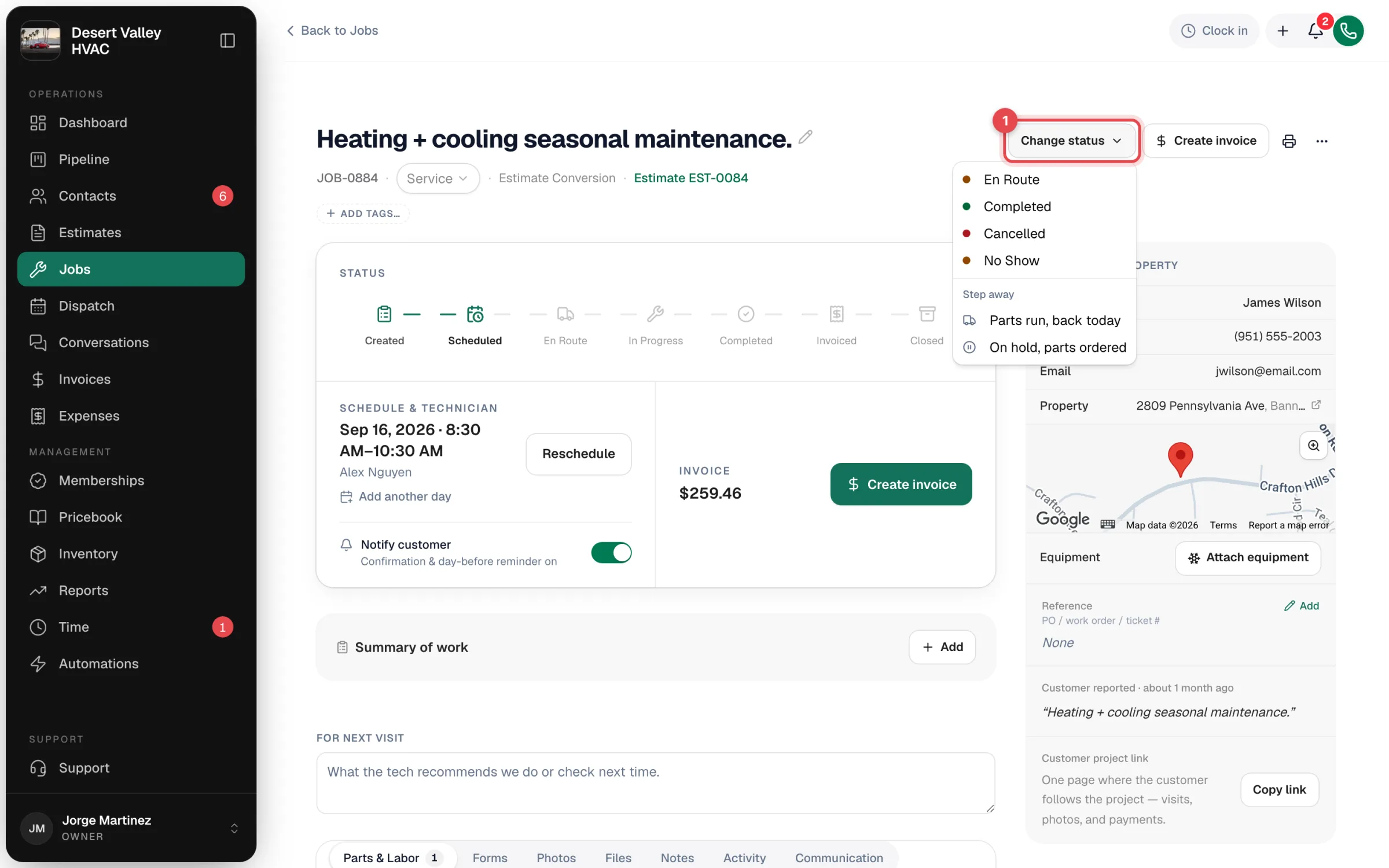
Pick the new status
The change saves right away and the status bar updates.
Scheduled isn't in this list. A job becomes Scheduled when you give it a date and technician with Schedule & assign on the job page, or by dropping it on a tech on the dispatch board.
While a tech is on the way or on site, the status card also shows a one-click button for the next step: Mark in progress or Mark completed. On a scheduled or completed job, that spot shows Create invoice instead.
Marking a job completed from the office
If the job isn't In Progress yet (for example, the tech never tapped anything), picking Completed opens a short dialog, Mark job as completed. Add an optional Reason for completion — it's saved as an internal note on the job — and click Mark completed.
Parts run and On hold from the office
Under Step away in the same menu, choose Parts run, back today or On hold, parts ordered. Choose Resume when the work picks back up.
Moving a job backwards
Owners and admins can undo a status — for example, a job marked Completed by mistake. Open Change status and pick a step from the Move back group, then confirm with Move anyway.
- Nothing is sent to the customer when you move a job back.
- The arrival and work times the tech actually logged are kept.
- A Cancelled or No Show job can only be moved back to Scheduled, and only if it still has an appointment time.
Dispatchers and techs can only move jobs forward.
What each status change sends
| New status | Customer text (if turned on) | Other effects |
|---|---|---|
| En Route | On-the-way text | Travel time starts on the lead tech's timesheet (only when the lead tech makes the change) |
| In Progress | Arrival text | On-site time starts (same rule) |
| Completed | Job-done text | Labor and job costs calculated; a covered membership visit is used up; the office gets a Job completed notification |
| Invoiced | — | Happens when you create the invoice |
| Closed | — | Happens when the invoice is paid in full |
| Cancelled | Cancellation text, only if the customer had already been told about the appointment | Job leaves the dispatch board |
| No Show | — | The lead tech's running time on the job stops; the job isn't billed |
Which texts actually go out is up to you: each one has its own switch in Automations, and texting has to be set up for your business. See What customers receive when you schedule a job.
The Notify customer switch on a job only pauses the booking confirmation, day-before reminder and reschedule texts. On-the-way, arrival and job-done texts still follow your Automations settings.
Good to know
- There's no "Paid" job status. Payment lives on the invoice. When the invoice is paid in full, the job moves to Closed by itself. See Understanding invoice statuses.
- No bulk status changes. Statuses change one job at a time.
- On the pipeline board, dragging a job card to another column changes its status the same way. See Using the pipeline boards.
- Every change is recorded on the job's Activity tab with who made it.