
When techs work across divisions — a maintenance visit in the morning, an electrical job after lunch — one class per technician isn't accurate enough. Split hours by job divides each technician's paid day across the classes of the jobs they actually worked, so every division on your QuickBooks Profit & Loss by Class carries its true labor cost.
What you need
Everything from Posting wages to QuickBooks classes, plus:
| Requirement | Where |
|---|---|
| Job types mapped to classes | Settings → QuickBooks → Sync settings & account mapping → Class tracking (details) |
| On-site time recorded on jobs | Techs working their jobs through the field app, so time on each job is logged |
| A default class per tech (recommended) | Time → Payroll Sync → Employee mapping |
Turn it on
Click Time in the sidebar, open Payroll Sync, and switch on Split hours by job. You'll see "Hours will now split by job." The switch only appears when QuickBooks is connected and tracks classes.

There's nothing else to set up: each job's class comes from the same job type → class mapping your invoices use, so revenue and labor land under the same division.
How a day is split
Say a tech is paid for an 8-hour day, and their on-site time shows 3 hours on a service call and 3 hours on an electrical job:
- 3 hours post under the service job's class.
- 3 hours post under the electrical job's class.
- The other 2 hours — driving, shop time, anything not on a job — post under the tech's default class.
Jobs in the same class on the same day are combined into one entry. The pieces always add up to exactly the hours the tech is paid for. If on-site time ever adds up to more than the paid day (for example overlapping entries), each job's share is scaled down proportionally so payroll still matches the timesheet.
What happens at payroll
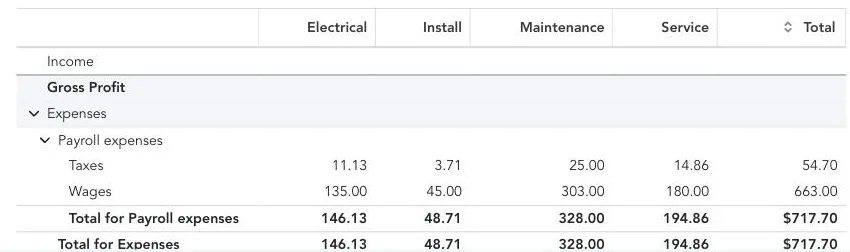
When you run payroll in QuickBooks, each piece comes in with its own class, and QuickBooks splits the wages and employer payroll taxes the same way.
Good to know
- Re-syncing is safe. Entries are restructured in place — no doubled hours.
- Turning it off goes back to one entry per day with the tech's default class, the next time you sync a period.
- A job type with no class mapping uses your Default class from QuickBooks class tracking. If there's no default class either, that job's time posts without a class.
- Pay comes from the timesheet. On-site job time only decides the class split; a day with job time but no paid shift adds no hours.
- Overnight shifts: job time after midnight counts toward the next calendar day, so a night shift's class split may lean toward the tech's default class. The total hours are still right.
- Classes you set by hand in QuickBooks on entries Run a Call doesn't manage are left alone.