
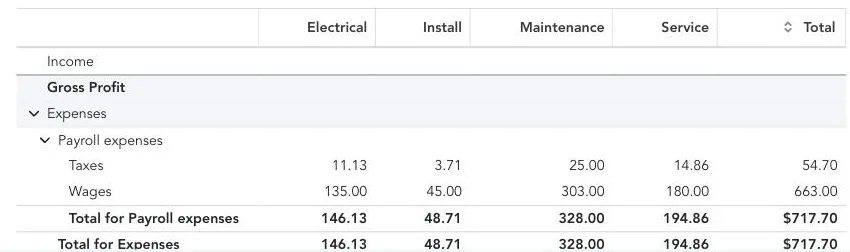
If you run QuickBooks Online Payroll and track classes for your divisions (Service, Install, Electrical…), Run a Call can tag each technician's synced hours with a class. When you run payroll, QuickBooks posts those wages — and the employer payroll taxes on them — under that class, so Profit & Loss by Class shows each division's labor cost. Together with invoice class tracking, each division's P&L carries both its revenue and its labor.
What you need
| Requirement | Where |
|---|---|
| Class tracking turned on in QuickBooks | Account and settings → Advanced → Categories → Track classes |
| Hourly employees in QuickBooks Payroll | See Setting up QuickBooks Payroll for your team |
| Timesheet sync set up | See Syncing timesheet hours to QuickBooks Payroll |
| Owner access | The Payroll Sync tab is owner-only |
Open Employee mapping
Click Time in the sidebar, open the Payroll Sync tab, and expand Employee mapping. When your QuickBooks company tracks classes, the card reads "Match each person to their QuickBooks employee and the class their hours post to."
Pick a class for each technician
Next to each mapped QuickBooks employee, choose the class their hours should post to. The choice saves as soon as you pick it. (Map the employee first — the class can't be set on an unmapped person.)
Sync as usual
From now on every synced time entry for that technician carries their class. Periods you already synced pick up the class the next time you sync them — the entries are updated in place, never doubled.
What happens at payroll
When you run payroll in QuickBooks, the synced hours come in with their classes, and QuickBooks posts the wages and employer payroll taxes for those hours under each class.
Changing or removing a class
- Change a tech's class and sync again: that period's entries are updated in place.
- Set it to No class: Run a Call stops managing the class. Hours you already synced keep whatever class they have.
- Classes set by hand in QuickBooks on entries where you haven't configured a class here are left alone.
This gives each technician one class — ideal when each tech works in one division. If techs move between divisions during the day, turn on job-costed labor to split each day across the classes of the jobs they worked.