
Approved timesheet hours can go straight into QuickBooks Online as time entries, so payroll runs on the hours your team actually clocked — no re-typing on payday. Run a Call sends hours only; QuickBooks Payroll applies pay rates, overtime and taxes.
Before you start
| You need | Where |
|---|---|
| Owner access | The Payroll Sync tab is only shown to the account owner. |
| Time tracking turned on | On by default; controlled from Settings → Team. |
| QuickBooks Online connected | See Connecting your QuickBooks Online account. If it isn't, the tab shows a Connect QuickBooks button. |
| Employees set up in QuickBooks Payroll | Each with an hourly pay type. See Setting up QuickBooks Payroll for your team. |
Open Payroll Sync
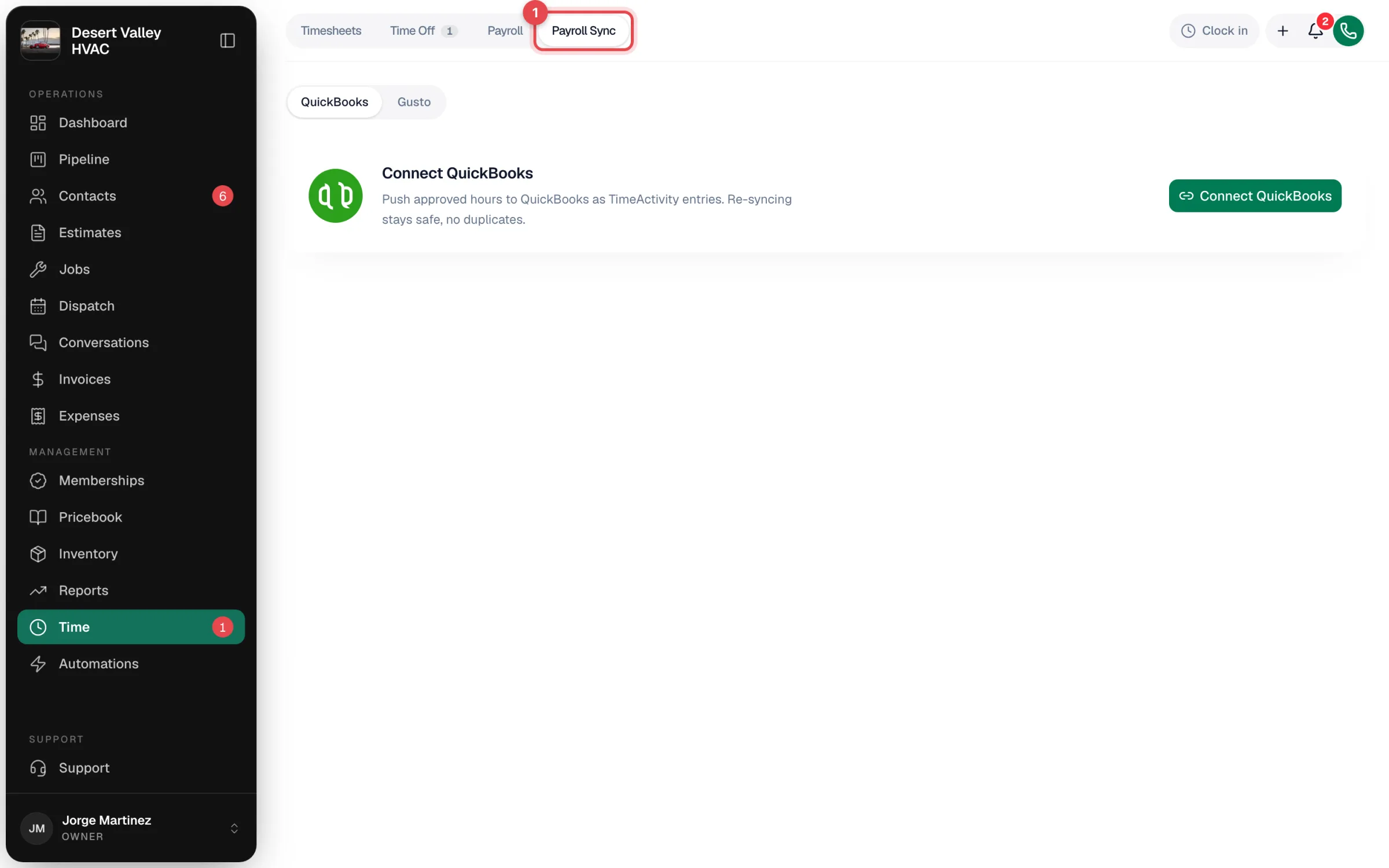
In the sidebar, click Time, then the Payroll Sync tab. Keep QuickBooks selected at the top.
Map your people (once)
Expand Employee mapping and, for each team member, pick their QuickBooks employee. Anyone left on Not mapped isn't synced. The badge on the card tells you when everyone is mapped.
If your QuickBooks company tracks classes, each person also has a class picker — see Posting wages to QuickBooks classes.
Approve and lock the pay period
Only approved and locked hours sync, so nothing half-reviewed reaches payroll. On the Timesheets tab, open each person's timesheet for the period and click Approve & lock (owners and admins).
Pick the period and review
Back on Payroll Sync, the most recent completed pay period is picked for you. Use the arrows to move between periods, or Custom range.

The card tells you where things stand:
| Status | Meaning |
|---|---|
| Ready to sync | Approved, mapped hours are ready. |
| Waiting on approval | Hours in this period aren't approved & locked yet. Approve & lock in Timesheets takes you there. |
| Nothing to sync | No approved and mapped hours in this period, or everything already matches QuickBooks. |
Click Review details to see exactly what the sync will do — Create (add new time entries), Update (change hours or class on entries already in QuickBooks) and Remove (delete entries whose shift no longer exists in Run a Call) — plus a per-employee list of ready and pending hours.
Sync
Click Sync to QuickBooks and confirm. Hours land in QuickBooks as one time entry per employee per day (or one per job's class per day with job-costed labor). The next time you run payroll in QuickBooks, they appear pre-filled for your hourly employees.
Re-syncing is safe
Every sync compares against what's already in QuickBooks:
- Corrected a timesheet after syncing? Sync again — the existing entry is updated in place.
- Deleted a shift? Its time entry is removed from QuickBooks on the next sync.
- Nothing changed? Nothing happens. Nothing ever doubles.
- Time entries someone typed straight into QuickBooks, and entries for employees you haven't mapped, are never touched.
Sync history at the bottom lists every sync; click a row to see exactly what was sent.
Good to know
- Overtime. QuickBooks receives total hours and applies its own overtime rules (weekly by default). If your overtime rule in Run a Call uses daily thresholds, the tab warns you — match your QuickBooks Payroll overtime setup so paychecks agree with the Payroll tab here.
- Gusto appears next to QuickBooks at the top of the tab; this article covers QuickBooks only.