
Ask for a vacation, a sick day, or a half day right from the app. The request goes to your owners and admins to approve, and you get a notification on your phone when they decide.
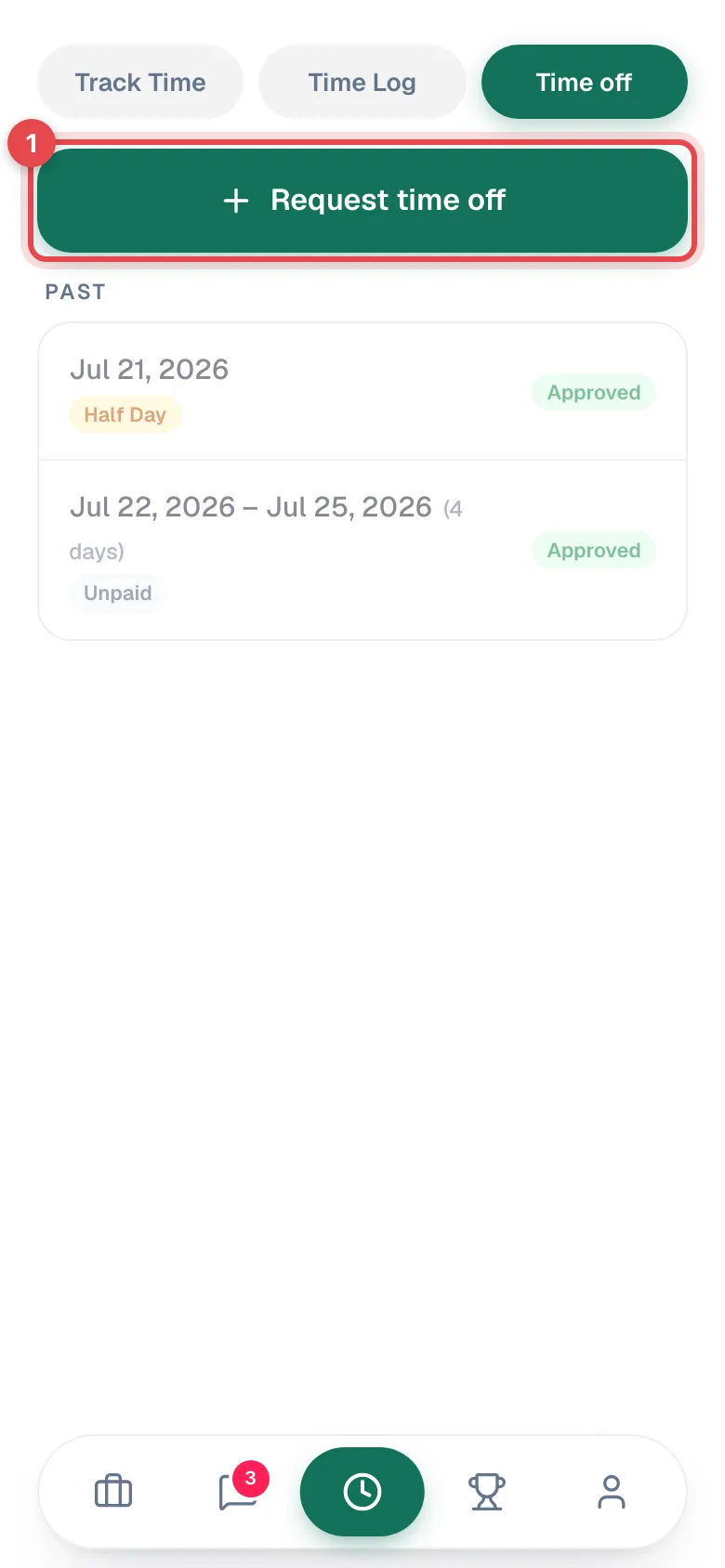
Tap Request
You can start a request from two places:
- Profile (the person icon): next to Time off, tap Request.
- Timesheet (the clock icon): open Time off and tap Request time off.
Fill in the request
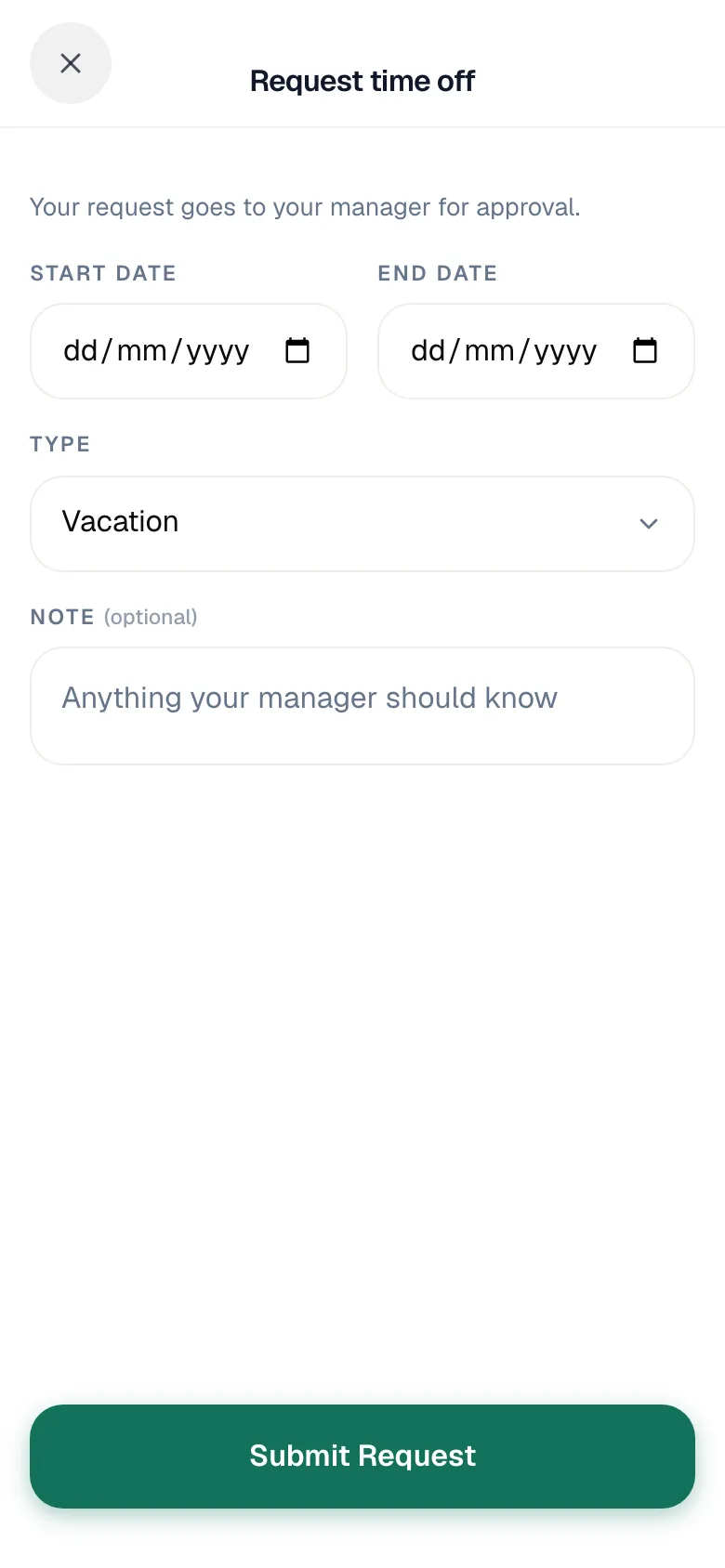
| Field | What to enter |
|---|---|
| Type | Vacation, Sick Day, Half Day, Training, or Other. |
| Start date / End date | The days you'll be off. Sick Day and Half Day are one day, so you just pick a Date. |
| Start time / End time | Only for Half Day. |
| Note (optional) | Anything your manager should know. |
You can't pick a day in the past, and the end date can't be before the start date.
Tap Submit Request
The request shows as Pending. Your owners and admins get a notification with your name, the type, and the dates.
If you already asked for one of those days, you'll see You already have a request for one of the selected dates.
Tracking your requests
Open Timesheet → Time off. Requests are split into Upcoming and Past, each with its type and status:
| Status | Meaning |
|---|---|
| Pending | Nobody has decided yet. |
| Approved | You're off. The office sees it when scheduling. |
| Denied | Not approved. Talk to your manager. |
Your next approved days off also show on Profile. When a request is approved or denied, you get a push notification (Time Off Approved or Time Off Denied).
What the office sees
Owners and admins review requests in the office app under Time → Time Off and approve or deny them there. Approved time off shows against you on the schedule so nobody books you on a day you're out.
Good to know
- No Timesheet tab? Your company turned time tracking off. Requests still work from Profile.
- Need to change a request? Ask the office. Techs can't edit or cancel a request from the app.
- Plans changed after it was approved? The office can remove approved time off that hasn't passed yet. You get a notification that your time off was removed by the office, and you can be booked on those days again.
- Your name, phone, and email on Profile are managed by the office too: Contact your admin to update your name, phone, or email. You can change your profile photo yourself.